
Apache Cassandra Connector 4.1 Examples
The following examples show how to configure Apache Cassandra Connector:
-
Create a New Apache Cassandra Table
Creates a template for an HTML form to use to enter data for the new table, creates a keyspace for the new table, and then creates the table
-
Manipulate Data in an Apache Cassandra Database
Gets table names from a keyspace, performs operations on tables and table columns, executes Cassandra Query Language (CQL) queries, and so on.
Create a New Apache Cassandra Table
This example contains the following flows:
-
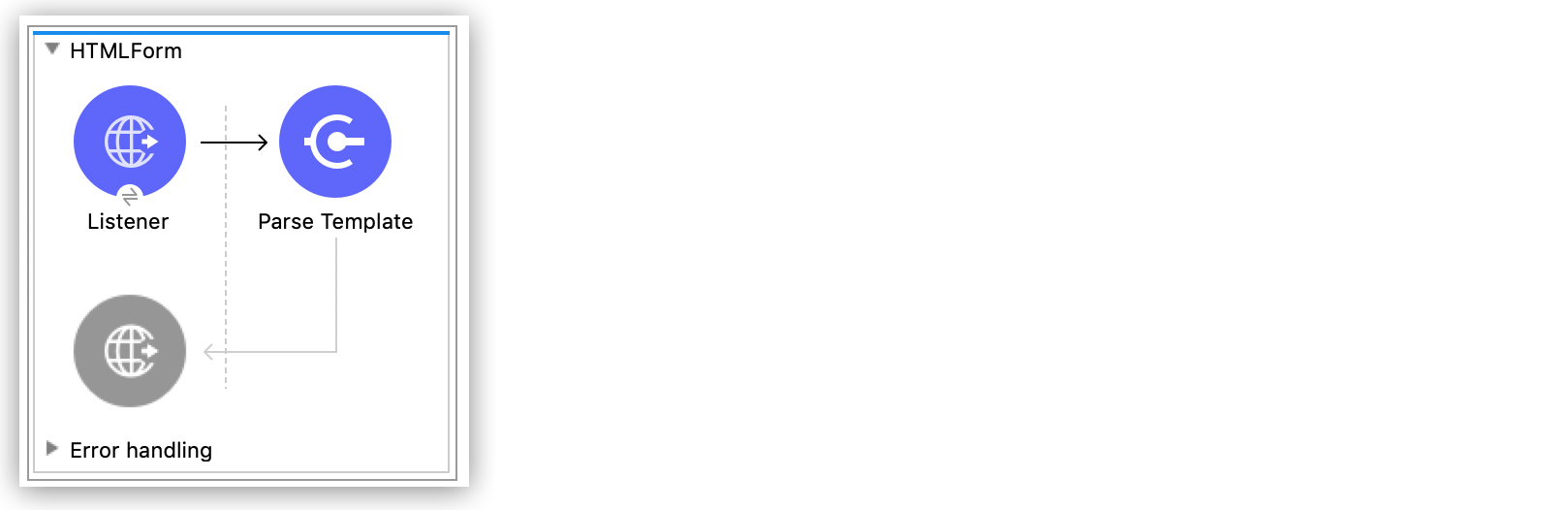
The first flow configures a template for the HTML input form used to convey data for the new table.
-
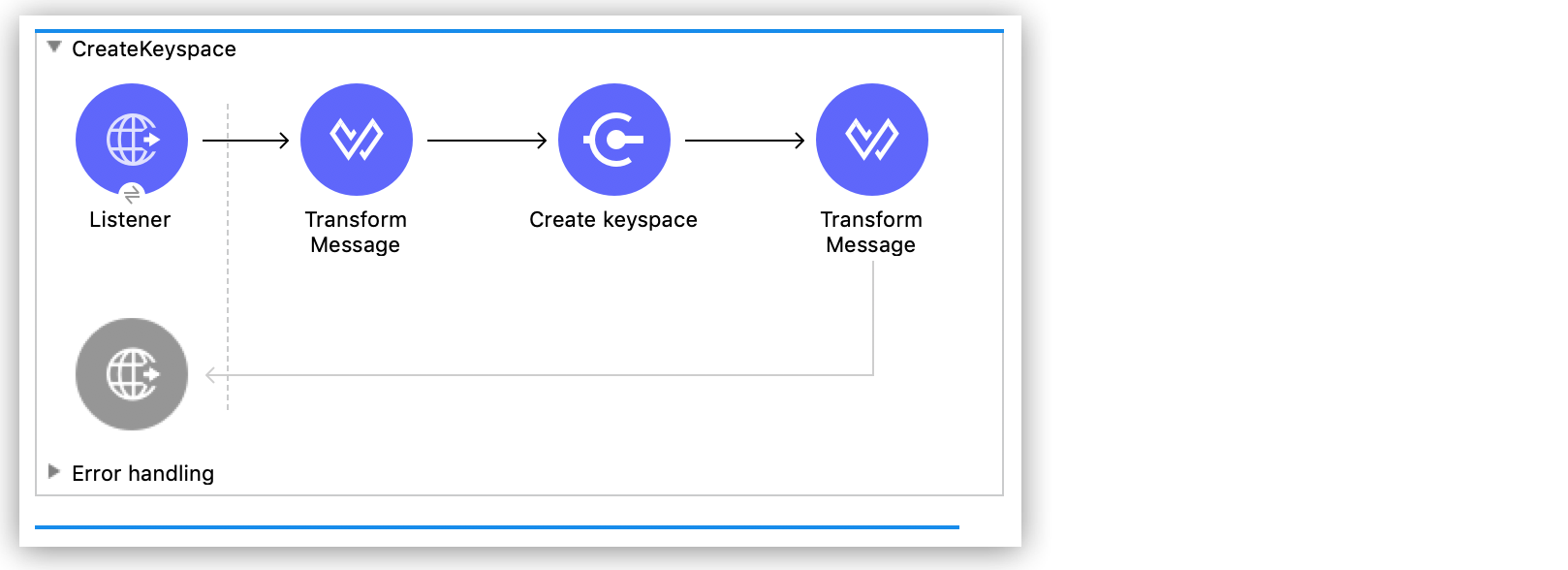
The second flow creates the keyspace for the new table.
-
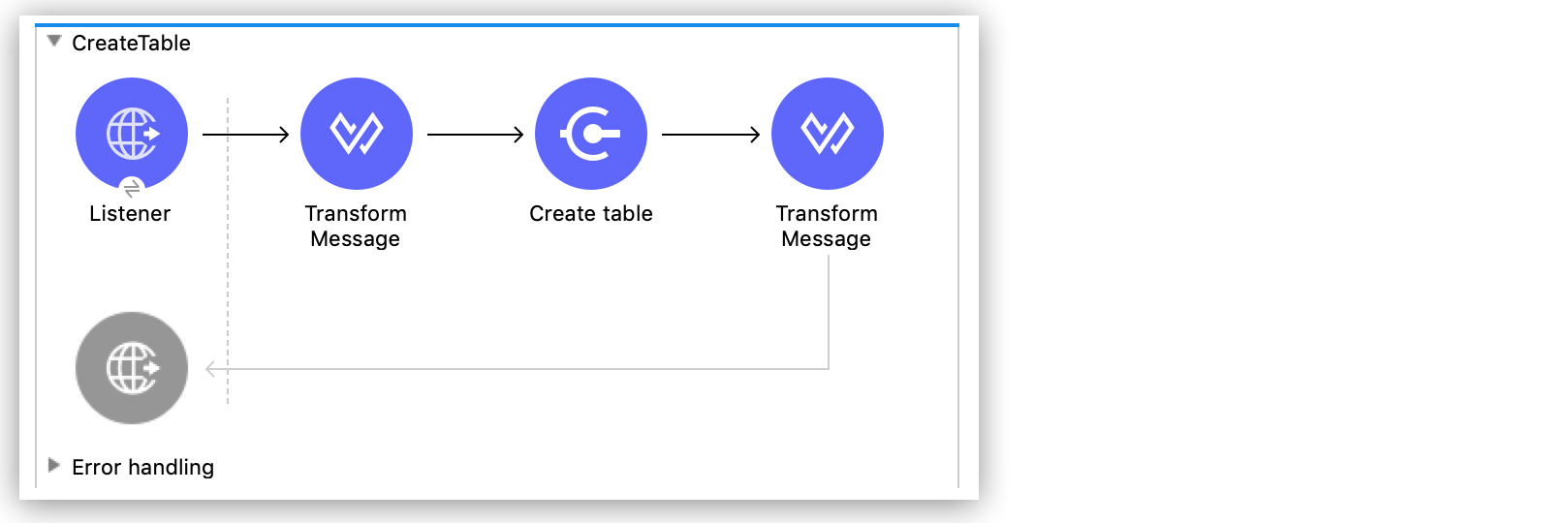
The third flow creates the new table.
This example uses variables for some field values. You can either:
-
Replace the variables with their values in the code
-
Provide the values for each variable in a properties file and then refer to that file from the connector configuration.
If you don’t know how to use a properties file, see Configuring Property Placeholders.
Configure a Template for the HTML Input Form
This flow configures an HTML template to use for providing HTML input to create the new table:
Configure HTTP Listener
Configure HTTP Listener to initiate a Mule flow when a call is made to the / path on port 8081:
-
Create a new Mule Project in Anypoint Studio.
-
In Studio, click HTTP and drag the Listener operation to the canvas.
-
On the Listener properties window, click the plus sign (+) next to the Connector configuration field to add a global element.
-
Accept the defaults.
-
On the Listener properties window, set the Path field value to
/.
Add a Parse Template Component
Add a Parse Template component to create a template for an HTML form (form.html), which is located in the main resources folder. The example uses this form to convey information for creating the table.
-
From the Mule Palette view, search for
parseand drag Core > Parse Template to the right of Listener. -
In the Location field, enter
form.html.
Create the Keyspace
This flow creates the keyspace for the new table:
Configure HTTP listener
Configure HTTP Listener to initiate a Mule flow when a call is made to the /test/createKeyspace path on port 8081:
-
Create a new Mule Project in Anypoint Studio.
-
In Studio, click HTTP and drag the Listener operation to the canvas.
-
On the Listener properties window, click the plus sign + next to the Connector configuration field to add a global element.
-
Accept the defaults.
-
In Listener configuration window, set the Path field value to
/test/createKeyspace.
Add a Transform Message Component
Add a Transform Message component to set Java variables based on the payload received from HTTP Listener:
-
From the Mule Palette view, drag a Transform Message component to the right of Listener.
-
In the Transform Message configuration, overlay the brackets in the Output section with this XML:
%dw 2.0
output application/java
---
{
 "keyspaceName": payload.keyspaceName,
 "replicationFactor": payload.replicationFactor,
 "replicationStrategyClass": payload.replicationStrategyClass
}
as Object {
 class: "org.mule.modules.cassandradb.api.CreateKeyspaceInput"
}
Add the Create Keyspace Operation
Add the Create keyspace operation to create the keyspace where the new table will reside:
-
From the Mule Palette view, select CassandDB and drag the Create keyspace operation to the right of the Transform Message component.
-
In the Create keyspace configuration, click the plus sign (+) next to the Connector configuration field to add a global element.
-
Configure the fields in the global element:
Field Description Host
${cassandra.Host}Port
${cassandra.Port}Keyspace
${cassandra.keySpace}Username
${cassandra.userName}Password
${cassandra.password} -
Click Test Connection to confirm that Mule can connect with the target Apache Cassandra instance.
If the connection is successful, click OK to save the configuration. Otherwise, review and correct any invalid parameters and retest.
-
Save the project.
-
Test the app by sending a REST request to the
test/createKeyspacepath on port8081.
Create a New Table
This flow creates a new table in the target Apache Cassandra database:
Configure HTTP Listener
Configure HTTP Listener to initiate a Mule flow when a call is made to the /test/createTable path on port 8081:
-
Create a new Mule Project in Studio.
-
In Studio, click HTTP and drag the Listener operation to the canvas.
-
In the Listener configuration, click the plus sign + next to the Connector configuration field to add a global element.
-
Accept the defaults.
-
In the Listener configuration, set the Path field value to
/test/createTable.
Add a Transform Message Component
Add a Transform Component to set Java variables based on the payload received from HTTP Listener:
-
From the Mule Palette view, drag a Transform Message component to the right of Listener.
-
In the Transform Message configuration, overlay the brackets in the Output section with this XML:
%dw 2.0
output application/java
---
{
  "columns": payload.columns,
  "tableName": payload.tableName,
  "keyspaceName": payload.keyspaceName
} as Object {
  class : "org.mule.modules.cassandradb.api.CreateTableInput"
}
Add the Create Table Operation
Add a Create Table operation to create a new table in the keyspace you created in the previous flow:
-
From the Mule Palette view, select CassandDB and drag the Create Table operation to the right of the Transform Message component.
-
In the Create Table configuration, click the plus sign (+) next to the Connector configuration field.
-
Select the global element that you configured for the Create keyspace operation.
-
Click OK.
-
Click Test Connection to confirm that Mule can connect with the Cassandra instance.
If the client test is successful, click OK to save the configuration. Otherwise, review and correct any invalid parameters and retest.
-
Save and run the Mule app.
-
Test the app by sending a POST command to the
/test/createTablepath on port8081. Use theapplication/jsonMIME type and enter the table description in the command body, using uppercase for the data types:{ "tableName": "users", "keyspaceName": "Excelsior", "columns": [ { "name": "id", "type": "INT", "primaryKey": "true" }, { "name": "username", "type": "TEXT", "primaryKey": "true" }, { "name": "name", "type": "TEXT", "primaryKey": "false" }, { "name": "email", "type": "TEXT", "primaryKey": "false" } ] }
XML for the Create an Apache Cassandra Keyspace and Table Example
Paste this code into the Studio XML editor to quickly load the flow for this example into your Mule app:
<?xml version="1.0" encoding="UTF-8"?>

<mule xmlns:cassandra-db="http://www.mulesoft.org/schema/mule/cassandra-db"
xmlns:ee="http://www.mulesoft.org/schema/mule/ee/core"
xmlns:http="http://www.mulesoft.org/schema/mule/http"
xmlns="http://www.mulesoft.org/schema/mule/core"
xmlns:doc="http://www.mulesoft.org/schema/mule/documentation"
xmlns:xsi="http://www.w3.org/2001/XMLSchema-instance"
xsi:schemaLocation="http://www.mulesoft.org/schema/mule/core
http://www.mulesoft.org/schema/mule/core/current/mule.xsd
http://www.mulesoft.org/schema/mule/http
http://www.mulesoft.org/schema/mule/http/current/mule-http.xsd
http://www.mulesoft.org/schema/mule/ee/core
http://www.mulesoft.org/schema/mule/ee/core/current/mule-ee.xsd
http://www.mulesoft.org/schema/mule/cassandra-db
http://www.mulesoft.org/schema/mule/cassandra-db/current/mule-cassandra-db.xsd">

  <configuration-properties file="mule-app.properties" />
  <http:listener-config name="HTTP_Listener_config" doc:name="HTTP Listener config">
    <http:listener-connection host="0.0.0.0" port="8081" />
    </http:listener-config>
  <cassandra-db:config name="CassandraDB_Config" doc:name="CassandraDB Config">
    <cassandra-db:connection
      host="${config.host}"
      port="${config.port}"
      keyspace="${config.keyspace}"
      username="${config.username}"
      password="${config.password}"/>
	</cassandra-db:config>
  <flow name="HTMLForm">
    <http:listener doc:name="Listener" config-ref="HTTP_Listener_config" path="/"/>
    <parse-template doc:name="Parse Template" location="form.html"/>
  </flow>
  <flow name="CreateKeyspace">
    <http:listener
      doc:name="Listener"
      config-ref="HTTP_Listener_config"
      path="/createKeyspace"/>
    <ee:transform doc:name="Transform Message">
      <ee:message >
        <ee:set-payload ><![CDATA[%dw 2.0
output application/java
---
{
  "keyspaceName": payload.keyspaceName,
  "replicationFactor": payload.replicationFactor,
  "replicationStrategyClass": payload.replicationStrategyClass
} as Object {
  class : "org.mule.modules.cassandradb.api.CreateKeyspaceInput"
}]]></ee:set-payload>
      </ee:message>
    </ee:transform>
    <cassandra-db:create-keyspace doc:name="Create keyspace" config-ref="CassandraDB_Config"/>
    <ee:transform doc:name="Transform Message">
      <ee:message >
        <ee:set-payload ><![CDATA[%dw 2.0
output application/json
---
payload]]></ee:set-payload>
      </ee:message>
    </ee:transform>
  </flow>
  <flow name="CreateTable">
    <http:listener doc:name="Listener" config-ref="HTTP_Listener_config" path="/createTable"/>
    <ee:transform doc:name="Transform Message">
      <ee:message>
        <ee:set-payload><![CDATA[%dw 2.0
output application/java
---
{
  "columns": payload.columns,
  "tableName": payload.tableName,
  "keyspaceName": payload.keyspaceName
} as Object {
  class : "org.mule.modules.cassandradb.api.CreateTableInput"
}]]></ee:set-payload>
      </ee:message>
    </ee:transform>
    <cassandra-db:create-table doc:name="Create table" config-ref="CassandraDB_Config"/>
    <ee:transform doc:name="Transform Message">
      <ee:message>
        <ee:set-payload><![CDATA[%dw 2.0
output application/json
---
payload]]></ee:set-payload>
      </ee:message>
    </ee:transform>
  </flow>
</mule>
Manipulate Data in an Apache Cassandra Database
This example shows the following ways to manipulate data in an Apache Cassandra database:
-
Perform the following CRUD operations on data in an Apache Cassandra table:
-
Perform the following operations on an Apache Cassandra table column:
-
Drop data from the Apache Cassandra database table:
Get Table Names from a Keyspace
This Mule flow returns all table names from the specified keyspace.
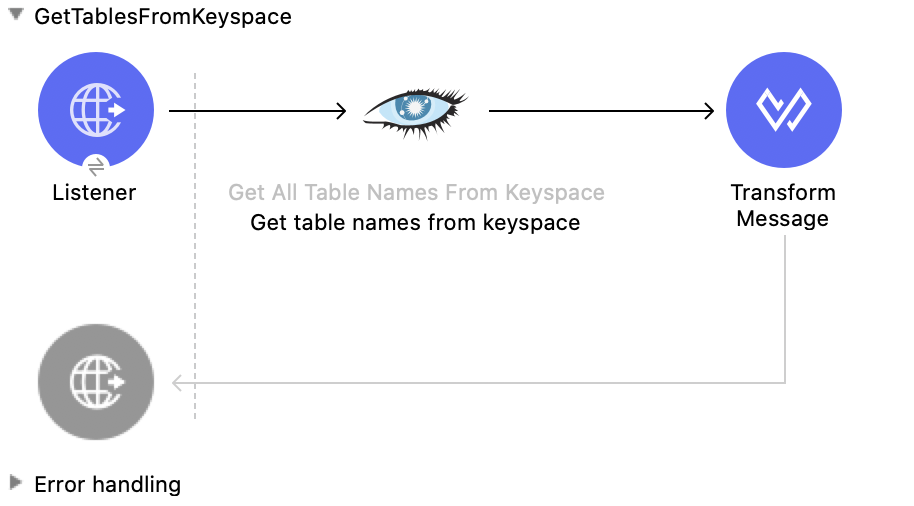
In this flow, you configure:
-
An HTTP Listener component
-
A Get table names from keyspace operation
-
A Transform Message component
Configure HTTP Listener
Configure HTTP Listener to initiate a Mule flow when a call is made to the /
account path on localhost, port 8081.
This example uses variables for some field values. You can either:
-
Replace the variables with their values in the code.
-
Provide the values for each variable in a properties file and then refer to that file from the connector configuration.
If you don’t know how to use a properties file, see Configuring Property Placeholders.
To configure HTTP Listener:
-
Create a new Mule project in Studio.
-
In the Mule Palette view, search for
httpand select the Listener operation: -
Drag the Listener operation onto the canvas.
-
In the Listener configuration, click the Add icon next to the Connector configuration field to add a global element.
-
Click OK to accept the defaults.
-
Set the Path field to
/getTablesFromKeyspace.
Add the Get Table Names from Keyspace Operation
The Get table names from keyspace operation returns all table names from the specified keyspace.
-
Drag the Get table names from keyspace operation onto the canvas, next to HTTP Listener.
-
In the Get table names from keyspace configuration, click the Connector configuration dropdown and select CassandraDB_Config.
-
Configure the following fields in the Get table names from keyspace properties window:
Field Value Keyspace name
#[payload.keyspaceName]
Add the Transform Message Component
The Transform Message component converts the data from the keyspace.
-
In the Mule Palette view, search for
transform message. -
Drag the Transform Message component onto the canvas, next to Get table names from keyspace.
-
In the Transform Message configuration, overlay the brackets in the Output section with this XML:
%dw 2.0
output application/json
---
payload
Insert
This Mule flow inserts entities in a table in a keyspace.
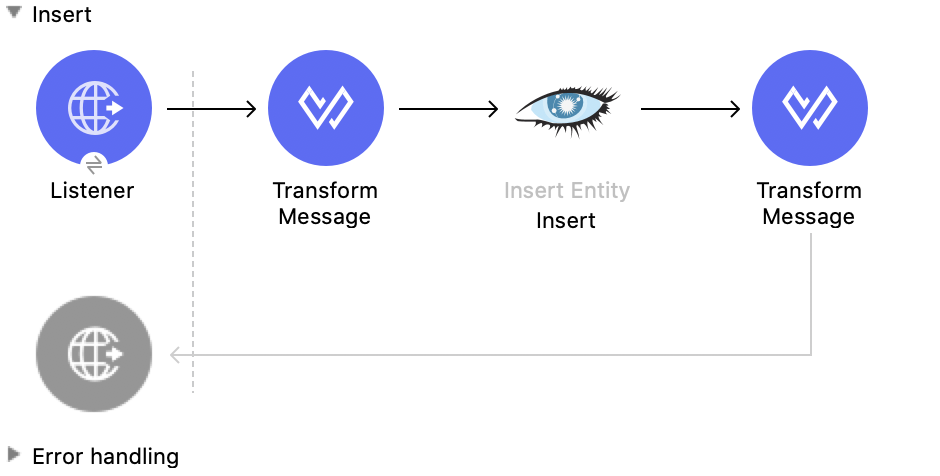
In this flow, you configure:
-
An HTTP Listener component
-
A Transform Message component
-
An Insert Entity operation
-
A second Transform Message component
Configure HTTP Listener
Configure HTTP Listener to initiate a Mule flow when a call is made to the /
account path on localhost, port 8081.
This example uses variables for some field values. You can either:
-
Replace the variables with their values in the code.
-
Provide the values for each variable in a properties file and then refer to that file from the connector configuration.
If you don’t know how to use a properties file, see Configuring Property Placeholders.
To configure HTTP Listener:
-
Create a new Mule project in Studio.
-
In the Mule Palette view, search for
httpand select the Listener operation: -
Drag the Listener operation onto the canvas.
-
In the Listener configuration, click the Add icon next to the Connector configuration field to add a global element.
-
Click OK to accept the defaults.
-
Set the Path field to
/insert.
Add the Transform Message Component
The Transform Message component converts the data from the keyspace to Java.
-
In the Mule Palette view, search for
transform message. -
Drag the Transform Message component onto the canvas, next to HTTP Listener.
-
In the Transform Message configuration, overlay the brackets in the Output section with this XML:
%dw 2.0
output application/java
---
{
  "id": payload.id,
  "name": payload.name,
  "event": payload.event
}
Add the Insert Entity Operation
The Insert Entity operation inserts entities into a table in a keyspace.
-
Drag the Insert Entity operation onto the canvas, next to Transform Message.
-
In the Insert Entity configuration, click the Connector configuration dropdown and select CassandraDB_Config.
-
Configure the following fields in the Insert Entity properties window:
Field Value Table
example_tableKeyspace name
example_keyspaceEntity to insert
payload
Add the Second Transform Message Component
The second Transform Message component converts the data from the keyspace from Java to XML.
-
In the Mule Palette view, search for
transform message. -
Drag the Transform Message component onto the canvas, next to Insert Entity.
-
In the Transform Message configuration, overlay the brackets in the Output section with this XML:
%dw 2.0
output application/json
---
payload
Select
This Mule flow executes a Select query.
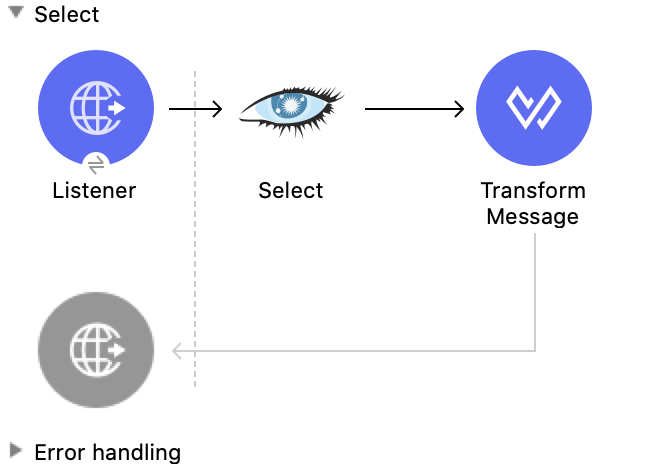
In this flow, you configure:
-
An HTTP Listener component
-
A Select operation
-
A Transform Message component
Configure HTTP Listener
Configure HTTP Listener to initiate a Mule flow when a call is made to the /
account path on localhost, port 8081.
This example uses variables for some field values. You can either:
-
Replace the variables with their values in the code.
-
Provide the values for each variable in a properties file and then refer to that file from the connector configuration.
If you don’t know how to use a properties file, see Configuring Property Placeholders.
To configure HTTP Listener:
-
Create a new Mule project in Studio.
-
In the Mule Palette view, search for
httpand select the Listener operation: -
Drag the Listener operation onto the canvas.
-
In the Listener configuration, click the Add icon next to the Connector configuration field to add a global element.
-
Click OK to accept the defaults.
-
Set the Path field to
/insert.
Add the Select Operation
The Select operation executes a Select query on the keyspace.
-
Drag the Select operation onto the canvas, next to HTTP Listener.
-
In the Select configuration, click the Connector configuration dropdown and select CassandraDB_Config.
-
Configure the following fields in the Select properties window:
Field Value Query
SELECT id, name, event FROM example_keyspace.example_table
Add the Transform Message Component
The Transform Message component converts the data from the keyspace.
-
In the Mule Palette view, search for
transform message. -
Drag the Transform Message component onto the canvas, next to Select.
-
In the Transform Message configuration, overlay the brackets in the Output section with this XML:
%dw 2.0
output application/json
---
payload
Update
This Mule flow updates entities in a table in a keyspace.
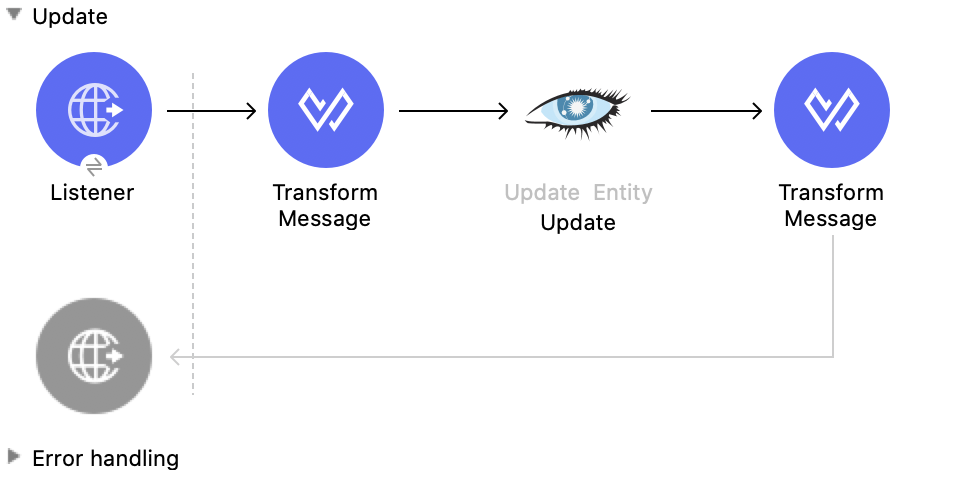
In this flow, you configure:
-
An HTTP Listener component
-
A Transform Message component
-
An Update Entity operation
-
A second Transform Message component
Configure HTTP Listener
Configure HTTP Listener to initiate a Mule flow when a call is made to the /
account path on localhost, port 8081.
This example uses variables for some field values. You can either:
-
Replace the variables with their values in the code.
-
Provide the values for each variable in a properties file and then refer to that file from the connector configuration.
If you don’t know how to use a properties file, see Configuring Property Placeholders.
To configure HTTP Listener:
-
Create a new Mule project in Studio.
-
In the Mule Palette view, search for
httpand select the Listener operation: -
Drag the Listener operation onto the canvas.
-
In the Listener configuration, click the Add icon next to the Connector configuration field to add a global element.
-
Click OK to accept the defaults.
-
Set the Path field to
/update.
Add the Transform Message Component
The Transform Message component converts the data from the keyspace to Java.
-
In the Mule Palette view, search for
transform message. -
Drag the Transform Message component onto the canvas, next to HTTP Listener.
-
In the Transform Message configuration, overlay the brackets in the Output section with this XML:
%dw 2.0
output application/java
---
{
  "where":{
    id: payload.where
  },
  "columns":payload.columns
}
Add the Update Entity Operation
The Update Entity operation inserts entities into a table in a keyspace.
-
Drag the Update Entity operation onto the canvas, next to Transform Message.
-
In the Update Entity configuration, click the Connector configuration dropdown and select CassandraDB_Config.
-
Configure the following fields in the Update Entity properties window:
Field Value Table
example_tableKeyspace name
example_keyspaceEntity to insert
payload
Add the Second Transform Message Component
The second Transform Message component converts the data from the keyspace from Java to XML.
-
In the Mule Palette view, search for
transform message. -
Drag the Transform Message component onto the canvas, next to Update Entity.
-
In the Transform Message configuration, overlay the brackets in the Output section with this XML:
%dw 2.0
output application/json
---
payload
Delete
This Mule flow deletes a record from a table in a keyspace.
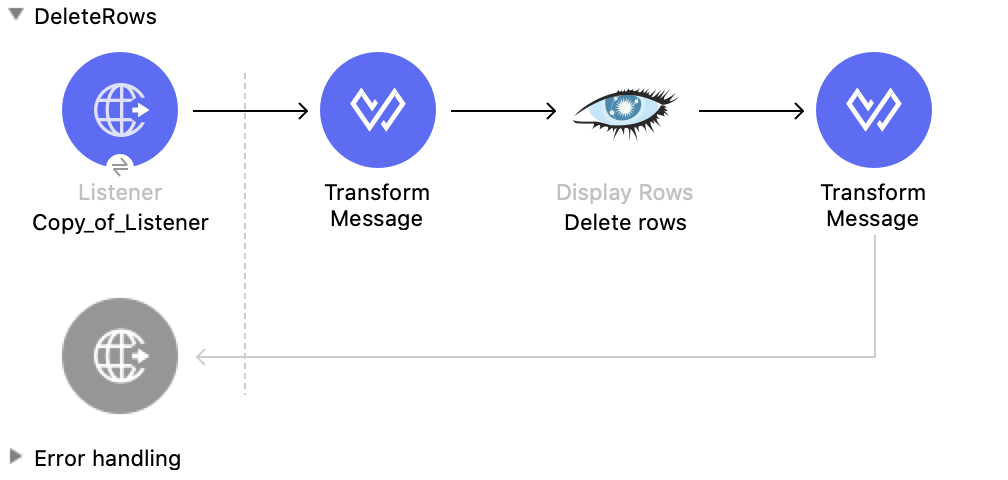
In this flow, you configure:
-
An HTTP Listener component
-
A Transform Message component
-
A Delete Rows operation
-
A second Transform Message component
Configure HTTP Listener
Configure HTTP Listener to initiate a Mule flow when a call is made to the /
account path on localhost, port 8081.
This example uses variables for some field values. You can either:
-
Replace the variables with their values in the code.
-
Provide the values for each variable in a properties file and then refer to that file from the connector configuration.
If you don’t know how to use a properties file, see Configuring Property Placeholders.
To configure HTTP Listener:
-
Create a new Mule project in Studio.
-
In the Mule Palette view, search for
httpand select the Listener operation: -
Drag the Listener operation onto the canvas.
-
In the Listener configuration, click the Add icon next to the Connector configuration field to add a global element.
-
Click OK to accept the defaults.
-
Set the Path field to
/deleteRows.
Add the Transform Message Component
The Transform Message component converts the data from the keyspace.
-
In the Mule Palette view, search for
transform message. -
Drag the Transform Message component onto the canvas, next to HTTP Listener.
-
In the Transform Message configuration, overlay the brackets in the Output section with this XML:
%dw 2.0
output application/java
---
{
  "where": {
    id: payload.ids
  }
}
Add the Delete Rows Operation
The Delete Rows operation deletes a record.
-
Drag the Delete Rows operation onto the canvas, next to Transform Message.
-
In the Delete Rows configuration, click the Connector configuration dropdown and select CassandraDB_Config.
-
Configure the following fields in the Delete Rows properties window:
Field Value Table
example_tableKeyspace name
example_keyspaceEntity to insert
payload
Add the Second Transform Message Component
The second Transform Message component converts the data from the keyspace from Java to XML.
-
In the Mule Palette view, search for
transform message. -
Drag the Transform Message component onto the canvas, next to Delete Rows.
-
In the Transform Message configuration, overlay the brackets in the Output section with this XML:
%dw 2.0
output application/json
---
payload
Delete Columns
This Mule flow deletes a column’s value from a table in a keyspace.
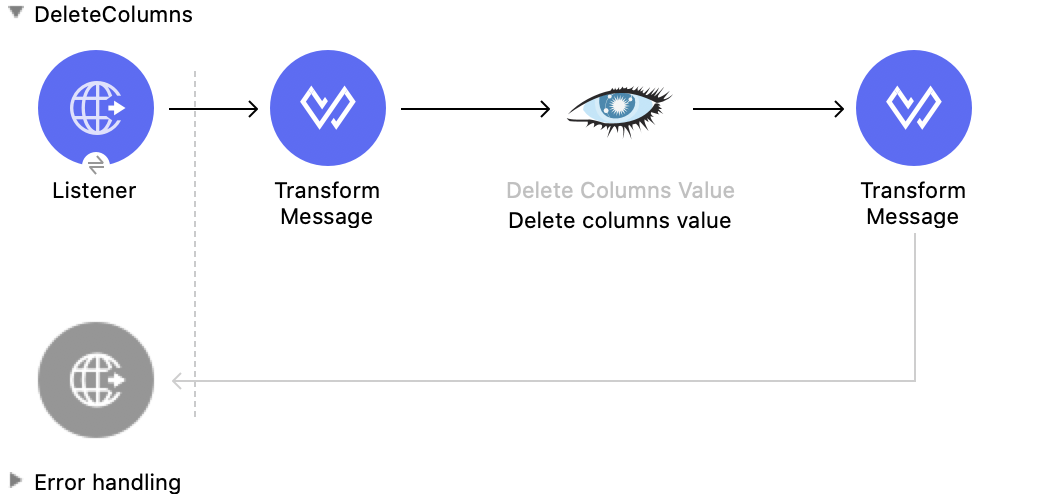
In this flow, you configure:
-
An HTTP Listener component
-
A Transform Message component
-
An Delete Columns Value operation
-
A second Transform Message component
Configure HTTP Listener
Configure HTTP Listener to initiate a Mule flow when a call is made to the /
account path on localhost, port 8081.
This example uses variables for some field values. You can either:
-
Replace the variables with their values in the code.
-
Provide the values for each variable in a properties file and then refer to that file from the connector configuration.
If you don’t know how to use a properties file, see Configuring Property Placeholders.
To configure HTTP Listener:
-
Create a new Mule project in Studio.
-
In the Mule Palette view, search for
httpand select the Listener operation: -
Drag the Listener operation onto the canvas.
-
In the Listener configuration, click the Add icon next to the Connector configuration field to add a global element.
-
Click OK to accept the defaults.
-
Set the Path field to
/deleteColumns.
Add the Transform Message Component
The Transform Message component converts the data from the keyspace to Java.
-
In the Mule Palette view, search for
transform message. -
Drag the Transform Message component onto the canvas, next to HTTP Listener.
-
In the Transform Message configuration, overlay the brackets in the Output section with this XML:
%dw 2.0
output application/java
---
{
  "columns": payload.columns,
  "where": {
    id:payload.where
  }
}
Add the Delete Columns Value Operation
The Delete Columns Value operation deletes values from an object specified by the Where clause field.
-
Drag the Delete Columns Value operation onto the canvas, next to Transform Message.
-
In the Delete Columns Value configuration, click the Connector configuration dropdown and select CassandraDB_Config.
-
Configure the following fields in the Delete Columns Value properties window:
Field Value Table
example_tableKeyspace name
example_keyspaceEntities
Edit inlineValue
#[payload.entities]Where clause
payload
Add the Second Transform Message Component
The second Transform Message component converts the data from the keyspace from Java to XML.
-
In the Mule Palette view, search for
transform message. -
Drag the Transform Message component onto the canvas, next to Delete Columns Value.
-
In the Transform Message configuration, overlay the brackets in the Output section with this XML:
%dw 2.0
output application/json
---
payload
Rename Columns
This Mule flow renames a column in a table in the specified keyspace.
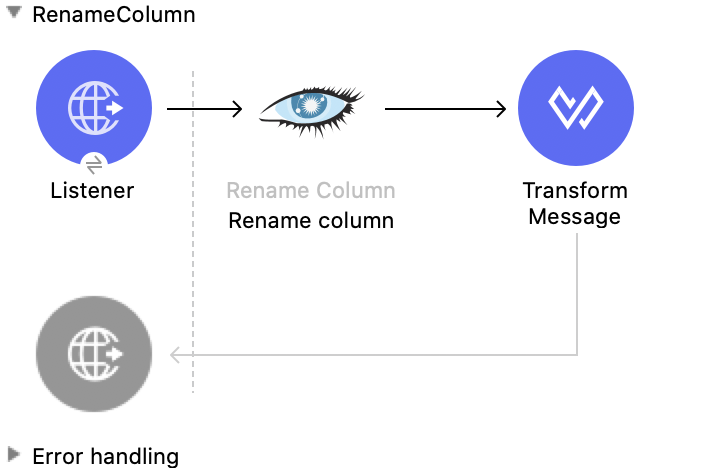
In this flow, you configure:
-
An HTTP Listener component
-
A Rename Column operation
-
A Transform Message component
Configure HTTP Listener
Configure HTTP Listener to initiate a Mule flow when a call is made to the /
account path on localhost, port 8081.
This example uses variables for some field values. You can either:
-
Replace the variables with their values in the code.
-
Provide the values for each variable in a properties file and then refer to that file from the connector configuration.
If you don’t know how to use a properties file, see Configuring Property Placeholders.
To configure HTTP Listener:
-
Create a new Mule project in Studio.
-
In the Mule Palette view, search for
httpand select the Listener operation: -
Drag the Listener operation onto the canvas.
-
In the Listener configuration, click the Add icon next to the Connector configuration field to add a global element.
-
Click OK to accept the defaults.
-
Set the Path field to
/renameColumn.
Add the Rename Column Operation
The Rename Column operation renames a column in a table in a keyspace.
-
Drag the Rename Column operation onto the canvas, next to HTTP Listener.
-
In the Rename Column configuration, click the Connector configuration dropdown and select CassandraDB_Config.
-
Configure the following fields in the Rename Column properties window:
Field Value Table
#[payload.tableName]Keyspace name
#[payload.keyspaceName]Old column name
payload.oldNameNew column name
#[payload.newName]
Add the Transform Message Component
The Transform Message component converts the data from the keyspace.
-
In the Mule Palette view, search for
transform message. -
Drag the Transform Message component onto the canvas, next to Rename Column.
-
In the Transform Message configuration, overlay the brackets in the Output section with this XML:
%dw 2.0
output application/json
---
payload
Add New Columns
This Mule flow adds a new column to a table in a keyspace.
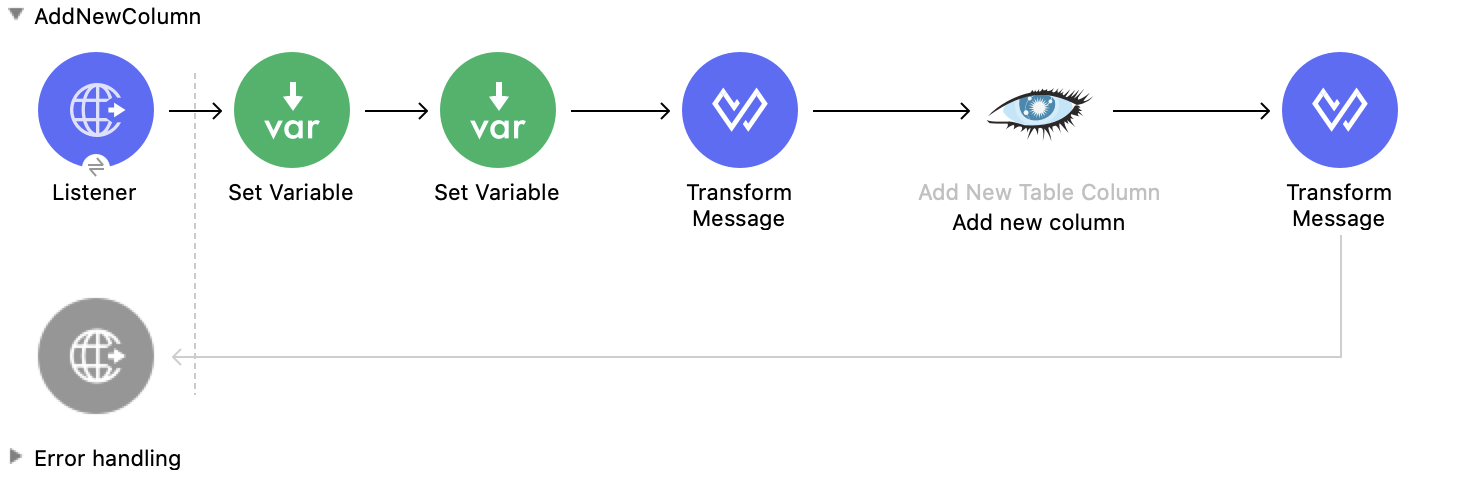
In this flow, you configure:
-
An HTTP Listener component
-
A Set Variable component
-
A second Set Variable component
-
A Transform Message component
-
An Add New Table Column operation
-
A second Transform Message component
Configure HTTP Listener
Configure HTTP Listener to initiate a Mule flow when a call is made to the /
account path on localhost, port 8081.
This example uses variables for some field values. You can either:
-
Replace the variables with their values in the code.
-
Provide the values for each variable in a properties file and then refer to that file from the connector configuration.
If you don’t know how to use a properties file, see Configuring Property Placeholders.
To configure HTTP Listener:
-
Create a new Mule project in Studio.
-
In the Mule Palette view, search for
httpand select the Listener operation: -
Drag the Listener operation onto the canvas.
-
In the Listener configuration, click the Add icon next to the Connector configuration field to add a global element.
-
Click OK to accept the defaults.
-
Set the Path field to
/addNewColumn.
Add the Set Variable Component
The first Set Variable component stores a value for the table name.
-
In the Mule Palette view, search for
set variable. -
Drag the Set Variable component onto the canvas, next to HTTP Listener.
-
Configure the following fields in the Set Variable properties window:
Field Value Name
tableNameValue
#[payload.tableName]
Add the Second Set Variable Component
The second Set Variable component stores a value for the keyspace name.
-
In the Mule Palette view, search for
set variable. -
Drag the Set Variable component onto the canvas, next to HTTP Listener.
-
Configure the following fields in the Set Variable properties window:
Field Value Name
keyspaceNameValue
#[payload.keyspaceName]
Add the Transform Message Component
The Transform Message component converts the data from the keyspace.
-
In the Mule Palette view, search for
transform message. -
Drag the Transform Message component onto the canvas, next to Set Variable.
-
In the Transform Message configuration, overlay the brackets in the Output section with this XML:
%dw 2.0
output application/java
---
{
  "column": payload.column,
  "type": payload.'type'
} as Object {
  class : "org.mule.modules.cassandradb.api.AlterColumnInput"
}
Add the Add New Table Column Operation
The Add New Table Column operation adds a new column.
-
Drag the Add New Table Column operation onto the canvas, next to Transform Message.
-
In the Add New Table Column configuration, click the Connector configuration dropdown and select CassandraDB_Config.
-
Configure the following fields in the Add New Table Column properties window:
Field Value Table
#[vars['tableName']]Keyspace name
#[vars['keyspaceName']]Alter column input
payload
Add the Second Transform Message Component
The second Transform Message component converts the data from the keyspace from Java to XML.
-
In the Mule Palette view, search for
transform message. -
Drag the Transform Message component onto the canvas, next to Add New Table Column.
-
In the Transform Message configuration, overlay the brackets in the Output section with this XML:
%dw 2.0
output application/json
---
payload
Drop Columns
This Mule flow removes a column from a table in a keyspace.
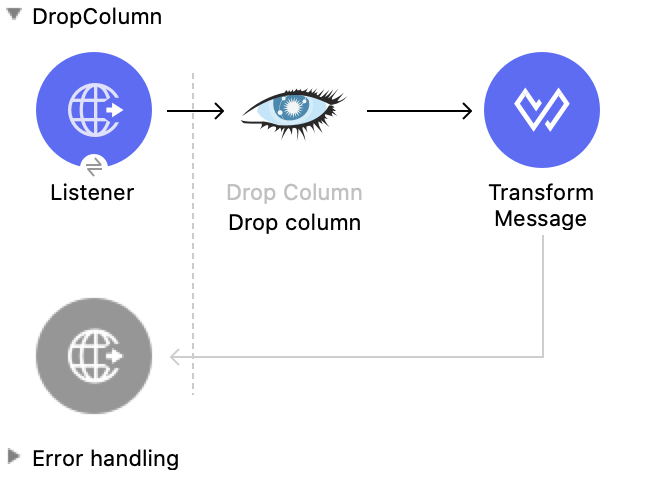
In this flow, you configure:
-
An HTTP Listener component
-
A Drop Column operation
-
A Transform Message component
Configure HTTP Listener
Configure HTTP Listener to initiate a Mule flow when a call is made to the /
account path on localhost, port 8081.
This example uses variables for some field values. You can either:
-
Replace the variables with their values in the code.
-
Provide the values for each variable in a properties file and then refer to that file from the connector configuration.
If you don’t know how to use a properties file, see Configuring Property Placeholders.
To configure HTTP Listener:
-
Create a new Mule project in Studio.
-
In the Mule Palette view, search for
httpand select the Listener operation: -
Drag the Listener operation onto the canvas.
-
In the Listener configuration, click the Add icon next to the Connector configuration field to add a global element.
-
Click OK to accept the defaults.
-
Set the Path field to
/dropColumn.
Add the Drop Column Operation
The Drop Column operation removes a column.
-
Drag the Drop Column operation onto the canvas, next to HTTP Listener.
-
In the Drop Column configuration, click the Connector configuration dropdown and select CassandraDB_Config.
-
Configure the following fields in the Drop Column properties window:
Field Value Table
#[payload.tableName]Keyspace name
#[payload.keyspaceName]Column name
payload.columnName
Add the Transform Message Component
The Transform Message component converts the data from the keyspace.
-
In the Mule Palette view, search for
transform message. -
Drag the Transform Message component onto the canvas, next to Drop Column.
-
In the Transform Message configuration, overlay the brackets in the Output section with this XML:
%dw 2.0
output application/json
---
payload
Execute a Cassandra Query Language (CQL) Query
This Mule flow executes the specified raw input query.
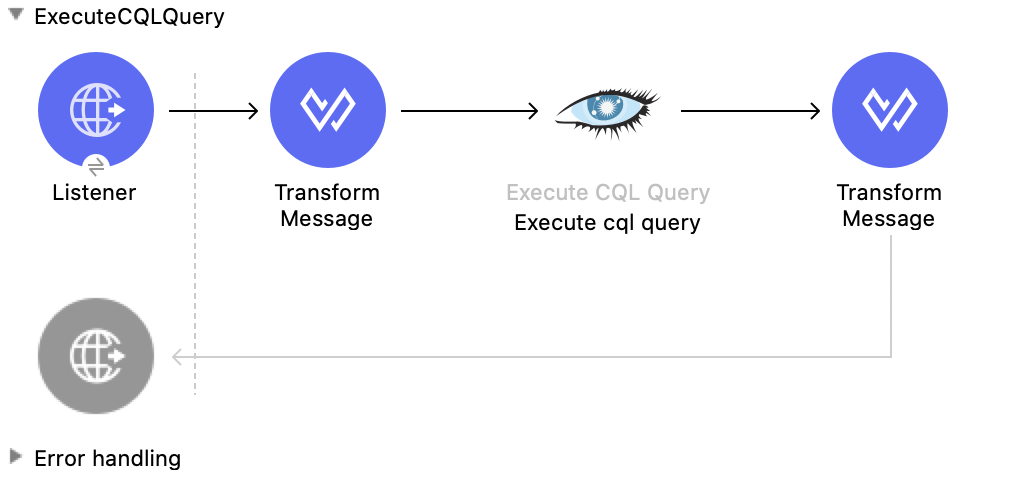
In this flow, you configure:
-
An HTTP Listener component
-
A Transform Message component
-
An Execute CQL Query operation
-
A second Transform Message component
Configure HTTP Listener
Configure HTTP Listener to initiate a Mule flow when a call is made to the /
account path on localhost, port 8081.
This example uses variables for some field values. You can either:
-
Replace the variables with their values in the code.
-
Provide the values for each variable in a properties file and then refer to that file from the connector configuration.
If you don’t know how to use a properties file, see Configuring Property Placeholders.
To configure HTTP Listener:
-
Create a new Mule project in Studio.
-
In the Mule Palette view, search for
httpand select the Listener operation: -
Drag the Listener operation onto the canvas.
-
In the Listener configuration, click the Add icon next to the Connector configuration field to add a global element.
-
Click OK to accept the defaults.
-
Set the Path field to
/executeCqlQuery.
Add the Transform Message Component
The Transform Message component converts the data from the keyspace to Java.
-
In the Mule Palette view, search for
transform message. -
Drag the Transform Message component onto the canvas, next to HTTP Listener.
-
In the Transform Message configuration, overlay the brackets in the Output section with this XML:
%dw 2.0
output application/java
---
{
  "cqlQuery": payload.cqlQuery,
  "parameters": payload.parameters
} as Object {
  class : "org.mule.modules.cassandradb.api.CQLQueryInput"
}
Add the Execute CQL Query Operation
The Execute CQL Query operation executes the raw input query.
-
Drag the Execute CQL Query operation onto the canvas, next to Transform Message.
-
In the Execute CQL Query configuration, click the Connector configuration dropdown and select CassandraDB_Config.
Add the Second Transform Message Component
The second Transform Message component converts the data from the keyspace from Java to XML.
-
In the Mule Palette view, search for
transform message. -
Drag the Transform Message component onto the canvas, next to Execute CQL Query.
-
In the Transform Message configuration, overlay the brackets in the Output section with this XML:
%dw 2.0
output application/json
---
payload
Drop Table
This Mule flow drops a table from the specified keyspace.
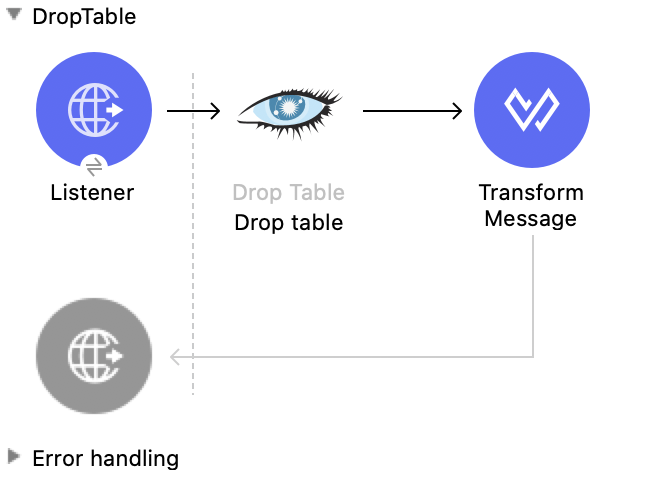
In this flow, you configure:
-
An HTTP Listener component
-
A Drop Table operation
-
A Transform Message component
Configure HTTP Listener
Configure HTTP Listener to initiate a Mule flow when a call is made to the /
account path on localhost, port 8081.
This example uses variables for some field values. You can either:
-
Replace the variables with their values in the code.
-
Provide the values for each variable in a properties file and then refer to that file from the connector configuration.
If you don’t know how to use a properties file, see Configuring Property Placeholders.
To configure HTTP Listener:
-
Create a new Mule project in Studio.
-
In the Mule Palette view, search for
httpand select the Listener operation: -
Drag the Listener operation onto the canvas.
-
In the Listener configuration, click the Add icon next to the Connector configuration field to add a global element.
-
Click OK to accept the defaults.
-
Set the Path field to
/dropTable.
Add the Drop Table Operation
The Drop Table operation drops a table from the specified keyspace. If no keyspace is specified for the Drop Table operation, the table is created in the keyspace in the connection parameters.
-
Drag the Drop Table operation onto the canvas, next to HTTP Listener.
-
In the Drop Table configuration, click the Connector configuration dropdown and select CassandraDB_Config.
-
Configure the following fields in the Drop Table properties window:
Field Value Table name
payload.tableNameKeyspace name
#[payload.keyspaceName]
Add the Transform Message Component
The Transform Message component converts the data from the keyspace.
-
In the Mule Palette view, search for
transform message. -
Drag the Transform Message component onto the canvas, next to Drop Table.
-
In the Transform Message configuration, overlay the brackets in the Output section with this XML:
%dw 2.0
output application/json
---
payload
Drop Keyspace
This Mule flow drops the specified keyspace and its values.
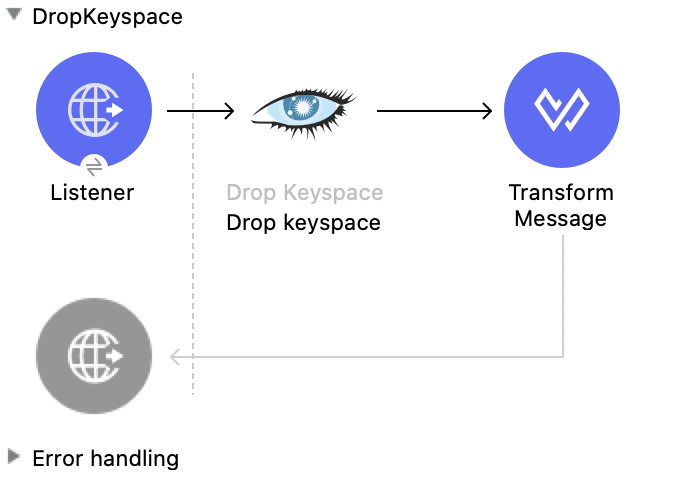
In this flow, you configure:
-
An HTTP Listener component
-
A Drop Keyspace operation
-
A Transform Message component
Configure HTTP Listener
Configure HTTP Listener to initiate a Mule flow when a call is made to the /
account path on localhost, port 8081.
This example uses variables for some field values. You can either:
-
Replace the variables with their values in the code.
-
Provide the values for each variable in a properties file and then refer to that file from the connector configuration.
If you don’t know how to use a properties file, see Configuring Property Placeholders.
To configure HTTP Listener:
-
Create a new Mule project in Studio.
-
In the Mule Palette view, search for
httpand select the Listener operation: -
Drag the Listener operation onto the canvas.
-
In the Listener configuration, click the Add icon next to the Connector configuration field to add a global element.
-
Click OK to accept the defaults.
-
Set the Path field to
/dropKeyspace.
Add the Drop Keyspace Operation
The Drop Keyspace operation drops the keyspace and its values.
-
Drag the Drop Keyspace operation onto the canvas, next to HTTP Listener.
-
In the Drop Keyspace configuration, click the Connector configuration dropdown and select CassandraDB_Config.
-
Configure the following fields in the Drop Keyspace properties window:
Field Value Keyspace name
payload.keyspaceName
Add the Transform Message Component
The Transform Message component converts the data from the keyspace.
-
In the Mule Palette view, search for
transform message. -
Drag the Transform Message component onto the canvas, next to Drop Keyspace.
-
In the Transform Message configuration, overlay the brackets in the Output section with this XML:
%dw 2.0
output application/json
---
payload
XML for the Manipulate Data in an Apache Cassandra Database Example
Paste this code into the Studio XML editor to quickly load the flow for this example into your Mule app:
<?xml version="1.0" encoding="UTF-8"?>

<mule xmlns:cassandra-db="http://www.mulesoft.org/schema/mule/cassandra-db" xmlns:ee="http://www.mulesoft.org/schema/mule/ee/core"
      xmlns:http="http://www.mulesoft.org/schema/mule/http"
      xmlns="http://www.mulesoft.org/schema/mule/core" xmlns:doc="http://www.mulesoft.org/schema/mule/documentation" xmlns:xsi="http://www.w3.org/2001/XMLSchema-instance" xsi:schemaLocation="http://www.mulesoft.org/schema/mule/core http://www.mulesoft.org/schema/mule/core/current/mule.xsd
http://www.mulesoft.org/schema/mule/http http://www.mulesoft.org/schema/mule/http/current/mule-http.xsd
http://www.mulesoft.org/schema/mule/ee/core http://www.mulesoft.org/schema/mule/ee/core/current/mule-ee.xsd
http://www.mulesoft.org/schema/mule/cassandra-db http://www.mulesoft.org/schema/mule/cassandra-db/current/mule-cassandra-db.xsd">

  <configuration-properties file="mule-app.properties" />
  <http:listener-config name="HTTP_Listener_config" doc:name="HTTP Listener config" doc:id="7b4310b7-4a49-4b37-8649-9247ae910399" >
    <http:listener-connection host="0.0.0.0" port="8081" />
  </http:listener-config>
  <cassandra-db:config name="CassandraDB_Config" doc:name="CassandraDB Config" doc:id="1ab180db-597d-455a-99fb-e006842cd052" >
    <cassandra-db:connection host="${config.host}" port="${config.port}" keyspace="${config.keyspace}" username="${config.username}" password="${config.password}" clusterName="${config.clusterName}" clusterNodes="${config.clusterNodes}"/>
  </cassandra-db:config>
  <flow name="GetTablesFromKeyspace" doc:id="e7d35ea3-58ed-4713-bbce-4ff6cbb41189" >
    <http:listener doc:name="Listener" doc:id="24838bde-79ae-4601-ac2b-00945831d7df" config-ref="HTTP_Listener_config" path="/getTablesFromKeyspace" />
    <cassandra-db:get-table-names-from-keyspace doc:name="Get table names from keyspace" doc:id="96e12e7b-8e90-4117-8ba6-5225d4af530a" config-ref="CassandraDB_Config" keyspaceName="#[payload.keyspaceName]"/>
    <ee:transform doc:name="Transform Message" doc:id="f3be8d87-27bd-470f-beb5-dbd2b81c24be" >
      <ee:message >
        <ee:set-payload ><![CDATA[%dw 2.0
output application/json
---
payload]]></ee:set-payload>
      </ee:message>
    </ee:transform>
  </flow>
  <flow name="Insert" doc:id="ea181924-0b06-48ea-b007-c1b297db2cbd" >
    <http:listener doc:name="Listener" doc:id="5eceb9c9-bbad-4022-92a3-932e399bb4d6" config-ref="HTTP_Listener_config" path="/insert" />
    <ee:transform doc:name="Transform Message" doc:id="76763f2a-3860-4d73-84ad-33c0a7c485ed" >
      <ee:message >
        <ee:set-payload ><![CDATA[%dw 2.0
output application/java
---
{
  "id": payload.id,
  "name": payload.name,
  "event": payload.event
}]]></ee:set-payload>
      </ee:message>
    </ee:transform>
    <cassandra-db:insert table="example_table" doc:name="Insert" doc:id="13224cf4-25d8-4f35-84e7-d211d4a3bdc5" config-ref="CassandraDB_Config" keyspaceName="example_keyspace"/>
    <ee:transform doc:name="Transform Message" doc:id="8888f973-3c80-4f56-b83c-792b40ba8cc4" >
      <ee:message >
        <ee:set-payload ><![CDATA[%dw 2.0
output application/json
---
payload]]></ee:set-payload>
      </ee:message>
    </ee:transform>
  </flow>
  <flow name="Select" doc:id="2b70dea4-aadf-44a2-8c08-fee5a06cf8f5" >
    <http:listener doc:name="Listener" doc:id="ce7fb340-0292-45b5-a62e-29069d4f03ee" config-ref="HTTP_Listener_config" path="/select" />
    <cassandra-db:select doc:name="Select" doc:id="6a698c61-30eb-49e4-839a-c6412644c41f" config-ref="CassandraDB_Config">
      <cassandra-db:query >SELECT id, name, event FROM example_keyspace.example_table</cassandra-db:query>
    </cassandra-db:select>
    <ee:transform doc:name="Transform Message" doc:id="2782805e-1cf0-4808-96f1-99bd145759d0" >
      <ee:message >
        <ee:set-payload ><![CDATA[%dw 2.0
output application/json
---
payload]]></ee:set-payload>
      </ee:message>
    </ee:transform>
  </flow>
  <flow name="Update" doc:id="81fa1da3-8a3d-460d-80d7-2499faacf3c3" >
    <http:listener doc:name="Listener" doc:id="51053b82-fa99-456b-bde4-36c87af4b633" config-ref="HTTP_Listener_config" path="/update" />
    <ee:transform doc:name="Transform Message" doc:id="c38ebb52-d614-4780-bae9-95d710f539d3" >
      <ee:message >
        <ee:set-payload ><![CDATA[%dw 2.0
output application/java
---
{
  "where":{
    id: payload.where
  },
  "columns":payload.columns
}]]></ee:set-payload>
      </ee:message>
    </ee:transform>
    <cassandra-db:update table="example_table" doc:name="Update" doc:id="5edef28b-c636-4ce5-b59e-5843511c89c7" config-ref="CassandraDB_Config" keyspaceName="example_keyspace"/>
    <ee:transform doc:name="Transform Message" doc:id="beb77d6c-571b-4187-922e-afc7e89c8415" >
      <ee:message >
        <ee:set-payload ><![CDATA[%dw 2.0
output application/json
---
payload]]></ee:set-payload>
      </ee:message>
    </ee:transform>
  </flow>
  <flow name="DeleteRows" doc:id="81fa1da3-8a3d-460d-80d7-2499faacf3c3" >
    <http:listener doc:name="Copy_of_Listener" doc:id="51053b82-fa99-456b-bde4-36c87af4b633" config-ref="HTTP_Listener_config" path="/deleteRows" />
    <ee:transform doc:name="Transform Message" doc:id="fdf8f121-8be3-4c73-8c5b-23df7c679c89" >
      <ee:message >
        <ee:set-payload ><![CDATA[%dw 2.0
output application/java
---
{
  "where": {
    id: payload.ids
  }
}]]></ee:set-payload>
      </ee:message>
    </ee:transform>
    <cassandra-db:delete-rows table="example_table" doc:name="Delete rows" doc:id="3f9532e2-2fc6-4381-a2f6-90172994b2a7" config-ref="CassandraDB_Config" keyspaceName="example_keyspace"/>
    <ee:transform doc:name="Transform Message" doc:id="99fc2458-7548-44e1-9e31-ae29e04cd3c0" >
      <ee:message >
        <ee:set-payload ><![CDATA[%dw 2.0
output application/json
---
payload]]></ee:set-payload>
      </ee:message>
    </ee:transform>
  </flow>
  <flow name="DeleteColumns" doc:id="81fa1da3-8a3d-460d-80d7-2499faacf3c3" >
    <http:listener doc:name="Listener" doc:id="51053b82-fa99-456b-bde4-36c87af4b633" config-ref="HTTP_Listener_config" path="/deleteColumns" />
    <ee:transform doc:name="Transform Message" doc:id="0d8fb61b-4afc-490b-be8c-d7f008efa1cf" >
      <ee:message >
        <ee:set-payload ><![CDATA[%dw 2.0
output application/java
---
{
  "columns": payload.columns,
  "where": {
    id:payload.where
  }
}]]></ee:set-payload>
      </ee:message>
    </ee:transform>
    <cassandra-db:delete-columns-value table="example_table" doc:name="Delete columns value" doc:id="8ed01b4f-2cd4-4fcf-9d70-f560a6501f8e" config-ref="CassandraDB_Config" keyspaceName="example_keyspace">
      <cassandra-db:entities >
        <cassandra-db:entity value="#[payload.entities]" />
      </cassandra-db:entities>
    </cassandra-db:delete-columns-value>
    <ee:transform doc:name="Transform Message" doc:id="1f4f7f5d-7cfc-48fc-983c-a74a69576f8c" >
      <ee:message >
        <ee:set-payload ><![CDATA[%dw 2.0
output application/json
---
payload]]></ee:set-payload>
      </ee:message>
    </ee:transform>
  </flow>
  <flow name="RenameColumn" doc:id="81fa1da3-8a3d-460d-80d7-2499faacf3c3" >
    <http:listener doc:name="Listener" doc:id="51053b82-fa99-456b-bde4-36c87af4b633" config-ref="HTTP_Listener_config" path="/renameColumn" />
    <cassandra-db:rename-column doc:name="Rename column" doc:id="f61c5f48-1f4f-46e6-9ab7-3021bb3eb4f5" config-ref="CassandraDB_Config" table="#[payload.tableName]" keyspaceName="#[payload.keyspaceName]" newColumnName="#[payload.newName]">
      <cassandra-db:old-column-name ><![CDATA[#[payload.oldName]]]></cassandra-db:old-column-name>
    </cassandra-db:rename-column>
    <ee:transform doc:name="Transform Message" doc:id="92b94afa-c0eb-4eb8-a05c-8d9ffcce000e" >
      <ee:message >
        <ee:set-payload ><![CDATA[%dw 2.0
output application/json
---
payload]]></ee:set-payload>
      </ee:message>
    </ee:transform>
  </flow>
  <flow name="AddNewColumn" doc:id="81fa1da3-8a3d-460d-80d7-2499faacf3c3" >
    <http:listener doc:name="Listener" doc:id="51053b82-fa99-456b-bde4-36c87af4b633" config-ref="HTTP_Listener_config" path="/addNewColumn" />
    <set-variable value="#[payload.tableName]" doc:name="Set Variable" doc:id="40a2950e-58d2-4488-8b8d-6132ebcacfe8" variableName="tableName"/>
    <set-variable value="#[payload.keyspaceName]" doc:name="Set Variable" doc:id="29fe33b5-da79-4c42-97f1-a0f699cc532a" variableName="keyspaceName"/>
    <ee:transform doc:name="Transform Message" doc:id="af633bfc-5dbf-4849-a58a-2cb446d32920" >
      <ee:message >
        <ee:set-payload ><![CDATA[%dw 2.0
output application/java
---
{
  "column": payload.column,
  "type": payload.'type'
} as Object {
  class : "org.mule.modules.cassandradb.api.AlterColumnInput"
}]]></ee:set-payload>
      </ee:message>
    </ee:transform>
    <cassandra-db:add-new-column doc:name="Add new column" doc:id="1ece4157-c45b-4298-9726-dec11c87fbf0" config-ref="CassandraDB_Config" table="#[vars['tableName']]" keyspaceName="#[vars['keyspaceName']]"/>
    <ee:transform doc:name="Transform Message" doc:id="335c584c-a1ae-4b69-bc24-1a0b7d1fe940" >
      <ee:message >
        <ee:set-payload ><![CDATA[%dw 2.0
output application/json
---
payload]]></ee:set-payload>
      </ee:message>
    </ee:transform>
  </flow>
  <flow name="DropColumn" doc:id="81fa1da3-8a3d-460d-80d7-2499faacf3c3" >
    <http:listener doc:name="Listener" doc:id="5b388d2a-886e-4d32-ba77-2ae3d388c766" config-ref="HTTP_Listener_config" path="/dropColumn"/>
    <cassandra-db:drop-column doc:name="Drop column" doc:id="cd602e74-3d04-4fa9-b96b-40351135268b" config-ref="CassandraDB_Config" table="#[payload.tableName]" keyspaceName="#[payload.keyspaceName]">
      <cassandra-db:column-name ><![CDATA[#[payload.columnName]]]></cassandra-db:column-name>
    </cassandra-db:drop-column>
    <ee:transform doc:name="Transform Message" doc:id="399e221f-9f0c-4767-828f-aa35575dce04" >
      <ee:message >
        <ee:set-payload ><![CDATA[%dw 2.0
output application/json
---
payload]]></ee:set-payload>
      </ee:message>
    </ee:transform>
  </flow>
  <flow name="ExecuteCQLQuery" doc:id="81fa1da3-8a3d-460d-80d7-2499faacf3c3" >
    <http:listener doc:name="Listener" doc:id="51053b82-fa99-456b-bde4-36c87af4b633" config-ref="HTTP_Listener_config" path="/executeCqlQuery" />
    <ee:transform doc:name="Transform Message" doc:id="0eda8e3a-3f61-4461-b963-c0930eec9c1a" >
      <ee:message >
        <ee:set-payload ><![CDATA[%dw 2.0
output application/java
---
{
  "cqlQuery": payload.cqlQuery,
  "parameters": payload.parameters
} as Object {
  class : "org.mule.modules.cassandradb.api.CQLQueryInput"
}]]></ee:set-payload>
      </ee:message>
    </ee:transform>
    <cassandra-db:execute-cql-query doc:name="Execute cql query" doc:id="23531836-b75d-47a3-b88e-bfcca6e3c43d" config-ref="CassandraDB_Config"/>
    <ee:transform doc:name="Transform Message" doc:id="f6017333-6a54-4e7d-9a0a-37e75bb99e95" >
      <ee:message >
        <ee:set-payload ><![CDATA[%dw 2.0
output application/json
---
payload]]></ee:set-payload>
      </ee:message>
    </ee:transform>
  </flow>
  <flow name="DropTable" doc:id="81fa1da3-8a3d-460d-80d7-2499faacf3c3" >
    <http:listener doc:name="Listener" doc:id="51053b82-fa99-456b-bde4-36c87af4b633" config-ref="HTTP_Listener_config" path="/dropTable" />
    <cassandra-db:drop-table doc:name="Drop table" doc:id="2b814d18-ea46-49ee-a7d5-f5663bdb64e7" config-ref="CassandraDB_Config" keyspaceName="#[payload.keyspaceName]">
      <cassandra-db:table-name ><![CDATA[#[payload.tableName]]]></cassandra-db:table-name>
    </cassandra-db:drop-table>
    <ee:transform doc:name="Transform Message" doc:id="ef72ee47-8ff0-40cc-8e94-2a33d867cde7" >
      <ee:message >
        <ee:set-payload ><![CDATA[%dw 2.0
output application/json
---
payload]]></ee:set-payload>
      </ee:message>
    </ee:transform>
  </flow>
  <flow name="DropKeyspace" doc:id="81fa1da3-8a3d-460d-80d7-2499faacf3c3" >
    <http:listener doc:name="Listener" doc:id="51053b82-fa99-456b-bde4-36c87af4b633" config-ref="HTTP_Listener_config" path="/dropKeyspace" />
    <cassandra-db:drop-keyspace doc:name="Drop keyspace" doc:id="4dd3b152-bef6-474e-ac47-dfa476e8eafc" config-ref="CassandraDB_Config">
      <cassandra-db:keyspace-name ><![CDATA[#[payload.keyspaceName]]]></cassandra-db:keyspace-name>
    </cassandra-db:drop-keyspace>
    <ee:transform doc:name="Transform Message" doc:id="6b5c7894-5f53-41e5-9ae7-364fdbfc427b" >
      <ee:message >
        <ee:set-payload ><![CDATA[%dw 2.0
output application/json
---
payload]]></ee:set-payload>
      </ee:message>
    </ee:transform>
  </flow>
</mule>