
Transform Message Component
The Transform (or Transform Message) component converts input data to a new output structure or format. You can use the component’s visual mapper to build your transformation implicitly by dragging and dropping elements of the incoming data structure, or you can explicitly write a transformation script in DataWeave expression language.
-
Graphical View (Drag-and-Drop editor): Two tree views show the expected metadata structures of the input and output. Mappings between these two trees are represented by lines that connect input to output fields. The lines can be created by dragging and dropping an element from the input to another element to the output.
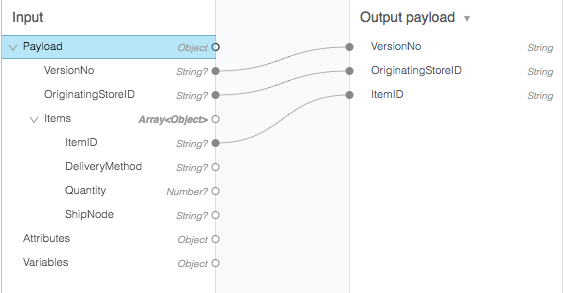 Figure 1. Drag-and-Drop Editor in the Transform Component
 -
Script View: The visual mapping can be represented as DataWeave code. Advanced transformations such as aggregation, normalization, grouping, joining, partitioning, pivoting and filtering can be coded here.
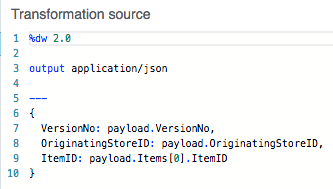 Figure 2. DataWeave Script in the Transform Component
Note that changes in one view are reflected in real time with the other.
Preview
A preview of your output is built on sample data (such as a JSON snippet) and is updated in real time as you make changes to your transformation.
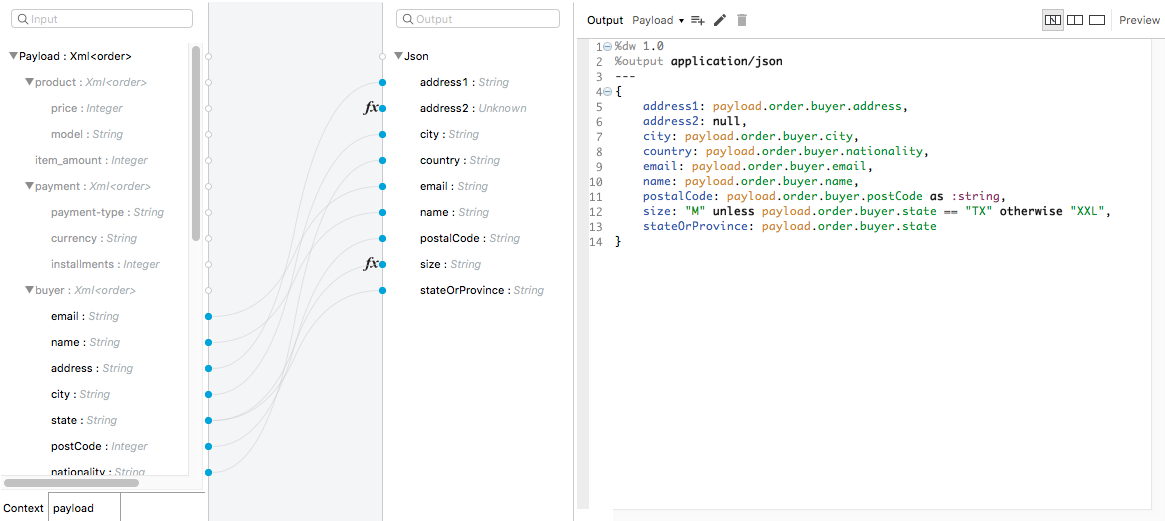
Metadata
The Transform component accepts input and output metadata for the message payload, a variable or an attribute. You can provide format-specific resources and settings for supported mime types (formats):
-
CSV example or RAML definition
-
Copybook file or schema
-
Excel column name and type definitions (including String, Number, Boolean, Date, and DateTime) for one more sheets
-
Fixed Width column name, type (String, Integer, Decimal, Boolean, Date, and DateTime), width, and format settings
-
Flat File schema
-
JSON example or schema
-
Object class or RAML definition
-
Simple Type (String, Number, Integer, Boolean, Date, or DateTime)
-
XML example or schema