
Oracle E-Business Suite 12.2 Connector 2.3
Oracle EBS 12.2 Connector v2.3
Anypoint Connector for Oracle E-Business Suite 12.2 (EBS 12.2 Connector) facilitates connections between Mule runtime engine (Mule) integration and Oracle E-Business Suite 12.2 applications.
About the Connector Architecture
Oracle EBS offers different technologies or products to address various types of integrations. The most widely used integrations for enterprise applications are:
-
Data-centric integration
-
Integration through Web Services using Oracle E-Business Suite Integrated SOA Gateway (ISG)
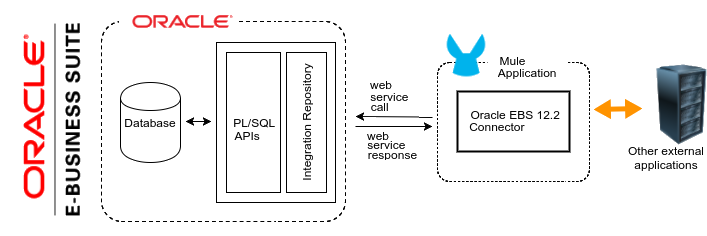
The following illustration shows the integration architecture of the MuleSoft Oracle EBS connector:
Before You Begin
To use this connector, you must be familiar with:
-
Oracle E-Business Suite
-
Web services and integration scenarios for your Oracle EBS version
-
Anypoint Connectors
-
Anypoint Studio
-
Mule concepts
-
Elements in a Mule flow and global elements
You must also have:
-
Oracle EBS login credentials to test your connection to your target resource
-
Anypoint Studio
-
Web service configuration in Oracle EBS
Configuring Oracle EBS 12.2 Connector requires configuring REST web services in Oracle EBS and exposing them via the Integration Repository. For more information about how to configure Oracle EBS, refer to To Use the Connector.
-
FND_WEB_SEC PL/SQL Service
The connector requires Oracle EBS to have the FND_WEB_SEC PL/SQL service deployed.
-
REST Service Locator
The connector requires Oracle EBS to have the REST Service Locator deployed as a REST service.
-
WADL names in lower case
WADLs corresponding to deployed PL/SQLs must have their internal names in lower case as an alias. For example, to deploy
PLSQL Interface : Absence Attendance Type, which hasHR_ABSENCE_TYPE_APIas the internal name, its service alias must behr_absence_type_api.
For software requirements and compatibility information, see the Connector Release Notes.
POM File Information
<dependency>
  <groupId>com.mulesoft.connectors</groupId>
  <artifactId>mule-oracle-ebs-122-connector</artifactId>
  <version>x.x.x</version>
  <classifier>mule-plugin</classifier>
</dependency>
Replace x.x.x with the version that corresponds to the connector you are using.
To obtain the most up-to-date pom.xml file information, access the connector in Anypoint Exchange and click Dependency Snippets.
Add the Connector to a Studio Project
Anypoint Studio provides two ways to add the connector to your Studio project:
-
From the Exchange button in the Studio taskbar
-
From the Mule Palette view
Add the Connector Using Exchange
-
In Studio, create a Mule project.
-
Click the Exchange icon (X) in the upper-left of the Studio task bar.
-
In Exchange, click Login and supply your Anypoint Platform username and password.
-
In Exchange, search for "ebs".
-
Select the connector and click Add to project.
-
Follow the prompts to install the connector.
To Use the Connector
-
Deploy the REST Service location so that you can later expose your PL/SQL services for the connector to consume. See the Oracle Developer’s Guide Tutorial link in the See Also section.
The following steps describe the procedure to deploy the PL/SQL Adjustment API as a REST service. The same guide applies to any PL/SQL.
-
Log in to the Oracle E-Business Suite as a user who has the Integration Administrator role.
-
Select the Integrated SOA Gateway responsibility and the Integration Repository link from the navigation menu.
-
In the Integration Repository tab, click Search to access the main Search page.
-
Click Show More Search Options to display more search fields.
-
Enter the following key search values as the search criteria:
-
Category:
Interface Subtype -
Category Value:
PL/SQL -
Internal Name:
FA_ADJUSTMENT_PUB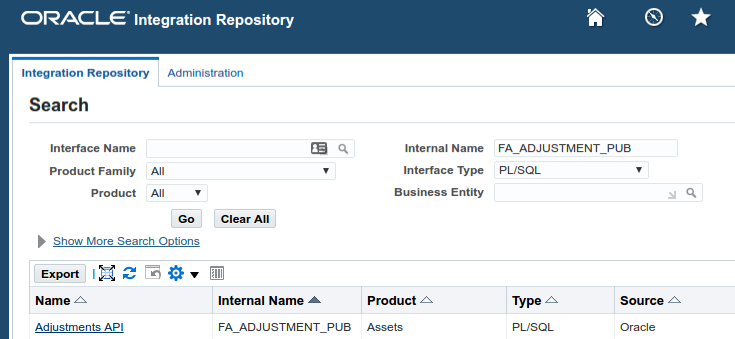
-
-
Click Go to execute the search.
-
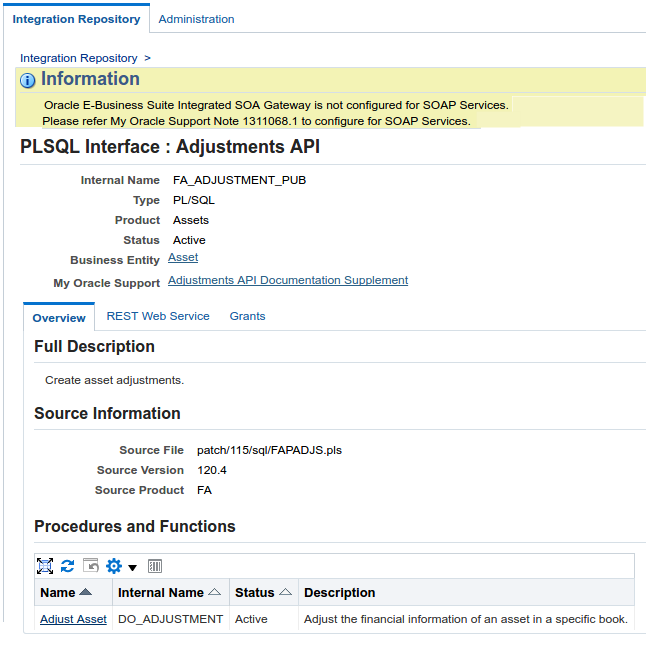
Click the Adjustments API link to see the interface details.
-
Click the REST Service Locator interface name link to open the interface details page.
-
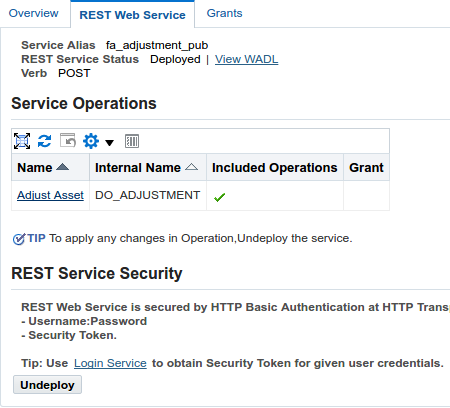
In the REST Web Service tab, enter the following information:
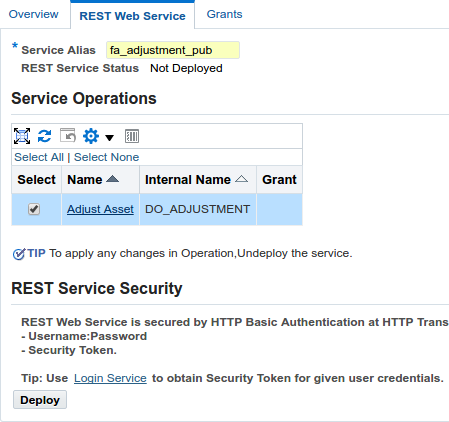
Important: The alias of the deployed Web Service MUST be:
1) The internal name.
2) In lowercase. The alias information can be found under the Service Alias label. In this example, it is fa_adjustment_pub. -
Click Deploy to deploy the service to an Oracle E-Business Suite WebLogic environment.
After the REST service successfully deploys,
Deployedappears in the REST Service Status field along with the View WADL link. -
Click the View WADL link to view the deployed service WADL description.
To Configure in Studio
-
Drag a connector operation to the Anypoint Studio canvas.
-
Configure the Global element for the connector.
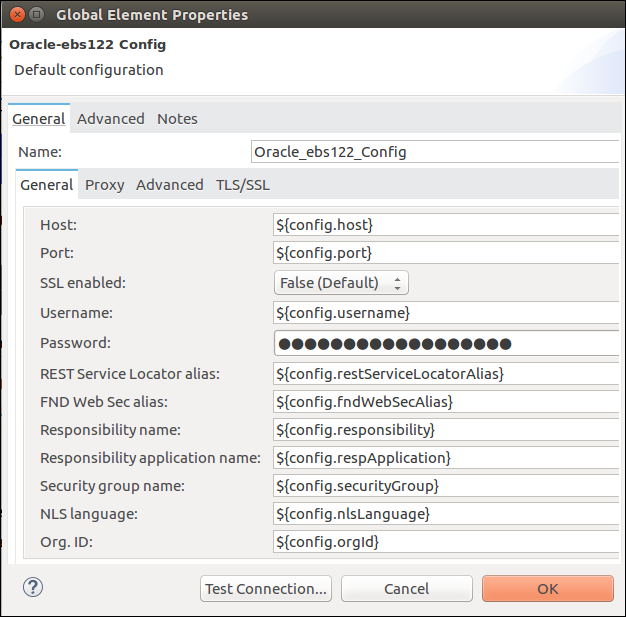
Field Description Host
Host of the Oracle EBS instance
Port
Port of the Oracle EBS Web Services
SSL enabled
If checked, the connector makes Web Services calls using HTTPS instead of HTTP
Username
Username to log in to Oracle EBS Web Services
Password
Password for the username
Rest Service Locator alias
Name assigned to the Web Service with the internal name
oracle.apps.fnd.rep.ws.service.EbsRestLocatorwhen deployedFND Web Sec alias
Name assigned to the PL/SQL Web Service with the internal name
FND_WEB_SECwhen deployedResponsibility name
Oracle EBS responsibility name that is needed to execute the operation. This field accepts
responsibility_key.Responsibility application name
Application short name that is needed to execute the operation
Security group name
(Optional) Security group key of the Oracle EBS instance (
STANDARDby default)NLS language
(Optional) NLS language of the Oracle EBS instance (
AMERICANby default)Org. ID
(Optional) Organization ID of the Oracle EBS instance
Log Requests and Responses
To log requests and responses when using the connector, configure a logger by adding this line to the Loggers element of the log4j2.xml configuration file for the Mule app:
<AsyncLogger name="name="org.mule.service.http.impl.service.HttpMessageLogger" level="DEBUG"/>The following example shows the Loggers element with the AsyncLogger line added:
<?xml version="1.0" encoding="UTF-8"?>
<Configuration status="WARN">
	<Appenders>
	    <Console name="Console" target="SYSTEM_OUT">
	    	<PatternLayout pattern="%d{HH:mm:ss.SSS} [%t] %-5level %logger{36} - %msg%n"/>
		</Console>
	</Appenders>
	<Loggers>
		<AsyncLogger name="org.mule.service.http.impl.service.HttpMessageLogger" level="DEBUG" additivity="false">
			<appender-ref ref="Console" level="debug"/>
		</AsyncLogger>
	</Loggers>
</Configuration>
You can view the app log in the following ways:
-
If you’re running the app from the Anypoint Platform, the output is visible in the Anypoint Studio console window.
-
If you’re running the app using Mule from the command line:
-
The app log is visible in your OS console.
-
Unless the log file path was customized in the app’s log file (
log4j2.xml), you can also view the app log in this default location:
-
MULE_HOME/logs/<app-name>.log
For more information about the app log, see Configuring Logging.
Use Case: Create an Oracle EBS 12.2 Global Element
Follow the steps below to create an Oracle EBS 12.2 global element for Web Services and PL/SQL invocation:
-
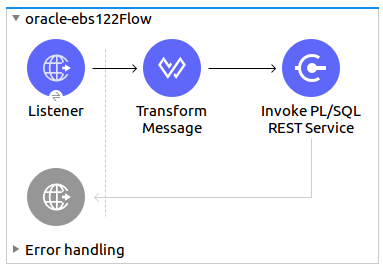
Create a new Mule Project in Studio and select an HTTP Listener as a source in the new flow.
-
Add a new HTTP Listener global element configuration.
-
Specify the Host and Port parameters with the following values:
Parameter Value Host
0.0.0.0
Port
8081
-
Click Save.
-
-
Assign the new global configuration to your HTTP Listener.
-
Specify the HTTP Listener path as the
/startvalue. -
Drag a Transform Message element and add it the following code:
%dw 2.0 output application/xml ns ns0 http://xmlns.oracle.com/apps/per/rest/hr_location_api/create_location/ --- { ns0#InputParameters: { ns0#P_VALIDATE: 0, ns0#P_EFFECTIVE_DATE: now, ns0#P_LOCATION_CODE: "HR- MuleSoft Office", ns0#P_DESCRIPTION: "Description Office" } } -
Drag a new Oracle E-Business Suite 12.2 component into the flow.
-
In the General tab, configure the Oracle E-Business Suite 12.2 connector global element with its environment values.
-
In the properties editor of Oracle E-Business Suite 12.2 connector, set PL/SQL to
hr_location_apiand Operation toCREATE_LOCATION: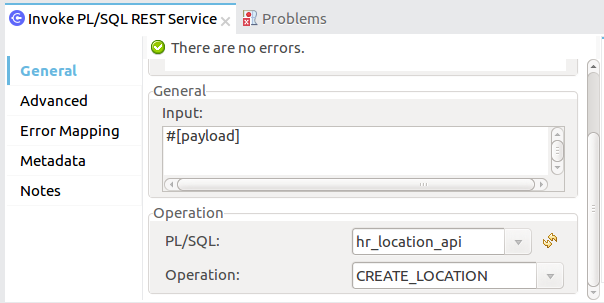
-
Copy the following content under the Message > Body section:
#[payload]
-
Save and run the project as a Mule application.
-
Navigate to
http://127.0.0.1:8081/startto test the application.
Use Case: XML
<?xml version="1.0" encoding="UTF-8"?>

<mule xmlns:oracle-ebs122="http://www.mulesoft.org/schema/mule/oracle-ebs122"
xmlns:ee="http://www.mulesoft.org/schema/mule/ee/core"
xmlns:http="http://www.mulesoft.org/schema/mule/http"
xmlns="http://www.mulesoft.org/schema/mule/core"
xmlns:doc="http://www.mulesoft.org/schema/mule/documentation"
xmlns:xsi="http://www.w3.org/2001/XMLSchema-instance"
xsi:schemaLocation="http://www.mulesoft.org/schema/mule/core
http://www.mulesoft.org/schema/mule/core/current/mule.xsd
http://www.mulesoft.org/schema/mule/http
http://www.mulesoft.org/schema/mule/http/current/mule-http.xsd
http://www.mulesoft.org/schema/mule/ee/core
http://www.mulesoft.org/schema/mule/ee/core/current/mule-ee.xsd
http://www.mulesoft.org/schema/mule/oracle-ebs122
http://www.mulesoft.org/schema/mule/oracle-ebs122/current/mule-oracle-ebs122.xsd">
		<configuration-properties file="mule-app.properties"/>

	<http:listener-config name="HTTP_Listener_config" doc:name="HTTP Listener config" basePath="/" >
		<http:listener-connection host="0.0.0.0" port="8081" />
	</http:listener-config>
	<oracle-ebs122:config name="Oracle_ebs122_Config" doc:name="Oracle-ebs122 Config" >
		<oracle-ebs122:plsql-connection host="${config.host}"
		port="${config.port}" username="${config.username}"
		password="${config.password}"
		restServiceLocatorAlias="${config.restServiceLocatorAlias}"
		fndWebSecAlias="${config.fndWebSecAlias}"
		responsibility="${config.responsibility}"
		respApplication="${config.respApplication}"
		securityGroup="${config.securityGroup}"
		nlsLanguage="${config.nlsLanguage}"
		orgId="${config.orgId}"/>
	</oracle-ebs122:config>
	<flow name="oracle-ebs122Flow">
		<http:listener doc:name="Listener" config-ref="HTTP_Listener_config"
		path=“/start”/>
		<ee:transform doc:name="Transform Message" >
			<ee:message >
				<ee:set-payload ><![CDATA[%dw 2.0
output application/xml
ns ns0 http://xmlns.oracle.com/apps/per/rest/hr_location_api/create_location/
---
{
	ns0#InputParameters: {
		ns0#P_VALIDATE: 0,
		ns0#P_EFFECTIVE_DATE: now,
		ns0#P_LOCATION_CODE: "HR- MuleSoft BA",
		ns0#P_DESCRIPTION: "Buenos Aires Office"
	}
}]]></ee:set-payload>
			</ee:message>
			<ee:variables >
				<ee:set-variable variableName="payload" ><![CDATA[%dw 2.0
output application/xml
ns ns0 http://xmlns.oracle.com/apps/per/rest/hr_location_api/create_location/
---
{
	    ns0#InputParameters: {
        ns0#P_VALIDATE: 0,
        ns0#P_EFFECTIVE_DATE: now,
        ns0#P_LOCATION_CODE: 'LocCode001’,
        ns0#P_DESCRIPTION: 'Location 001’
    }
}]]></ee:set-variable>
			</ee:variables>
		</ee:transform>
		<oracle-ebs122:invoke-pl-sql-rest-service
		doc:name="Invoke PL/SQL REST Service"
		config-ref="Oracle_ebs122_Config"
		operation="CREATE_LOCATION" plSql="hr_location_api">
			<oracle-ebs122:input ><![CDATA[#[payload]]]></oracle-ebs122:input>
		</oracle-ebs122:invoke-pl-sql-rest-service>
	</flow>
</mule>
See Also
-
Oracle’s Developer’s Guide tutorial in the Deploying a REST Service section