
Upgrading and Migrating RosettaNet Connector to Version 3.x
Upgrade Anypoint Connector for RosettaNet (RosettaNet Connector) from version 2.x to 3.x to take advantage of FIPS-compliant cryptographic support and other improvements.
Before You Begin
Before you upgrade to RosettaNet Connector 3.x, make sure you have:
-
Mule runtime 4.6.0 or later. See the Mule runtime release-notes::connector/rosettanet-connector-release-notes-mule-4.adoc for FIPS support by version.
-
RosettaNet Connector version 3.0.0 or later.
-
RosettaNet Support Libraries version 2.0.0 or later.
-
Bouncy Castle Java Cryptography Extension (JCE) provider designed for JDK 1.8 or higher for non-FIPS mode. This configuration requires the
bcprov-jdk18on,bcpkix-jdk18on, andbcjmail-jdk18onlibraries. Version 1.86 is recommended. -
The
jakarta.activationandjakarta.maillibraries for signing MIME Parts. -
bcjmail-fipslibrary for FIPS modes and other Bouncy Castle FIPS (BCFIPS) libraries as required by your Mule runtime and security model. -
Java 17 or later with FIPS-capable JVM if required by your deployment for FIPS 140-3.
Supported Security Modes
RosettaNet Connector 3.x supports these security modes, which are controlled by the mule.security.model system property:
-
non-FIPS (default)
This is the default security mode for Mule applications that don’t require FIPS compliance. RosettaNet Connector uses the non-FIPS compliant standard cryptographic libraries
bcprov-jdk18on,bcpkix-jdk18on,bcjmail-jdk18on,jakarta.activationandjakarta.mailwhich aren’t FIPS compliant. Don’t set the system property as the default mode. -
FIPS 140-2 Compliant Mode
Set this security mode to use FIPS 140-2 approved cryptographic providers.
-
FIPS 140-3 Compliant Mode
Set this security mode to use FIPS 140-3 approved cryptographic providers.
If the mule.security.model property begins with fips140-, then RosettaNet Connector activates FIPS mode and applies the corresponding security controls, as shown in the example.
-Dmule.security.model=fips140-3Configure External Libraries
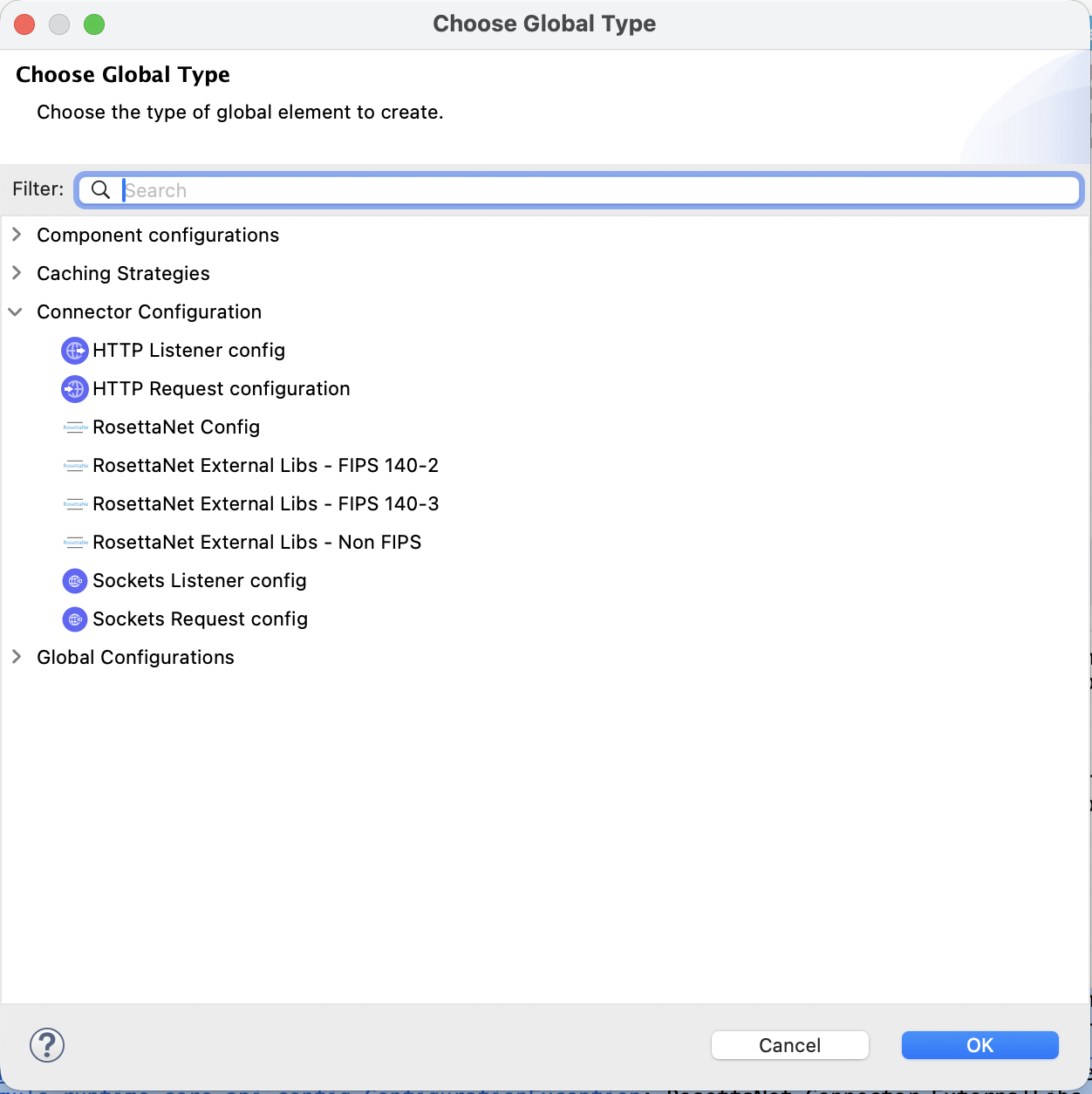
Mule applications using RosettaNet Connector require a Global Element configuration that includes the necessary RosettaNet support and cryptographic libraries for each security mode. The table shows the global configuration and required libraries for each security mode. Use only one security mode per application.
Refer to the RosettaNet Connector Release Notes to include specific required library versions that are compliant with the corresponding version of the connector.
For FIPS modes, the Mule runtime and BCFIPS requirements apply.
| Security Mode | Global Configuration | Default Name | Required Library Maven Coordinates |
|---|---|---|---|
non-FIPS |
|
|
org.bouncycastle:bcpkix-jdk18on:1.86, org.bouncycastle:bcprov-jdk18on:1.86, org.bouncycastle:bcjmail-jdk18on:1.86, com.sun.activation:jakarta.activation:2.0.1, com.sun.mail:jakarta.mail:2.0.2 |
FIPS 140-2 |
|
|
org.bouncycastle:bcjmail-fips:1.0.4, com.sun.activation:jakarta.activation:2.0.1, com.sun.mail:jakarta.mail:2.0.2 |
FIPS 140-3 |
|
|
org.bouncycastle:bcjmail-fips:2.1.7, com.sun.activation:jakarta.activation:2.0.1, com.sun.mail:jakarta.mail:2.0.2 |
Upgrade Steps
Follow these steps to upgrade from RosettaNet Connector 2.x to 3.x. Use the configuration that applies to your selected security mode.
Step 1: Update the Connector Dependency
-
Update your project’s
pom.xmlfile to use RosettaNet Connector 3.x:
<dependency>
    <groupId>com.mulesoft.connectors</groupId>
    <artifactId>mule-rosettanet-connector</artifactId>
    <version>3.0.0</version>
    <classifier>mule-plugin</classifier>
</dependency>-
Rebuild the project and resolve API or configuration changes reported by the build.
Step 2: Add a Connector Configuration Global Element
Include only one external library global configuration. Follow the global element configuration steps for your selected security mode.
Configure a Global Element for the non-FIPS Security Mode
-
Add the external library global configuration and don’t set the runtime property. Make sure the BouncyCastle jdk18on library version 1.86 is available to add as an external library.
-
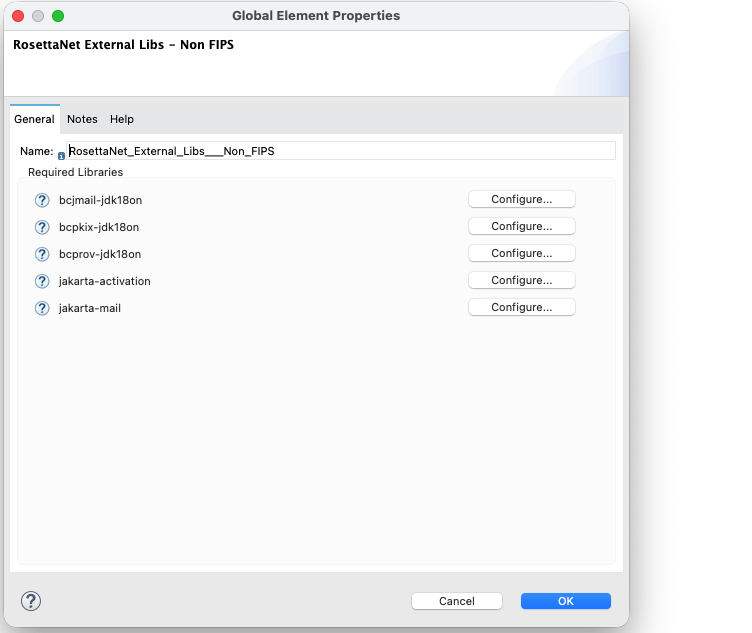
Configure the global element as a Mule app in Anypoint Studio:
-
In the Package Explorer or Anypoint Studio canvas, open your Mule flow or configuration.
-
Click Global Elements. Or click Create global element, and then click the plus icon next to Global Elements.
-
-
Click Create, and then search for the
RosettaNetorExternal Libsoption and select RosettaNet External Libs - Non FIPS.-
Name the configuration.
-
Click Configure > Add recommended libraries.
-
Click OK to include the libraries as dependencies and shared libraries in the Mule application
pom.xmlfile.
-
-
Verify that your project has the required dependencies for your selected security mode. Add the dependencies via Maven if they aren’t added automatically.
To configure the global element manually in XML (Maven or standalone):
-
Open your main Mule configuration file, such as
src/main/mule/orsrc/main/resources/. -
Add the
rosetta:external-libs-non-fips-configglobal element to the Mule configuration file. -
Add the
RosettaNet External Libs - Non FIPSglobal configuration to your Mule configuration file, as shown in the example:
<rosetta:external-libs-non-fips-config name="RosettaNet_External_Libs___Non_FIPS" />-
Add the required Maven dependencies to the
pom.xmlfile. Refer to the RosettaNet Connector Release Notes for the compatible versions of the dependencies.
<dependency>
    <groupId>org.bouncycastle</groupId>
    <artifactId>bcpkix-jdk18on</artifactId>
    <version>${bouncy.castle.jdk18on.version}</version>
</dependency>
<dependency>
    <groupId>org.bouncycastle</groupId>
    <artifactId>bcprov-jdk18on</artifactId>
    <version>${bouncy.castle.jdk18on.version}</version>
</dependency>
<dependency>
    <groupId>org.bouncycastle</groupId>
    <artifactId>bcjmail-jdk18on</artifactId>
    <version>${bouncy.castle.jdk18on.version}</version>
</dependency>
<dependency>
    <groupId>com.sun.activation</groupId>
    <artifactId>jakarta.activation</artifactId>
    <version>${jakarta.activation.version}</version>
</dependency>
<dependency>
    <groupId>com.sun.mail</groupId>
    <artifactId>jakarta.mail</artifactId>
    <version>${jakarta.mail.version}</version>
</dependency>-
Update the
mule-maven-pluginby including the shared libraries in the build > plugins > plugin section of thepom.xmlfile.
<configuration>
  <sharedLibraries>
    <sharedLibrary>
      <groupId>org.bouncycastle</groupId>
      <artifactId>bcpkix-jdk18on</artifactId>
    </sharedLibrary>
    <sharedLibrary>
      <groupId>org.bouncycastle</groupId>
      <artifactId>bcprov-jdk18on</artifactId>
    </sharedLibrary>
    <sharedLibrary>
        <groupId>org.bouncycastle</groupId>
        <artifactId>bcjmail-jdk18on</artifactId>
    </sharedLibrary>
    <sharedLibrary>
        <groupId>com.sun.activation</groupId>
        <artifactId>jakarta.activation</artifactId>
    </sharedLibrary>
    <sharedLibrary>
        <groupId>com.sun.mail</groupId>
        <artifactId>jakarta.mail</artifactId>
    </sharedLibrary>
  </sharedLibraries>
</configuration>
Configure a Global Element for the FIPS 140-2 Security Mode
-
Add the external library global configuration and set the runtime property. Make sure BouncyCastle FIPS (BCFIPS) is available as required by your Mule runtime. Configure BCFIPS in Java Security.
For FIPS 140-2 compliance, follow the FIPS 140-2 Compliance Support documentation.
-
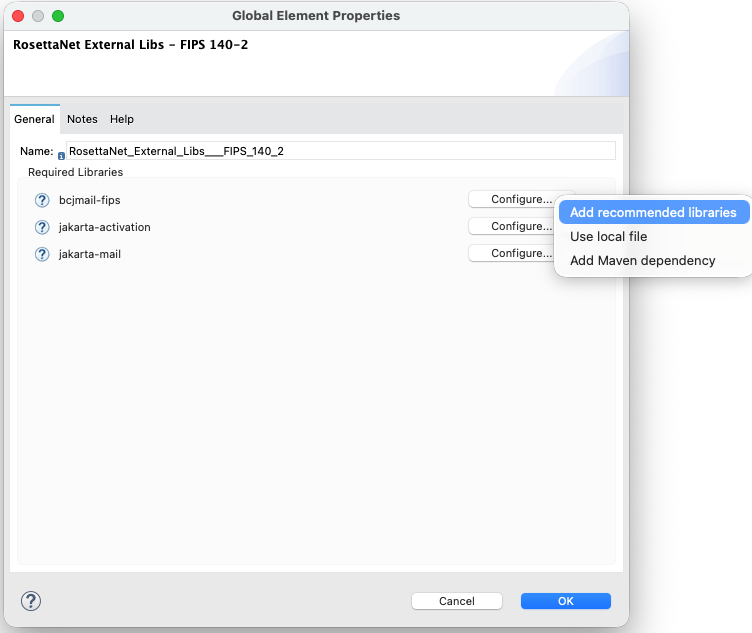
Configure the global element as a Mule app in Anypoint Studio:
-
In the Package Explorer or Anypoint Studio canvas, open your Mule flow or configuration.
-
Click Global Elements. Or click Create global element, and then click the plus icon next to Global Elements.
-
-
Click Create, and then search for the
RosettaNetorExternal Libsoption and select RosettaNet External Libs - FIPS 140-2.-
Name the configuration.
-
Click Configure > Add recommended libraries.
-
Click OK to include the libraries as dependencies and shared libraries in the Mule app
pom.xmlfile.
-
-
Verify that your project has the required dependencies for your selected security mode. Add the dependencies via Maven if they aren’t added automatically.
To configure the global element manually in XML (Maven or standalone):
-
Open your main Mule configuration file, such as
src/main/mule/orsrc/main/resources/. -
Add the
rosettanet:external-libs-fips140-2-configglobal element to the Mule configuration file. -
Add the
RosettaNet External Libs - FIPS 140-2global configuration to your Mule configuration file, as shown in the example.
<rosetta:external-libs-fips140-2-config name="RosettaNet_External_Libs_FIPS_140_2" />-
Add the required Maven dependencies to the
pom.xmlfile. Refer to the RosettaNet Connector Release Notes for the compatible versions of the dependencies.
<dependency>
  <groupId>org.bouncycastle</groupId>
  <artifactId>bcjmail-fips</artifactId>
  <version>${bouncycastle.mail.fips.version}</version>
</dependency>
<dependency>
  <groupId>com.sun.activation</groupId>
  <artifactId>jakarta.activation</artifactId>
  <version>${jakarta.activation.version}</version>
</dependency>
<dependency>
  <groupId>com.sun.mail</groupId>
  <artifactId>jakarta.mail</artifactId>
  <version>${jakarta.mail.version}</version>
</dependency>-
Update the
mule-maven-pluginby including the shared libraries in the build > plugins > plugin section of thepom.xmlfile.
<configuration>
  <sharedLibraries>
    <sharedLibrary>
      <groupId>org.bouncycastle</groupId>
      <artifactId>bcjmail-fips</artifactId>
    </sharedLibrary>
    <sharedLibrary>
      <groupId>com.sun.activation</groupId>
      <artifactId>jakarta.activation</artifactId>
    </sharedLibrary>
    <sharedLibrary>
      <groupId>com.sun.mail</groupId>
      <artifactId>jakarta.mail</artifactId>
    </sharedLibrary>
  </sharedLibraries>
</configuration>-
In JVM or Mule runtime, set the security model to FIPS 140-2.
-Dmule.security.model=fips140-2-
Restrict BCFIPS to use only FIPS-approved algorithms.
-Dorg.bouncycastle.fips.approved_only=trueThis example shows the Mule runtime startup configuration for FIPS 140-2:
java -Dmule.security.model=fips140-2 \
  -Dorg.bouncycastle.fips.approved_only=true \
  -jar mule-standalone.jar
Configure a Global Element for the FIPS 140-3 Security Mode
-
Add the external library global configuration and set the runtime property. Also:
-
Make sure BouncyCastle FIPS (BCFIPS) is available as required by your Mule runtime.
-
Configure BCFIPS in Java Security or by following the Mule runtime FIPS documentation for your version.
-
Make sure you have Java 17 or later as required for FIPS 140-3 support in your deployment.
-
-
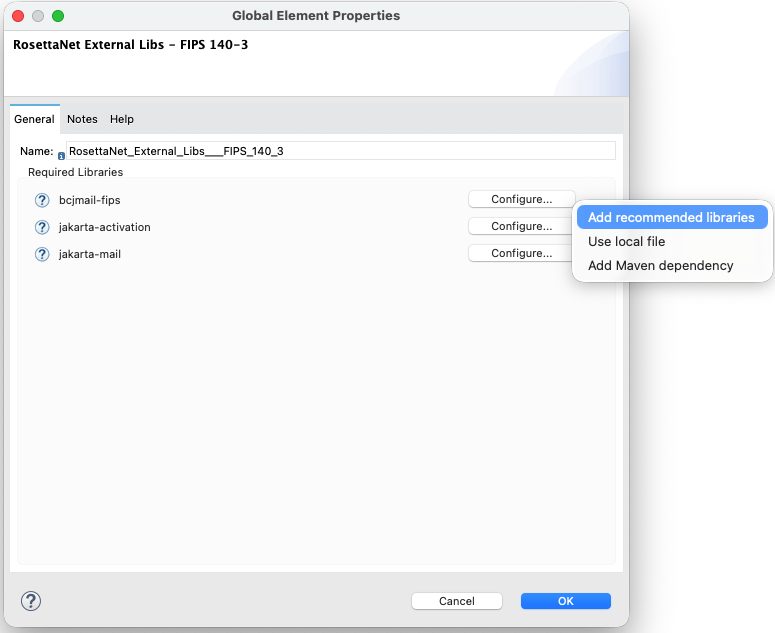
Configure the global element as a Mule app in Anypoint Studio:
-
In the Package Explorer or Anypoint Studio canvas, open your Mule flow or configuration.
-
Click Global Elements. Or click Create global element, and then click the plus icon next to Global Elements.
-
-
Click Create, and then search for the
RosettaNetorExternal Libsoption and select RosettaNet External Libs - FIPS 140-3.-
Name the configuration.
-
Click Configure > Add recommended libraries.
-
Click OK to include the libraries as dependencies and shared libraries in the Mule app
pom.xmlfile.
-
-
Verify that your project has the required dependencies for your selected security mode. Add the dependencies via Maven if they aren’t added automatically.
To configure the global element manually in XML (Maven or standalone):
-
Open your main Mule configuration file, such as
src/main/mule/orsrc/main/resources/. -
Add the
rosettanet:external-libs-fips140-3-configglobal element to the Mule configuration file. -
Add the
RosettaNet External Libs - FIPS 140-3global configuration to your Mule configuration file, as shown in the example:
<rosettanet:external-libs-fips140-3-config name="RosettaNet_External_Libs_FIPS_140_3" />-
Add the required Maven dependencies to the
pom.xmlfile. Refer to the RosettaNet Connector Release Notes for the compatible versions of the dependencies.
<dependency>
  <groupId>org.bouncycastle</groupId>
  <artifactId>bcjmail-fips</artifactId>
  <version>${bouncycastle.mail.fips.version}</version>
</dependency>
<dependency>
  <groupId>com.sun.activation</groupId>
  <artifactId>jakarta.activation</artifactId>
  <version>${jakarta.activation.version}</version>
</dependency>
<dependency>
  <groupId>com.sun.mail</groupId>
  <artifactId>jakarta.mail</artifactId>
  <version>${jakarta.mail.version}</version>
</dependency>-
Update the
mule-maven-pluginby including the shared libraries in the build > plugins > plugin section of thepom.xmlfile.
<configuration>
  <sharedLibraries>
    <sharedLibrary>
      <groupId>org.bouncycastle</groupId>
      <artifactId>bcjmail-fips</artifactId>
    </sharedLibrary>
    <sharedLibrary>
      <groupId>com.sun.activation</groupId>
      <artifactId>jakarta.activation</artifactId>
    </sharedLibrary>
    <sharedLibrary>
      <groupId>com.sun.mail</groupId>
      <artifactId>jakarta.mail</artifactId>
    </sharedLibrary>
  </sharedLibraries>
</configuration>-
In JVM or Mule runtime, set the security model to FIPS 140-3.
-Dmule.security.model=fips140-3-
Restrict BCFIPS to use only FIPS-approved algorithms.
-Dorg.bouncycastle.fips.approved_only=trueThis example shows the Mule runtime startup configuration for FIPS 140-3:
java -Dmule.security.model=fips140-3 \
  -Dorg.bouncycastle.fips.approved_only=true \
-jar mule-standalone.jar|
The If you use BCFIPS in FIPS mode, key and algorithm restrictions apply. Only approved algorithms supported by the BCFIPS provider are allowed. |
Step 3: Verify Keystore and Algorithm Compatibility
-
Verify that keystores and certificates are compatible with your selected security mode. Some FIPS modes require FIPS-approved algorithms.
-
Review the Mule and BCFIPS documentation for approved algorithms if you use BCFIPS in FIPS mode, since key and algorithm restrictions apply.
RosettaNet Connector Startup Validation
At startup, RosettaNet Connector validates that the external library configuration and runtime settings are correct. Validation fails if the Mule application doesn’t meet these requirements:
-
The application must include one external library. An error occurs if more than one external library is included or if none are included.
-
Match the
mule.security.modelsystem property to the selected external library configuration:-
For non-FIPS, disable the
mule.security.model. If it’s enabled, remove the property. -
For FIPS 140-2, set
mule.security.modeltofips140-2. If the property isn’t configured correctly, a message is logged to correct the setting to-Dmule.security.model=fips140-2. -
For FIPS 140-3, set
mule.security.modeltofips140-3. If the property isn’t configured correctly, a message is logged to correct the setting to-Dmule.security.model=fips140-3.
-
-
RosettaNet Connector instantiates the cryptographic implementation for the selected security mode at startup. If this fails, for example due to missing or incompatible libraries, an error is logged that includes the security profile and the cause.
Post-Upgrade Steps
-
Verify that the application starts without errors and that RosettaNet Connector initializes correctly for your selected security mode.
-
Test the operations against your RosettaNet partners.
-
Confirm that certificates and algorithms are accepted in FIPS mode if applicable.
-
Notify partners of URL or port changes if you modified the HTTP Listener configuration.
System Properties Reference
The table details the system-level properties that are required to configure RosettaNet Connector’s security modes and BCFIPS compliance within the Mule runtime or JVM.
| Property | Description | Values | Default | Scope |
|---|---|---|---|---|
|
Security mode used by the connector |
|
|
Mule runtime or JVM |
|
Restricts BCFIPS to FIPS-approved algorithms only. Required for FIPS compliance when using BCFIPS. |
|
|
JVM-wide |
The org.bouncycastle.fips.approved_only property affects the entire JVM. When the application runs in FIPS mode, the system administrator must configure the property. For more information, see the FIPS 140-2 Compliance Support section on the Security page in the Mule runtime documentation.
Migrate Existing Deployments
RosettaNet Connector 3.x introduces a Global Connector Configuration and supports configurable security modes including non-FIPS, FIPS 140-2, and FIPS 140-3 via the mule.security.model system property. Follow the Upgrade Steps to make the necessary changes to your Mule app. RosettaNet Connector’s cryptographic behavior is determined by the global configuration, which provides the required libraries and defines the runtime security model.
Existing 2.x flows remain functional without requiring code changes.
Migrate Deployments from FIPS 140-2 or 140-3 Environments
-
Verify that BCFIPS and FIPS-related settings are configured correctly for your Mule runtime version. For more information, see the FIPS 140-2 Compliance Support section on the Security page in the Mule runtime documentation.
-
Set
mule.security.modeltofips140-2orfips140-3as appropriate for your compliance requirements. -
Set
org.bouncycastle.fips.approved_onlytotrueif required by your runtime for compliance. -
Test your configuration in a non-production environment by running your flows that use the operations.
-
Deploy the application to production and monitor the error log to verify a successful startup and RosettaNet message exchange.
Troubleshooting
These common error messages and issues indicate configuration or classpath problems that prevent RosettaNet Connector from operating in the selected security mode. Follow the recommendations to resolve the issues.
-
RosettaNet Connector requires at least one External Libs configuration
Add
RosettaNet External Libs - Non FIPS,RosettaNet External Libs - FIPS 140-2, orRosettaNet External Libs - FIPS 140-3to your application. See RosettaNet Connector Startup Validation. -
Only one External Libs configuration is allowed per application
Remove the additional external library configurations so that you only have one.
-
Detected 'mule4-rosettanet-support-non-fips' but system property 'mule.security.model' is …
For non-FIPS mode, disable
mule.security.modelor remove it from the JVM arguments or runtime configuration. -
Detected 'mule4-rosettanet-support-fips1' but system property … Set -Dmule.security.model=fips140-2
Add
-Dmule.security.model=fips140-2if you’re usingRosettaNet Connector External Libs - FIPS 140-2. -
Detected 'mule4-rosettanet-support-fips2' but system property … Set -Dmule.security.model=fips140-3
Add
-Dmule.security.model=fips140-3if you’re usingRosettaNet Connector External Libs - FIPS 140-3. -
External Libs - … configuration selected, but '…' is not on the classpath
Add the correct implementation dependency for your selected security mode or make sure the external library configuration imports the dependency. If you receive a warning, make sure only the external library configuration for your active security mode remains by removing any additional external library configurations.
-
Startup or Crypto Errors in FIPS Mode
Make sure
mule.security.modelmatches your runtime FIPS setup and that BCFIPS is installed and registered. Setorg.bouncycastle.fips.approved_onlytotrueif required. -
Tests or Flows that Relied on non-FIPS Behavior
If your application is running with
mule.security.model=fips140-2orfips140-3, some algorithms or key usages are restricted. Align keystores and partner expectations with FIPS-approved algorithms. -
Caching or Metadata Issues
If Anypoint Studio or Anypoint Design Center shows a stale configuration, try restarting the IDE or clearing your cache.
Revert the Upgrade
To revert to RosettaNet Connector 2.x:
-
Change the
mule-rosettanet-connectordependency in your project’spom.xmlfile to the desired 2.x version. -
Remove the external library global configuration.
-
Remove the libraries that were added as dependencies and shared libraries from the
pom.xmlfile. -
Remove or adjust 3.x system properties, such as
mule.security.model, if they aren’t being used by other components.