
Configure Studio to Use Your Own Maven
Anypoint Studio comes bundled with Maven but you can use Studio with an external Maven installation as well.
-
Open Studio
-
Go to Studio preferences:
-
In macOS, go to Anypoint Studio > Settings.
-
In Windows, go to Anypoint Studio > Preferences.
-
-
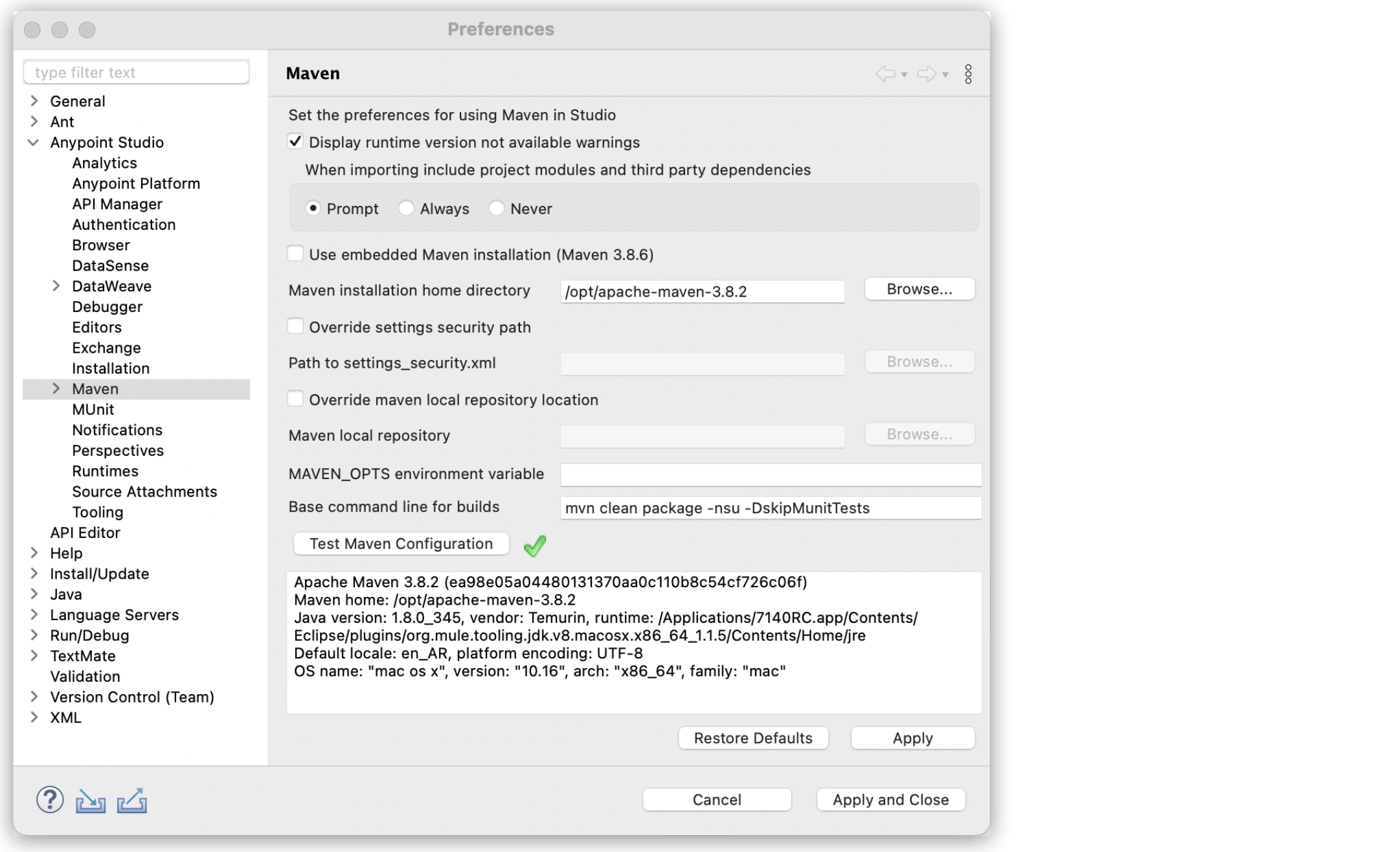
In the Preferences panel, go to Anypoint Studio > Maven.
-
Deselect Use embedded Maven Installation.
-
Click Browse next to the Maven installation home directory field.
-
Select your Maven root installation path and click Open.
-
Click Test Maven Configuration to verify your Maven configuration in Studio is correct.
-
Click Apply and Close.