
MCP Server Issues
When using the MuleSoft MCP Server in Anypoint Code Builder, you might encounter issues that prevent the server from functioning correctly. Follow these troubleshooting steps to diagnose and resolve common MCP server problems.
Verify the MCP Server Is Running
If MuleSoft Vibes isn’t responding to commands or tools aren’t available, verify that the MuleSoft MCP Server is running:
-
Open the MuleSoft Vibes panel in Anypoint Code Builder.
-
Click Manage MCP Servers.
-
Click
 (Settings) to open the MCP Server settings.
 -
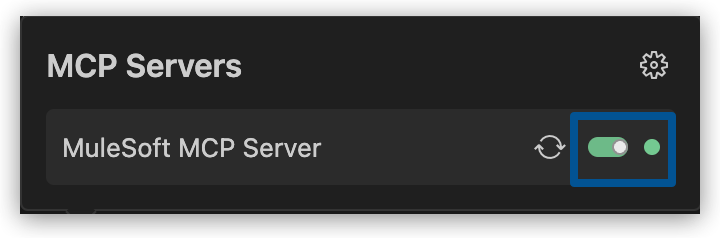
In the Installed tab, verify that the MuleSoft MCP Server is enabled (toggled on and marked in green).
If the server is disabled, toggle it on to enable it.
Verify MuleSoft MCP Server Tools in GitHub Copilot
When you install Anypoint Code Builder, the MuleSoft MCP Server tools are automatically registered in VS Code. To confirm the tools are available in GitHub Copilot:
-
Make sure GitHub Copilot is set up and you are logged in. For setup instructions, see Use MuleSoft MCP Server Tools with GitHub Copilot.
-
Follow the VS Code instructions to use MCP tools in agent mode and confirm that the MuleSoft tools appear in the tools list.
The tools are registered directly in VS Code using the Language Model API. No manual configuration is required.
Check MCP Server Logs
When the MCP server isn’t working as expected, check the logs to identify the cause:
-
Open the Output panel.
Show me how
-
Use the keyboard shortcuts:
-
Mac: Cmd+Shift+u
-
Windows: Ctrl+Shift+u
-
-
Select View > Output.
-
-
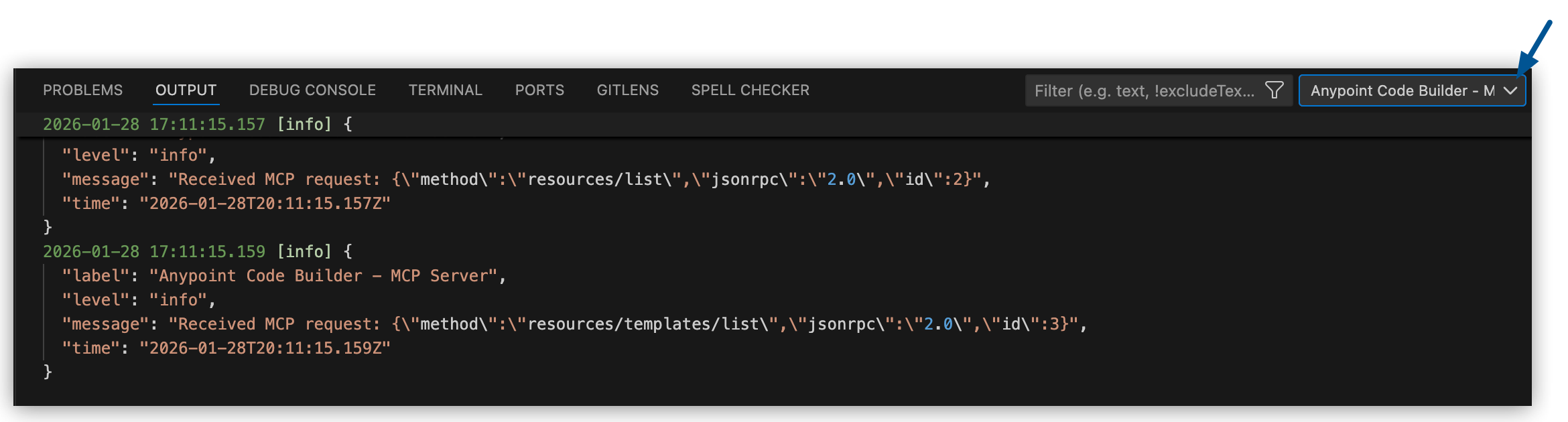
From the dropdown list in the Output panel, select Anypoint Code Builder - MCP Server.
-
Review the logged information for errors or warnings.
The logs provide details about server operations, tool executions, and any errors that occur.
You can also check the Tasks section in the Output panel for additional errors or warnings related to MCP server operations.
Restart the MCP Server
If the MCP server stops responding or behaves unexpectedly, restart it:
-
Open the MuleSoft Vibes panel in Anypoint Code Builder.
-
Click Manage MCP Servers.
-
Click
(Settings) to open the MCP Server settings. -
In the Installed tab, locate the MuleSoft MCP Server.
-
Click
 (Restart Server).
When the server restarts successfully, you see a confirmation message in the Output panel.
If restarting doesn’t resolve the issue, try disabling and then re-enabling the server.
Validate MCP Server Configuration
You can validate whether the MCP server is running correctly by using third-party tools:
-
In the MCP Server settings, select Configure MCP Servers to view the server configuration.
-
Use an API client like Postman to send test requests to the MCP server endpoint.
-
Verify that the server responds correctly to your requests.
If the server doesn’t respond, check that the configuration in the a4d_mcp_settings.json file is correct.
MCP Server Tools Are Unavailable
If MCP server tools aren’t appearing or aren’t responding:
-
Verify that the MuleSoft MCP Server is enabled in the Installed tab of the MCP Server settings.
-
Check that the tools are enabled for the server:
-
In the Installed tab, select the MuleSoft MCP Server to expand its details.
-
Verify that the required tools are listed and enabled.
-
-
Restart the MCP server.
-
If the issue persists, check the MCP server logs for errors.
MCP Server Request Timeout
If requests to the MCP server are timing out:
-
Open the MCP Server settings.
-
In the Installed tab, select the MuleSoft MCP Server.
-
Locate the Request Timeout setting.
-
Increase the timeout value to allow more time for the server to respond.
For complex operations, a longer timeout might be required.