
Receiving AS2 Messages and Sending Back MDNs
These examples show how to use Anypoint Connector for AS2 (AS2 Connector) to receive AS2 messages from a trading partner and send MDNs (Message Disposition Notifications) to that partner in response:
-
Receive AS2 messages from your partner and, for every received message, log a message that contains the message payload to the Studio console.
-
Send a synchronous AS2 MDN in response to each received AS2 message.
-
Send an asynchronous AS2 MDN in response to each received AS2 message.
Receiving AS2 Messages
Creating this example involves creating a new Mule project and configuring the As 2 Listener source and Logger component.
The following screenshot shows the Anypoint Studio app flow for this example:
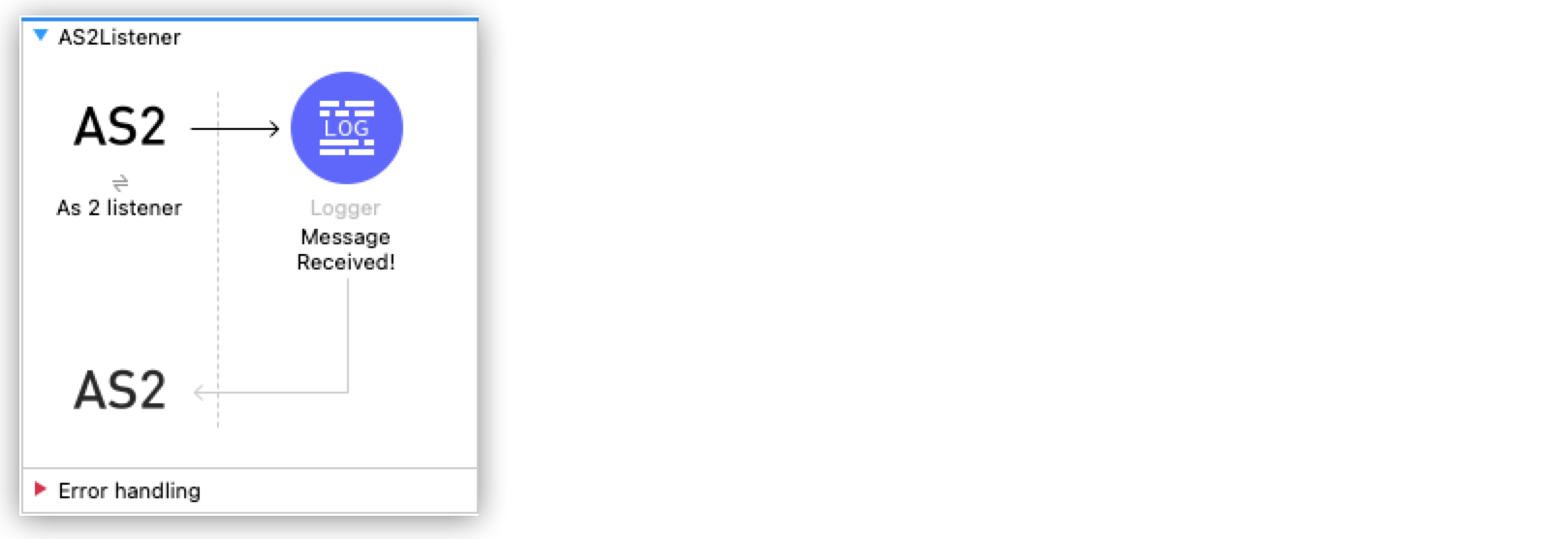
Create a Flow to Receive the Message
Configure the AS 2 Listener source to initiate a Mule flow when a call is made to the /as2-receive path on local host port 8081:
-
In Anypoint Studio, create a new Mule project.
-
In the Mule Palette view, select the As 2 listener source and drag it to the canvas.
-
On the As 2 listener properties screen, optionally change the value of the Display Name field.
-
Set the Path field to
/as2-receive. -
Click the plus sign (+) next to the Connector configuration field to configure a global element that can be used by all instances of the As 2 listener source in the app.
-
On the General tab, click the plus sign (+) next to the HTTP Listener field.
-
Accept the defaults and click OK.
-
On the General tab, configure the keystore that contains the certificates and keys:
Field Value Keystore Password
testKeystore Path
as2/partnera.p12Private Key Password
test -
On the Partners tab, specify the self and partner credentials.
For the self credentials, configure these fields:
Field Value AS2 Partner Name
partnerax509 Alias
partneraemail
support@partnera.comFor the partner credentials, configure these fields:
Field Value AS2 Partner Name
partnerbx509 Alias
partnerbemail
support@partnerb.com
Add the Logger Component
Add the Logger component to the flow and configure it to log a message that includes the payload of the received message:
-
From the Mule Palette view, select Core and drag the Logger component next to As 2 listener.
-
In the Logger properties screen, set the Message field to
Message Received: #[payload].
Save and Test the Mule App
-
Save the project.
-
Run the app by clicking the project name in Package Explorer and then clicking Run > Run As > Mule Application.
If the application starts correctly, the console displays this message:
Mule is up and kicking -
Test the app by opening
http://localhost:8081/as2-receivefrom a browser or an app like Postman and adding the required credentials.For each new request, the Studio console displays the received message. For example:
INFO  2022-09-09 17:15:46,409 [[MuleRuntime].uber.06: [as2-basic-example].AS2Listener.CPU_LITE @1369de96] [processor:
AS2Listener/processors/0; event: 30609f70-307c-11ed-8f5a-38f9d3713331] org.mule.runtime.core.internal.processor.
LoggerMessageProcessor: Message Received: Test Message
XML for the Receiving AS2 Messages Example
Paste this code into your Studio XML editor to quickly load the flow for this example into your Mule app:
<?xml version="1.0" encoding="UTF-8"?>
<mule xmlns:http="http://www.mulesoft.org/schema/mule/http"
	xmlns:as2-mule4="http://www.mulesoft.org/schema/mule/as2-mule4" xmlns="http://www.mulesoft.org/schema/mule/core"
	xmlns:doc="http://www.mulesoft.org/schema/mule/documentation"
	xmlns:xsi="http://www.w3.org/2001/XMLSchema-instance" xsi:schemaLocation="
http://www.mulesoft.org/schema/mule/http http://www.mulesoft.org/schema/mule/http/current/mule-http.xsd http://www.mulesoft.org/schema/mule/core http://www.mulesoft.org/schema/mule/core/current/mule.xsd
http://www.mulesoft.org/schema/mule/as2-mule4 http://www.mulesoft.org/schema/mule/as2-mule4/current/mule-as2-mule4.xsd">
	<http:listener-config name="HTTP_Server_Config" doc:name="HTTP Listener config" >
		<http:listener-connection host="0.0.0.0" port="8081" />
	</http:listener-config>
	<as2-mule4:listener-config name="AS2_Server_Listener" doc:name="AS2 Connector Listener config" httpListenerConfig="HTTP_Server_Config" securityLevel="SIGNED_ENCRYPTED">
		<as2-mule4:self-config as2Name="partnera" x509Alias="partnera" email="support@partnera.com"/>
		<as2-mule4:partner-config as2Name="partnerb" x509Alias="partnerb" email="support@partnerb.com" />
		<as2-mule4:key-store-config keystorePassword="test" keystorePath="as2/partnera.p12" privateKeyPassword="test" />
	</as2-mule4:listener-config>
	<flow name="AS2Listener" >
		<as2-mule4:as2-listener doc:name="As 2 listener" config-ref="AS2_Server_Listener" path="/as2-receive"/>
		<logger level="INFO" doc:name="Message Received!" message="Message Received: #[payload]"/>
	</flow>
</mule>
Sending Synchronous AS2 MDNs
When your trading partner uses an AS2 listener, like in the Receiving AS2 Messages example, the listener’s MDN mode controls when a synchronous MDN is returned. The AS2 listener supports these configurations for managing synchronous MDN delivery timing:
-
Immediate
The listener returns the MDN as soon as the incoming message is parsed and validated. The receiver’s business flow continues as a separate process after the MDN is sent. This is the default MDN Mode.
-
Auto
The listener returns the MDN only after its internal business flow completes. This ensures that if the flow fails, a negative MDN is returned to the sender to signal a processing error.
For this configuration, set the MDN mode to
AUTOon the AS2 listener.
<as2-mule4:as2-listener doc:name="As 2 listener" config-ref="AS2_Server_Listener" path="/as2-receive" mdnMode="AUTO"/>
Sending Asynchronous AS2 MDNs
The AS2 listener validates the presence of the Disposition-Notification-To and Receipt-Delivery-Option headers when receiving an asynchronous MDN request. The listener immediately returns an HTTP 200 OK to acknowledge the inbound message. The listener uses the URL in the Receipt-Delivery-Option header to return the MDN via a new HTTP connection.
The AS2 listener supports these configurations for managing asynchronous MDN delivery timing:
-
Immediate
The listener posts the MDN to the
Receipt-Delivery-OptionURL as soon as the inbound message is parsed and validated. This is the default MDN Mode. -
Auto
The listener posts the MDN to the
Receipt-Delivery-OptionURL only after its business flow completes, allowing a negative MDN to be sent if the flow fails.For this configuration, set the MDN mode to
AUTOon the AS2 listener.
<as2-mule4:as2-listener doc:name="As 2 listener" config-ref="AS2_Server_Listener" path="/as2-receive" mdnMode="AUTO"/>