
Sending AS2 Messages and Receiving MDNs
These examples show how to use Anypoint Connector for AS2 (AS2 Connector) to send AS2 messages to a trading partner and receive Message Disposition Notifications (MDNs) in response:
-
Send an AS2 message and receive a synchronous MDN in response.
-
Send an AS2 message and receive an asynchronous MDN in response.
Send with Synchronous MDN
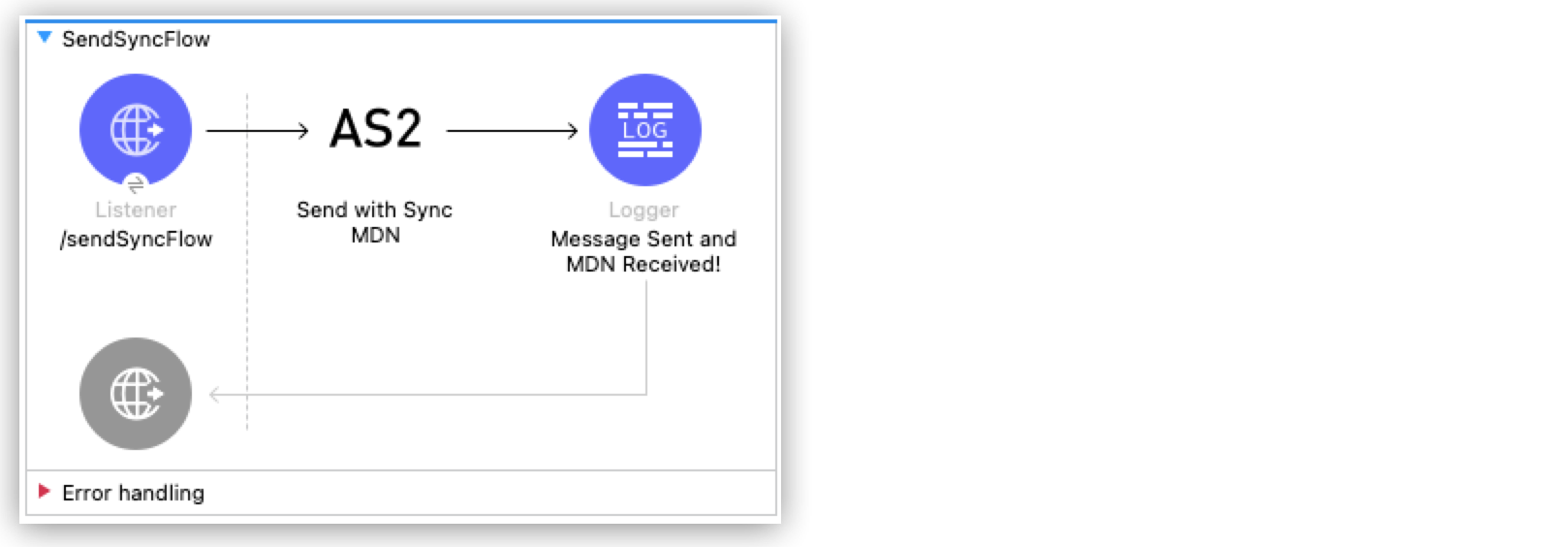
To create this example, start a new Mule project and configure the http:listener source and the Logger component.
The image shows the Anypoint Studio flow for this example:
Create a Flow to Send an AS2 Message
Follow these steps to configure the http:listener source to initiate a Mule flow when a call is made to the /sendSyncFlow path on localhost port 8082:
-
Drag the HTTP listener from the Mule Palette onto the canvas.
-
Optionally, change the display name on the properties window for the listener and click OK.
-
Set the Path field to
/sendSyncFlow. -
Click the plus sign (+) next to the Connector configuration field to configure a global element that can be used by all instances of the HTTP listener.
-
On the General tab, accept the defaults and click OK.
Add the Send with Synchronous MDN Operation
Follow these steps to add the Send with Sync MDN operation and configure it to send MDNs to the receiving endpoint of partnera:
-
Drag the Send with Sync MDN operation next to the listener component on the canvas.
-
Click the plus sign (+) next to the Connector configuration field to configure a global element for the Send with Sync MDN operation.
-
Configure the connection by setting the Partner URL field to
http://localhost:8081/as2-receiveon the General tab. -
Specify the self and partner credentials.
Configure these fields in the Self Config section:
Field Value AS2 Partner Name
partnerb
x509 Alias
partnerb
email
Configure these fields in the Partner Config section:
Field Value AS2 Partner Name
partnera
x509 Alias
partnera
email
-
If you want to use algorithms, configure them in the Requester Config section.
-
In the Keystore section, apply these values to the keystore that contains the certificates and keys:
Field Value Keystore Password
test
Keystore Path
as2/partnerb.p12
Private Key Password
test
Add the Logger Component
Add the logger component and configure it to log a message when the app sends an AS2 message and receives a synchronous MDN.
-
From the Mule Palette, select Core and drag the logger component next to the Send with Sync MDN operation.
-
Set the message for the logger to
Message Sent and MDN Received!.
Save and Test the Mule App
Follow these steps to deploy your application locally and verify that it correctly sends AS2 requests and receives synchronous MDNs.
-
Save the project.
-
Run the app by clicking the project name in Package Explorer and then clicking Run > Run As > Mule Application.
If the application starts correctly, the console shows a success message.
-
Test the app by opening
http://localhost:8082/sendSyncFlowfrom a browser or an app like Postman.
You can now send AS2 requests to the endpoint configured in the Receiving AS2 Messages and Sending Back MDNs example. With the example running, you can observe the message sent by the Send with Sync MDN operation.
XML for the Sending Synchronous AS2 MDNs Example
Paste this code into your Studio XML editor to quickly load the flow for this example into your Mule app:
<?xml version="1.0" encoding="UTF-8"?>

<mule xmlns:as2-mule4="http://www.mulesoft.org/schema/mule/as2-mule4" xmlns:http="http://www.mulesoft.org/schema/mule/http"
	xmlns="http://www.mulesoft.org/schema/mule/core"
	xmlns:doc="http://www.mulesoft.org/schema/mule/documentation" xmlns:xsi="http://www.w3.org/2001/XMLSchema-instance" xsi:schemaLocation="http://www.mulesoft.org/schema/mule/core http://www.mulesoft.org/schema/mule/core/current/mule.xsd
http://www.mulesoft.org/schema/mule/http http://www.mulesoft.org/schema/mule/http/current/mule-http.xsd
http://www.mulesoft.org/schema/mule/as2-mule4 http://www.mulesoft.org/schema/mule/as2-mule4/current/mule-as2-mule4.xsd">
	<http:listener-config name="HTTP_Client_Config" doc:name="HTTP Listener config" >
		<http:listener-connection host="0.0.0.0" port="8082" />
	</http:listener-config>
	<as2-mule4:send-config name="AS2_Client_Send_Sync" doc:name="AS2 Connector Send config" >
		<as2-mule4:connection partnerURL="http://localhost:8081/as2-receive" />
		<as2-mule4:self-config as2Name="partnerb" x509Alias="partnerb" email="support@partnerb.com" />
		<as2-mule4:partner-config as2Name="partnera" x509Alias="partnera" email="support@partnera.com" />
		<as2-mule4:requester-config messageIntegrityCheckAlgorithm="SHA512" mdnMessageIntegrityCheckAlgorithm="SHA512" encryptionAlgorithm="DES_EDE3" requestReceipt="SIGNED_REQUIRED" />
		<as2-mule4:keystore-config keystorePassword="test" keystorePath="as2/partnerb.p12" privateKeyPassword="test" />
	</as2-mule4:send-config>
	<flow name="SendSyncFlow" >
		<http:listener doc:name="/sendSyncFlow" config-ref="HTTP_Client_Config" path="/sendSyncFlow" />
		<as2-mule4:send-with-sync-mdn doc:name="Send with Sync MDN" config-ref="AS2_Client_Send_Sync"/>
		<logger level="INFO" doc:name="Message Sent and MDN Received!" message="Message Sent and MDN Received!" />
	</flow>
</mule>
Send with Async MDN
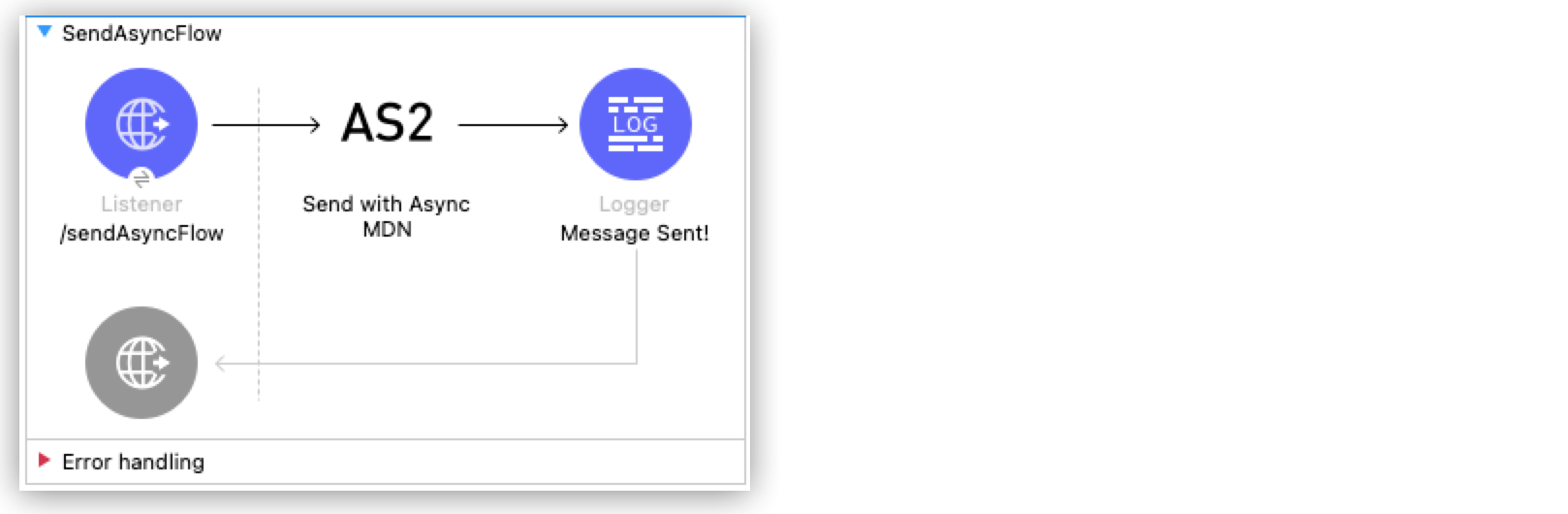
This example follows the same structure as the Send with Sync MDN example but incorporates these changes:
-
The Send with Async MDN operation is used instead of the Send with Sync MDN operation.
-
A value is specified for the Receipt delivery url field. The field can be configured in the global element for the Send with Async MDN operation or in the properties window.
The image shows the Anypoint Studio flow for this example:
XML for the Sending AS2 Asynchronous MDNs Example
Paste this code into your Studio XML editor to quickly load the flow for this example into your Mule app:
<?xml version="1.0" encoding="UTF-8"?>

<mule xmlns:as2-mule4="http://www.mulesoft.org/schema/mule/as2-mule4" xmlns:http="http://www.mulesoft.org/schema/mule/http"
	xmlns="http://www.mulesoft.org/schema/mule/core"
	xmlns:doc="http://www.mulesoft.org/schema/mule/documentation" xmlns:xsi="http://www.w3.org/2001/XMLSchema-instance" xsi:schemaLocation="http://www.mulesoft.org/schema/mule/core http://www.mulesoft.org/schema/mule/core/current/mule.xsd
http://www.mulesoft.org/schema/mule/http http://www.mulesoft.org/schema/mule/http/current/mule-http.xsd
http://www.mulesoft.org/schema/mule/as2-mule4 http://www.mulesoft.org/schema/mule/as2-mule4/current/mule-as2-mule4.xsd">
	<http:listener-config name="HTTP_Client_Config" doc:name="HTTP Listener config" >
		<http:listener-connection host="0.0.0.0" port="8082" />
	</http:listener-config>
	<as2-mule4:send-config name="AS2_Client_Send_Sync" doc:name="AS2 Connector Send config" >
		<as2-mule4:connection partnerURL="http://localhost:8081/as2-receive" />
		<as2-mule4:self-config as2Name="partnerb" x509Alias="partnerb" email="support@partnerb.com" />
		<as2-mule4:partner-config as2Name="partnera" x509Alias="partnera" email="support@partnera.com" />
		<as2-mule4:requester-config messageIntegrityCheckAlgorithm="SHA512" mdnMessageIntegrityCheckAlgorithm="SHA512" encryptionAlgorithm="DES_EDE3" requestReceipt="SIGNED_REQUIRED" />
		<as2-mule4:keystore-config keystorePassword="test" keystorePath="as2/partnerb.p12" privateKeyPassword="test" />
	</as2-mule4:send-config>
	<flow name="SendSyncFlow" >
		<http:listener doc:name="/sendAsyncFlow" config-ref="HTTP_Client_Config" path="/sendAsyncFlow" />
		<as2-mule4:send-with-async-mdn doc:name="Send with Async MDN" config-ref="AS2_Client_Send_Sync" receiptDeliveryUrl="http://localhost:8082/receiveMDN"/>
		<logger level="INFO" doc:name="Message Sent!" message="Message Sent!" />
	</flow>
</mule>
Save and Test the Mule App
Follow these steps to deploy your application locally and verify that it correctly sends AS2 requests and receives asynchronous MDNs.
-
Save the project.
-
Run the app by clicking the project name in Package Explorer and then clicking Run > Run As > Mule Application.
If the application starts correctly, the console shows a success message.
-
Test the app by opening
http://localhost:8082/sendAsyncFlowfrom a browser or an app like Postman.
You can now send AS2 requests to the endpoint configured in the Receiving AS2 Messages and Sending Back MDNs example. With the example running, you can observe the message sent by the Send with Async MDN operation.
The MDN is omitted from the logs because it’s routed to the receiptDeliveryUrl shown in the Receiving AS2 MDNs example.