SAP S4HANA Setup Guide
Overview
The following describes how to configure and test an S/4HANA Cloud SOAP outbound service (Product replication: productmdmbulkreplicaterequest) and the S/4HANA Cloud SOAP Connector as a Mule application deployed on Cloudhub.
Configurations in S/4HANA
To make the necessary configurations in S/4HANA:
-
Create a Communication System in the corresponding Fiori app. This communication system represents the external system that will consume the S/4HANA Cloud SOAP service. In this example, it’s named
COM_0009_SOAP_OUT: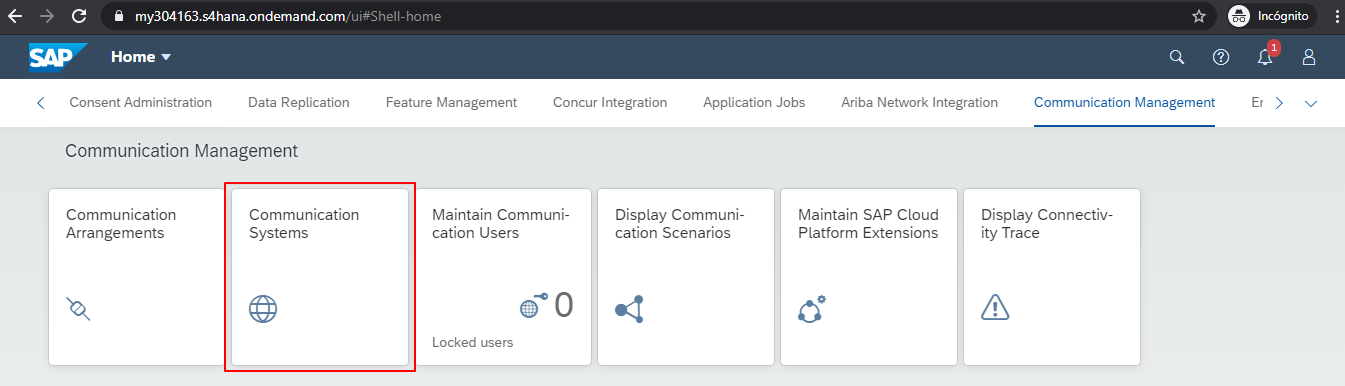
-
For the 'Business System' name, use the same name of the System ID.
-
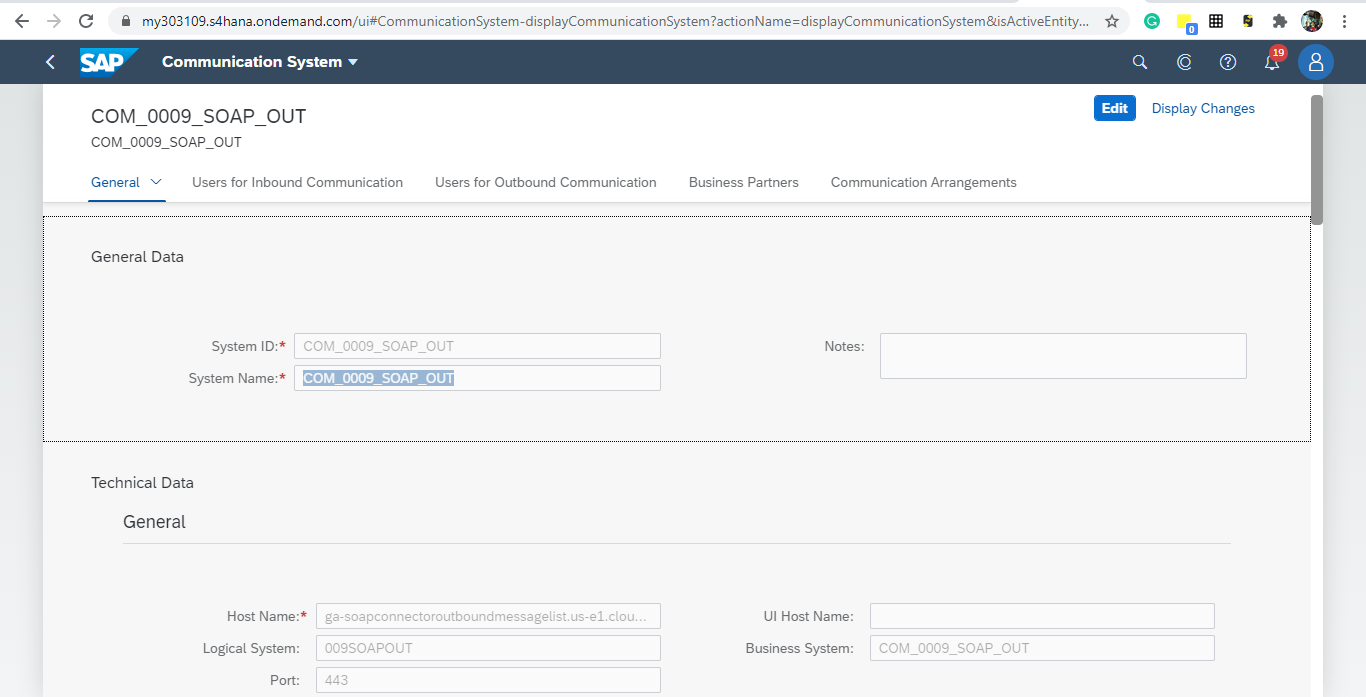
In the 'Host Name' field, enter the hostname of the Mule application deployed on Cloudhub (if you don’t have it yet, you can enter a mock URL and then modify it later):
-
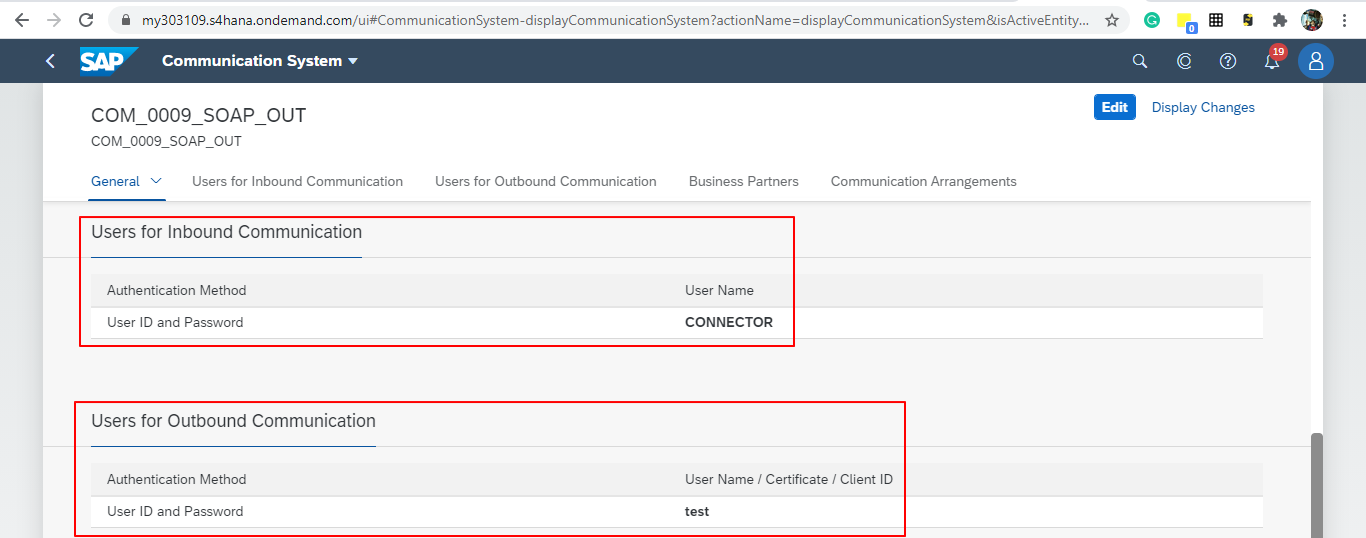
Create a user that will be used to connect to the Cloud Hub app for sending product information in the outbound scenario (this is necessary even though the Mule application does not validate the user; we used any user for outbound):
-
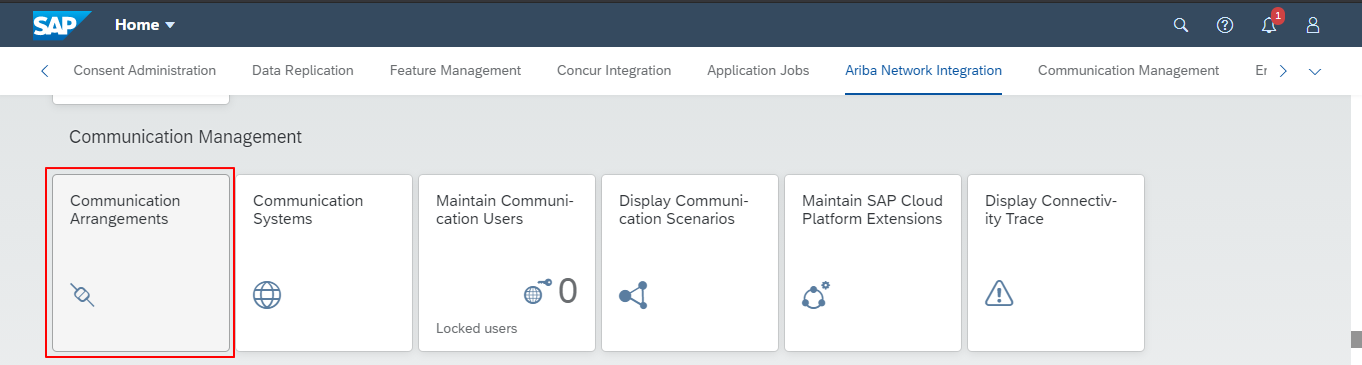
Use the Communication Arrangement Fiori app to create a new Communication Arrangement:
-
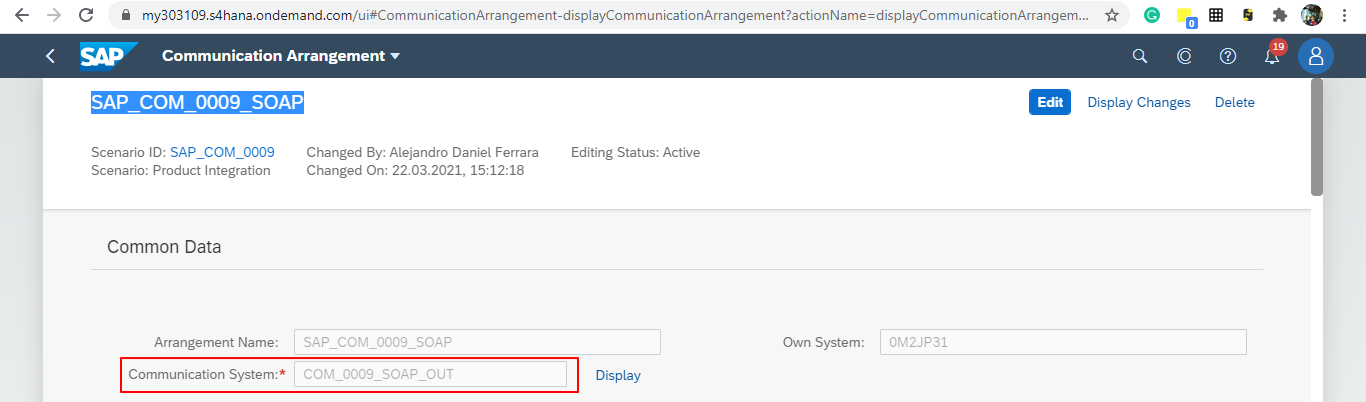
Create a new Communication Arrangement, select the communication scenario "SAP_COM_0009", and then define a specific name for the arrangement, "SAP_COM_0009_SOAP".
-
In the Communication System field, select the Communication System created in the previous step:
-
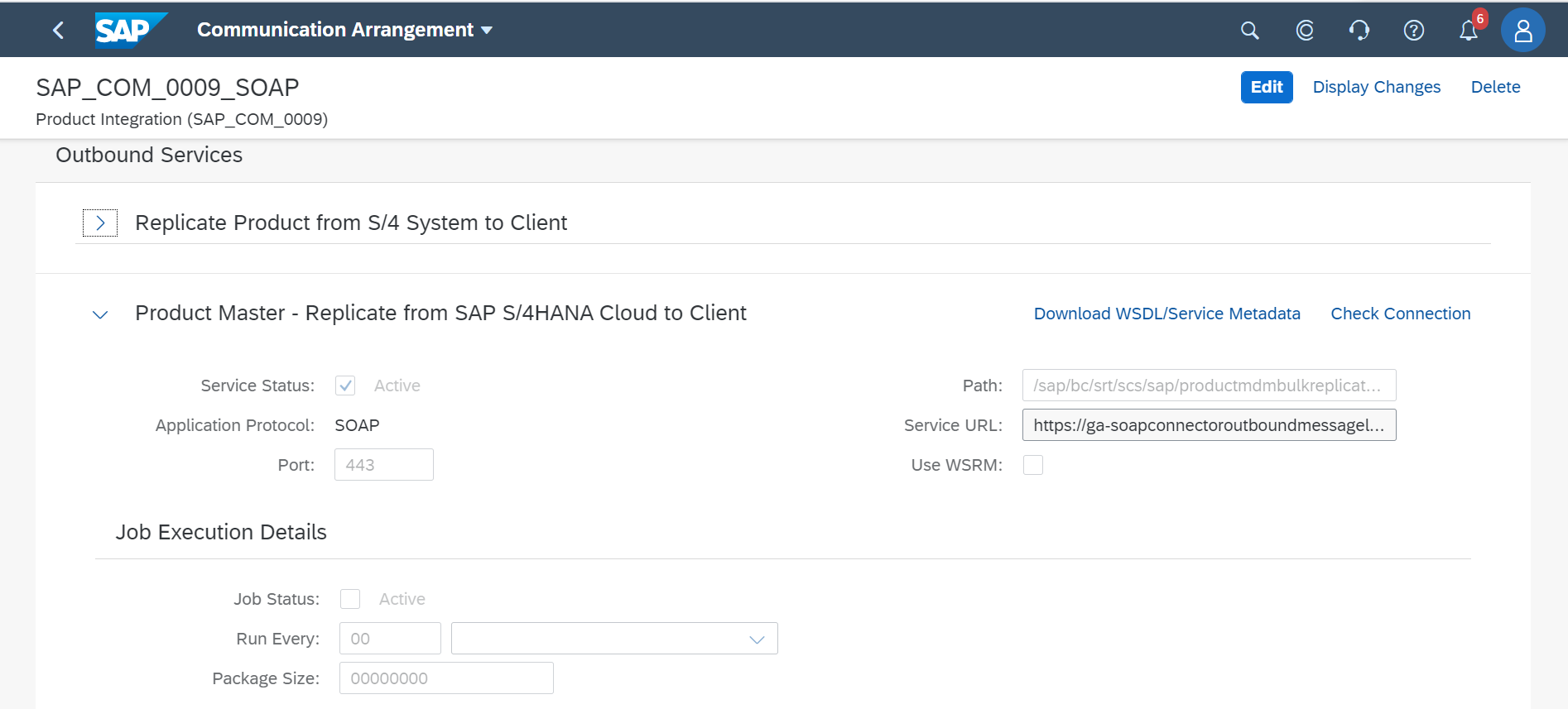
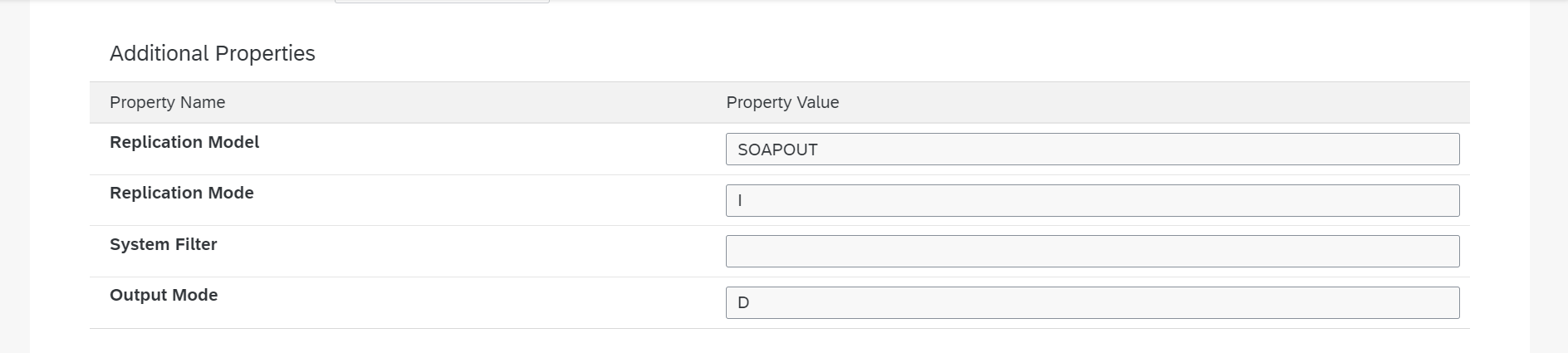
For outbound communication, select the previously-created user and configure the Product Master - Replicate from SAP S/4HANA Cloud to Client and include the following settings. Make sure to note the Path (
/sap/bc/srt/scs/sap/productmdmbulkreplicaterequest) because we will use this path to configure the Mule application SOAP endpoint:-
Set the Service status to Active
-
Replication Model (any name)
-
Replication model =
I (Initial) -
The Output Mode =
D (Direct)+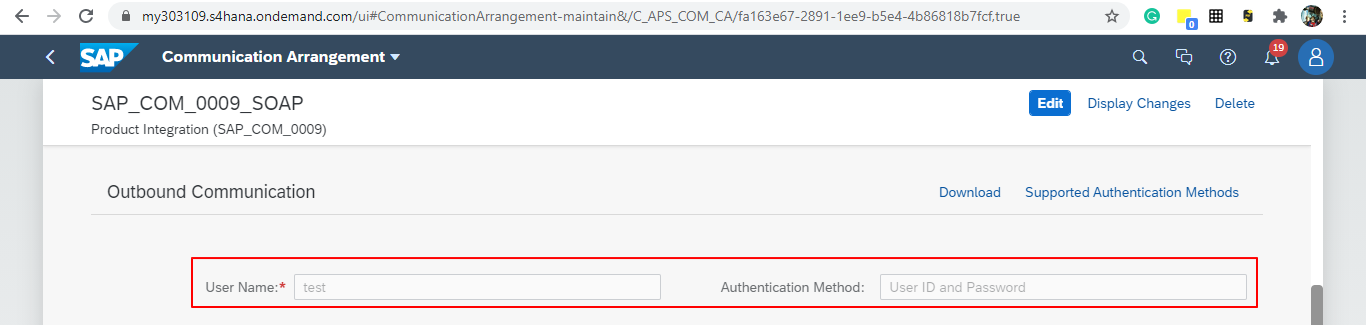
-
-
Save it. All configurations at S/4HANA Cloud side are finished and you will be able to download the WSDL that contains the metadata to import into the S/4HANA Cloud SOAP Connector into the Mule application.
Configurations in the Mule Application
The following example describes how to create a Mule application using the Outbound Message Listener operation of MuleSoft’s SAP S/4HANA SOAP Connector:
-
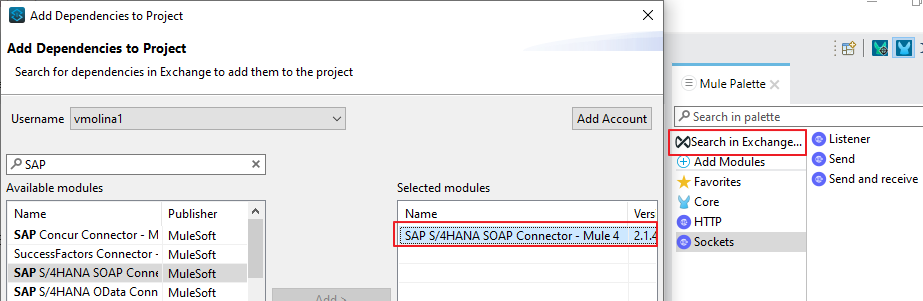
Create a Mule project and add the appropriate connector from Exchange to the Mule Palette:
-
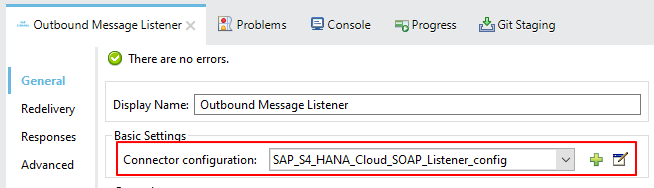
Add and configure the Outbound Message Listener to the canvas:
-
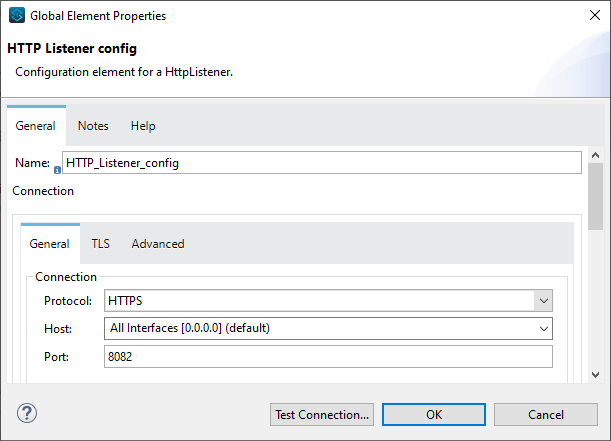
Add the corresponding WSDL path to the WSDL you downloaded from S/4HANA Cloud and create the HTTP listener configuration:
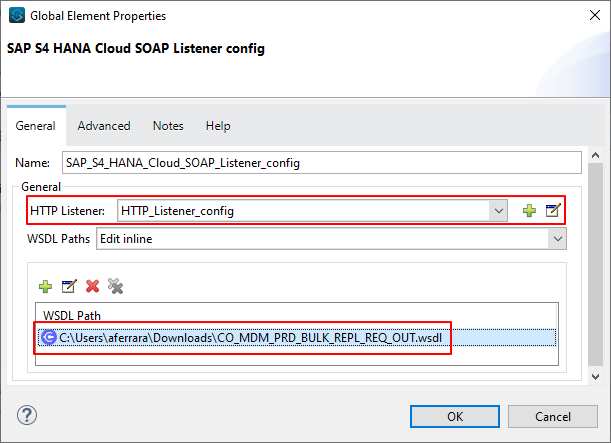
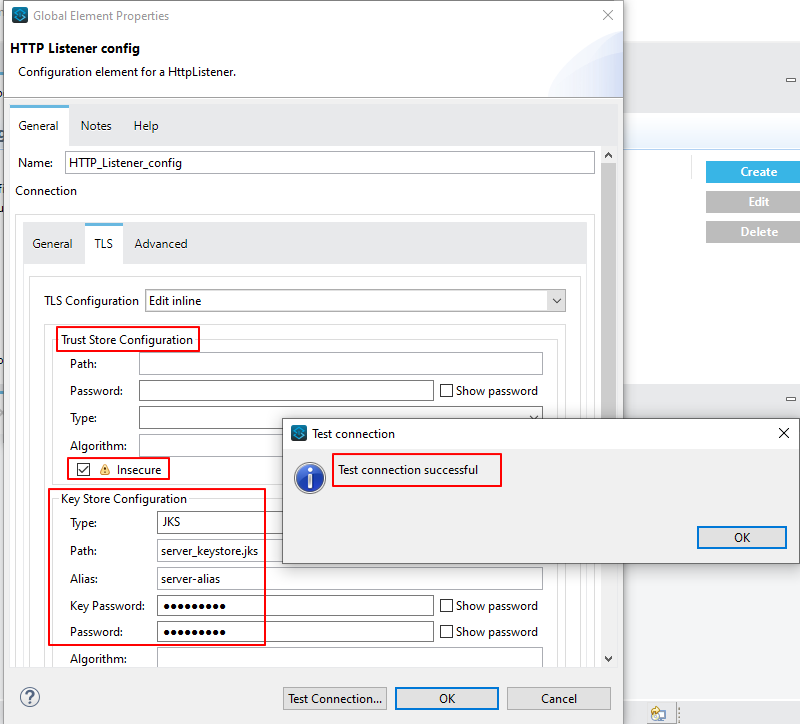
Note: we are using no authentication on the Mule Application, so we used the Insecure option for the Trust Store Configuration. In the Keystore configuration, we used a test Keystore, which is mandatory for HTTPS communication:
-
Select the Message type that the connector expects to receive from SAP (the connector reads the metadata from the WSDL we configured):
+ image::retail-sap-s4hana-setup-guide-14.png["Anypoint Studio SAP S/4HANA SOAP message type selection",width=799]
-
On the Responses tab, use the status Code "202" and the Reason-Phrase "Accepted" because we want to send the same status that S/4HANA Cloud will send if the service invocation results OK. No payload will be returned as a response - just the
Statuscode andReason-phrase: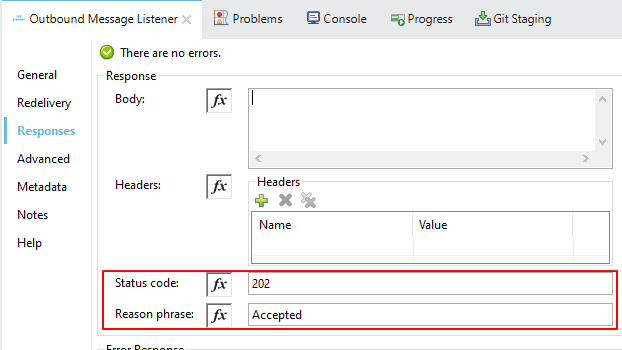
-
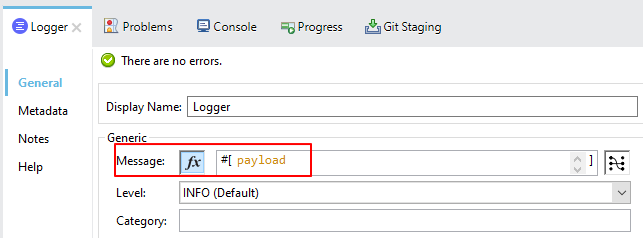
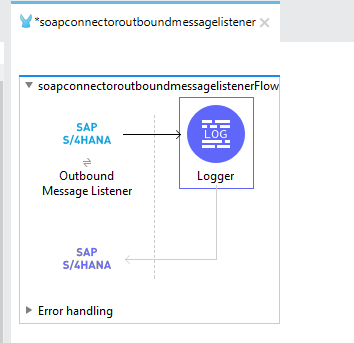
Use a Logger component to log the inbound XML payload:
The Mule flow should look like the following:
-
Deploy the application to Cloudhub. You’re now ready to test the scenario.
Testing the Scenario
To test the scenario:
-
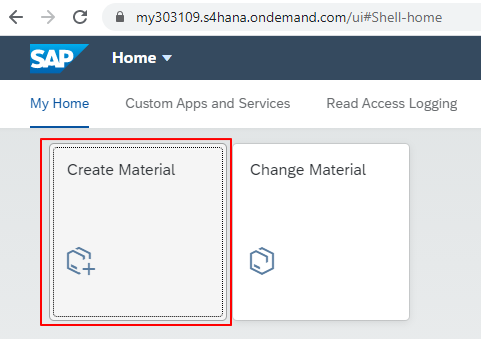
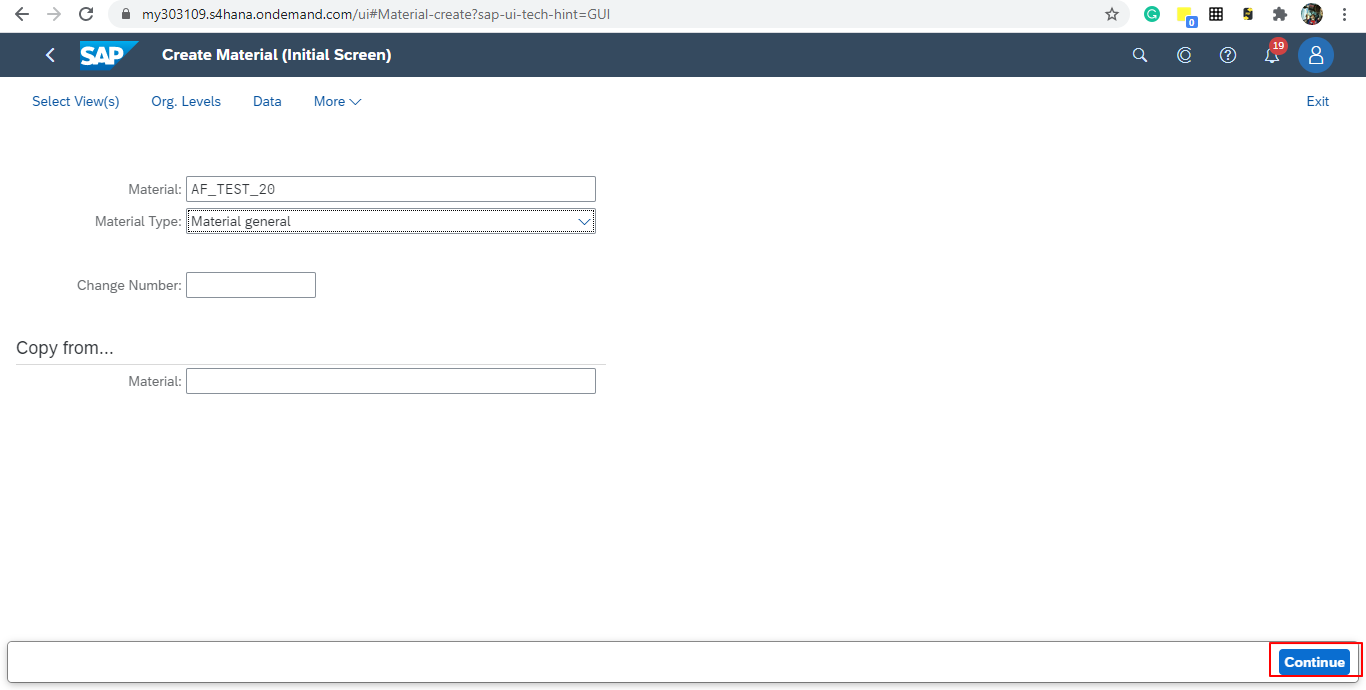
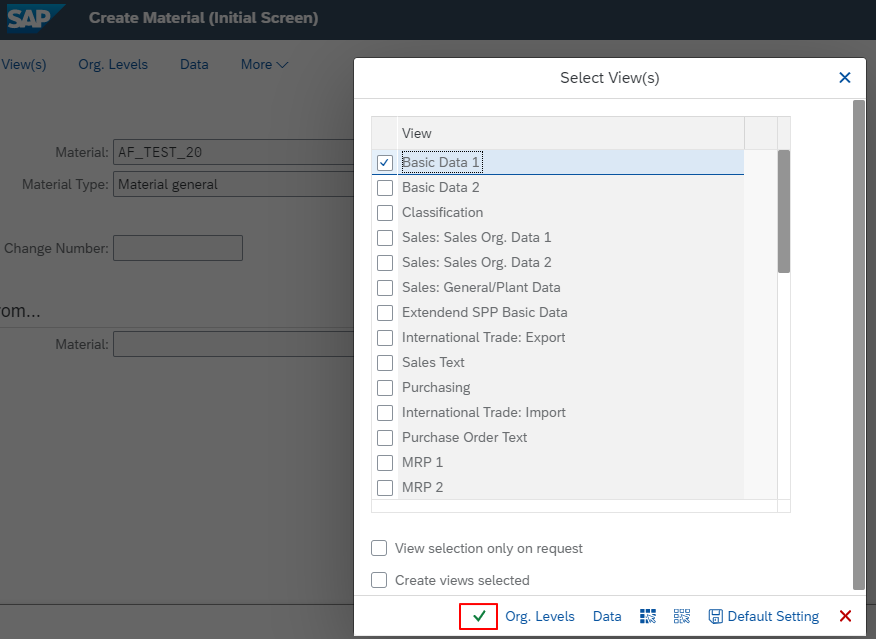
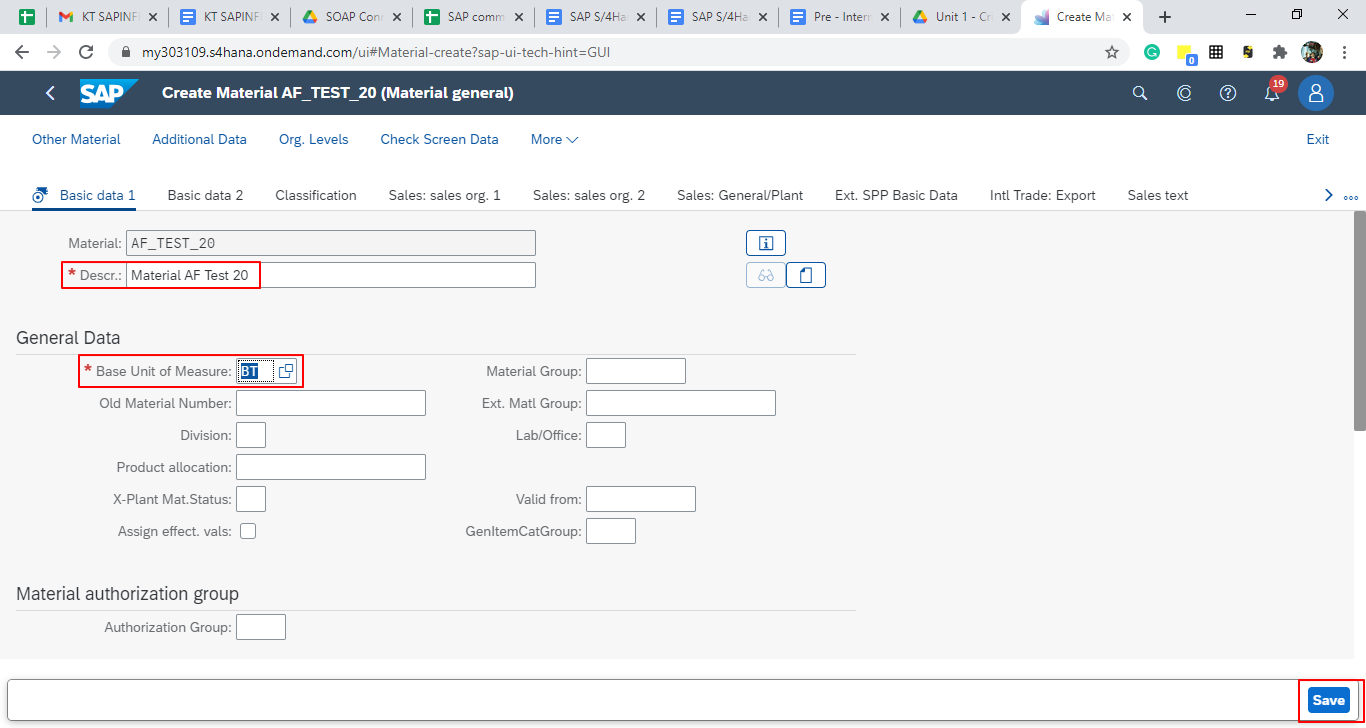
Create the following. You only need to create a material in the corresponding Fiori app of S/4HANA Cloud:
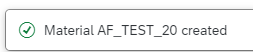
After you save the new material, you should see the following confirmation in S/4HANA Cloud:
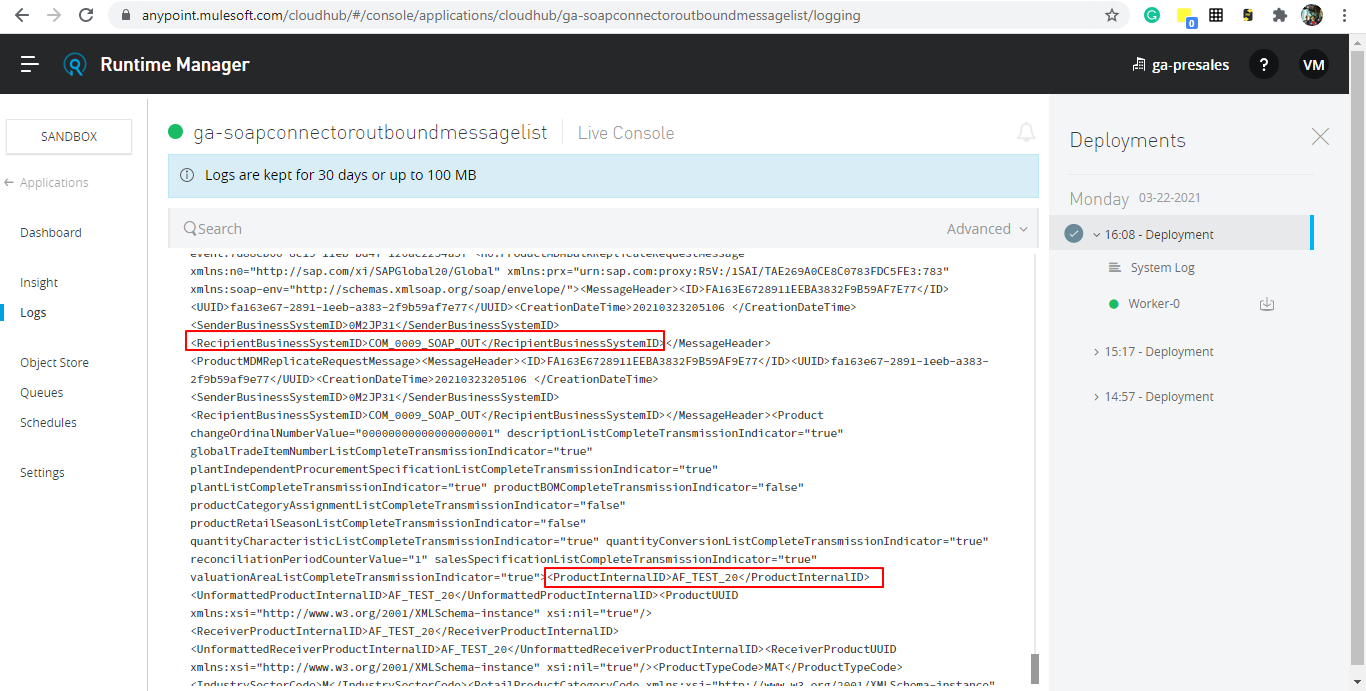
The following shows the XML message received at the Mule application at the Runtime Manager on Cloudhub:
-
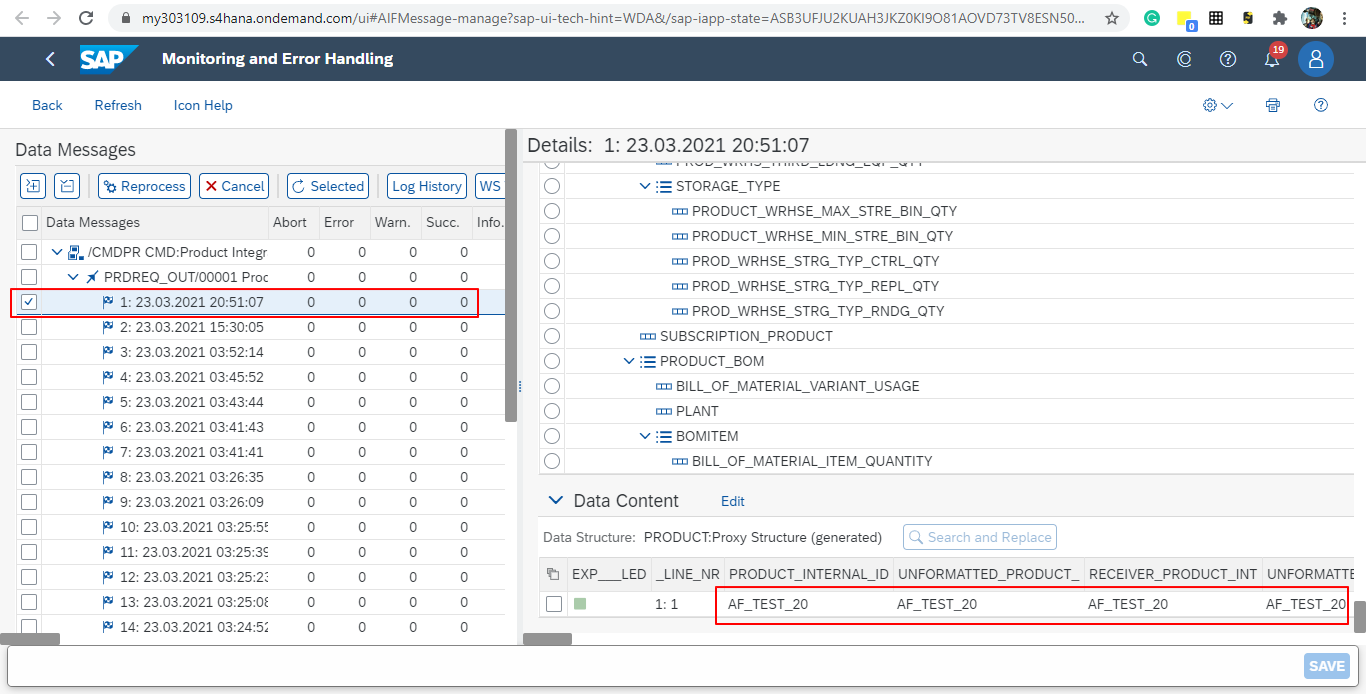
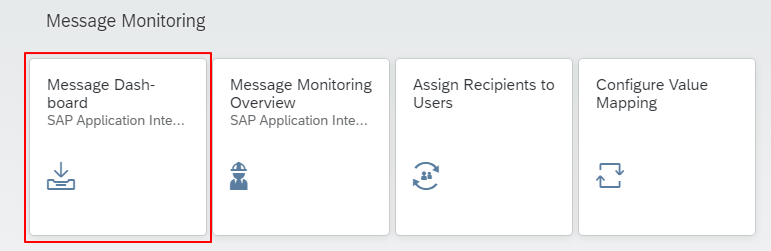
See the sent message in the Message Dashboard Fiori Application:
-
Select the date:
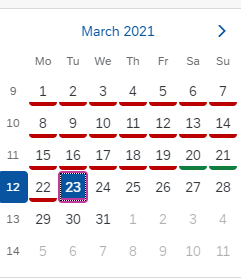
-
Search under CMD:Product Integration - /CMDPR → Product Replication to Client via Service - PRDREQ_OUT/00001 namespace: