
Managing Scanners In Exchange
To view and manage your scanners, click Scanners in the sidebar of Exchange.
You can perform these actions to manage scanners:
Run a Scanner
Run the scanner manually to capture new services and add them to Exchange. Scanners run once daily and retrieve up to 1,200 services per scan, with a maximum runtime of 6 hours. Exchange retains scan logs and statuses for at least 90 days and never deletes the most recent run. Run one scan at a time for each provider.
-
From the sidebar in Exchange, click Scanners.
-
Find the scanner in the list, click the more options icon (
 ) and then select Run Now.
The scan waits in the queue until the current scan finishes.
View Scanner Details
View a list of scanners and the details about their scans. The Scanners page lists the scanners added for the business group. The scanner details show information about the scanner, connection, last completed run, and scan history.
Scanner statuses are:
-
Scheduled
-
Paused
-
Pending review
-
Queued
-
Running
-
Importing
-
Stopped
To see more information about a scanner and its scan details, from the sidebar in Exchange, click Scanners and click the name of a scanner from the list.
Here’s an example details page:
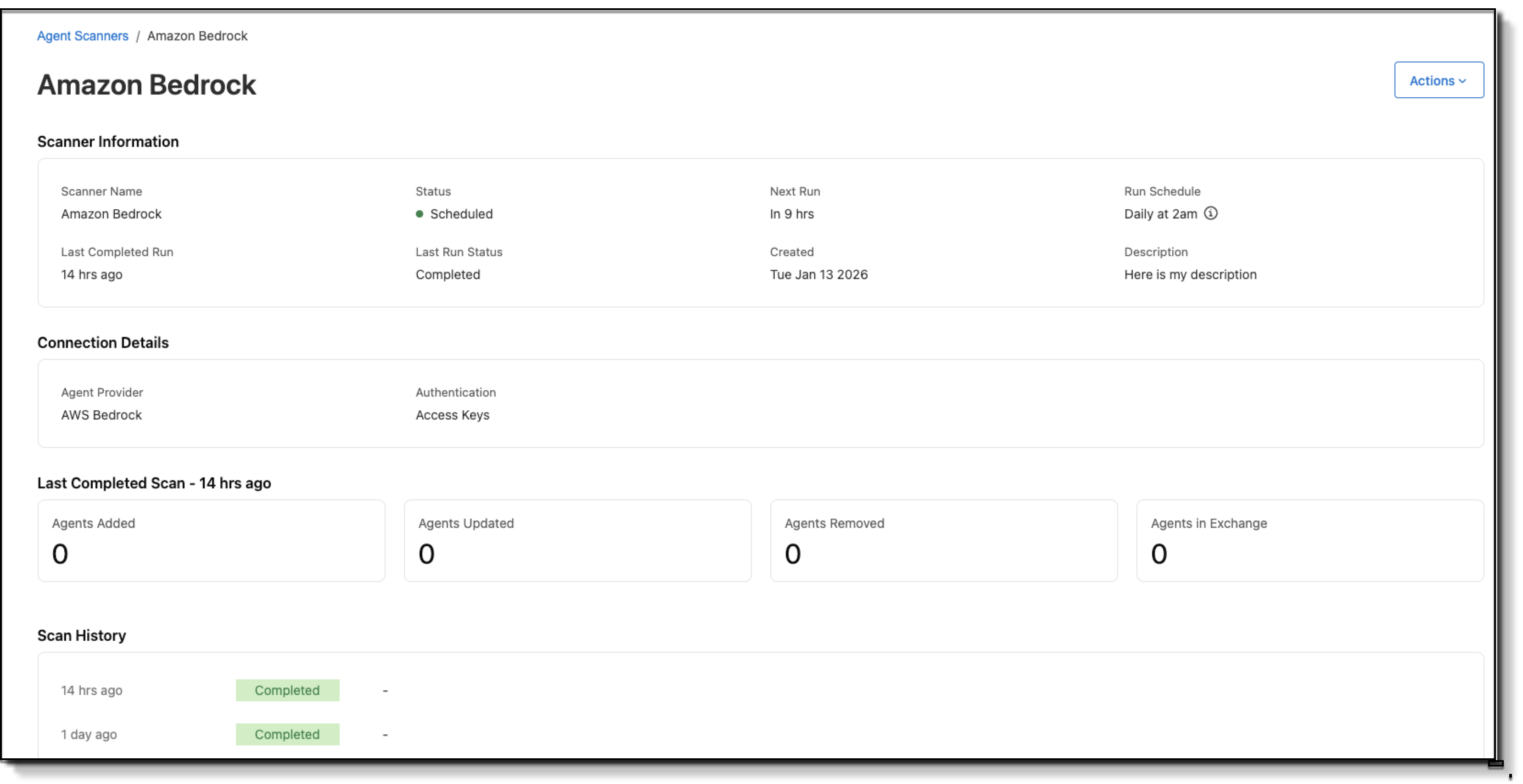
The Actions menu on the scanner details page includes these options, depending on the scanner status:
| Scanner Status | Actions Menu Options |
|---|---|
Scheduled or Paused |
|
Queued, Running, or Importing |
|
Stopped |
|
Review Scan Results Manually
Review the scan results and determine which services to import into Exchange. When a scanner’s scheduled run configuration is set to Ask to review, its status changes to Pending review in the scanner details page after the scan completes. Otherwise, the scan results are automatically imported into Exchange if set to Auto-resolve.
While reviewing scan results, note these behaviors:
-
If another scan completes while you are reviewing, the current queue becomes stale and can’t be submitted. It remains available read‑only in the audit history. Open the latest scan to continue. If another scan configuration already registered the same service, the system skips or updates as needed (no downgrades) and logs the outcome.
-
If you don’t confirm the scan result changes, the services are not imported into Exchange. The scan results are available in the audit log. When the scanner runs again, the services are scanned again and the previous results are stale and are overwritten by the new scan results. Consider updating the scanner configuration to Auto-resolve to automatically import services without manual review.
Here’s what you see on the scanner’s list page:
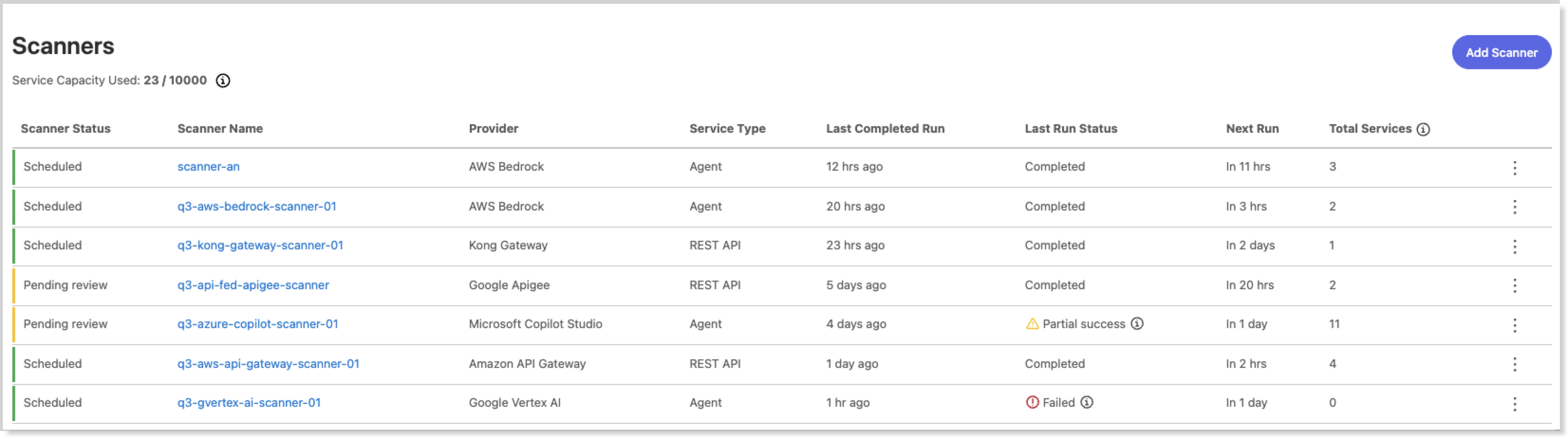
-
A tabular list of discovered scanners that reflects the filters and the scanner configuration.
-
Key columns: Scanner Status, Scanner Name, Provider, Service Type, Last Completed Run, Last Run Status, Next Run, Total Services
For each scanner in the list, you can perform these actions from the more options menu ():
-
Run the scanner now
-
Edit the scanner configuration
-
Delete the scanner
Select the scanner with a status of Pending review to open the review details and click Review & Import.
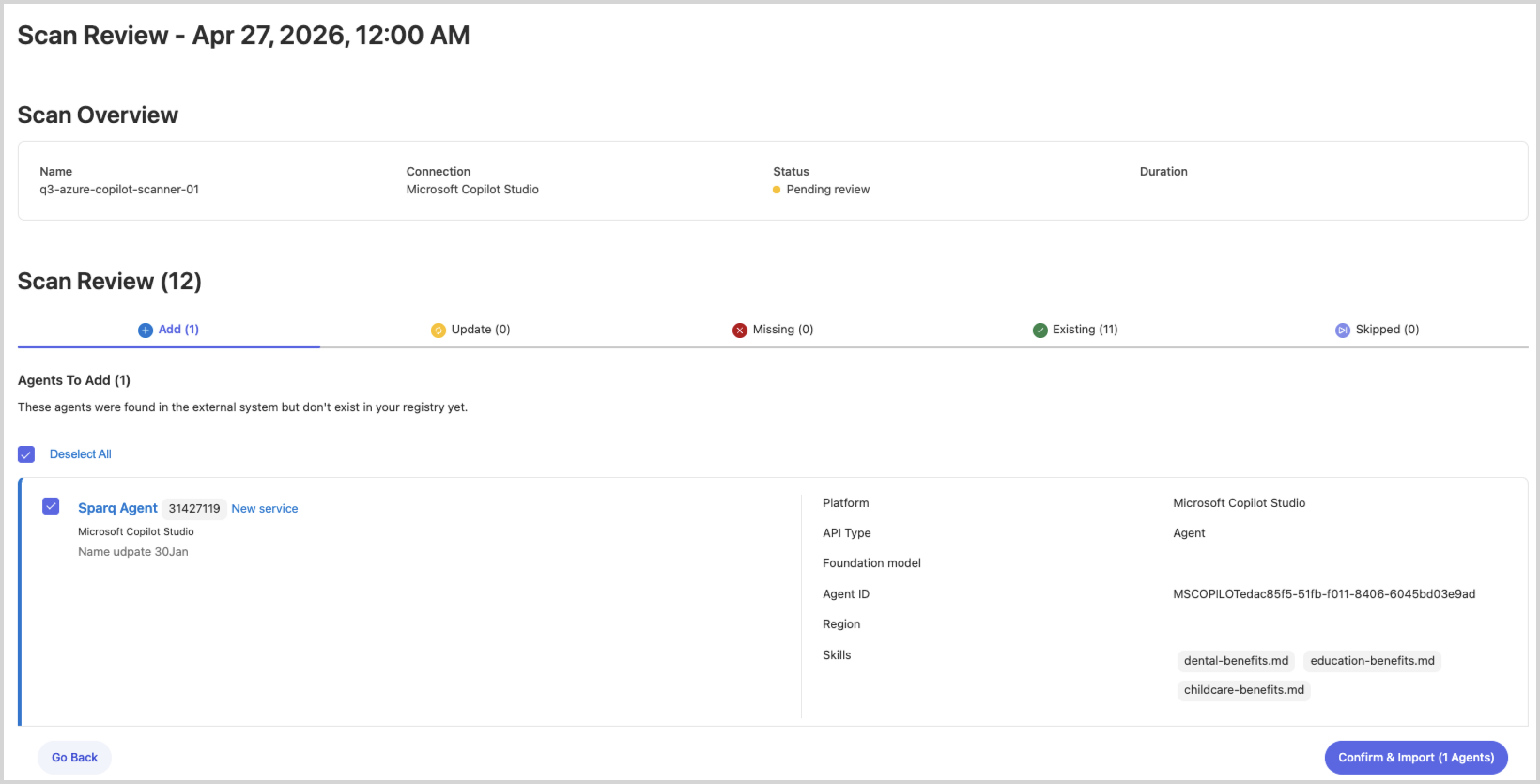
These tabs indicate how each service will be handled:
-
Add: first discovery; not yet in the registry
-
Update: Already in the registry; metadata changed at source
-
Missing: In the registry but not found in this scan; if in use, show “missing from source”; if not used, it can be removed after a retention window (for example, 30 days)
-
Existing: Already in the Exchange; no changes detected
-
Skipped: Services that were deselected in a prior review
Select what to import:
-
All services are selected by default. Deselect individual services, or deselect all and pick only the ones to import.
-
Deselected services aren’t imported now and aren’t added to the Skipped list; they remain pending and will reappear in the next scan. Previously deselected items show a “Previously Skipped” badge; if the source version changed, the badge indicates a newer version is available.
Skip services from future scans:
-
Use the action menu to add the service to the Skipped list. Skipped services won’t appear in future scan results for that source unless you remove them from the Skipped list.
-
The Skipped list view lets you review and restore skipped services by selecting Remove from Skipped from the more options menu (
).
Queue freshness and rescans:
-
If another scan completes while you’re reviewing, the current review queue becomes stale and can’t be submitted; it’s preserved read‑only in audit history, and a banner directs you to the latest scan.
-
A “Last scanned X days ago” label indicates freshness. If available, use Rescan to refresh results without losing your current selections.
Multiple scan configurations:
-
If another scan configuration already registered a service:
-
Same version: Skip and log
-
Newer version: Update in place and log the version change
-
Older version: Skip (no downgrade) and log
-
Flagged for deletion but already removed: treat as success and log
-
-
After import, a summary shows what was imported, updated, or skipped and why.
To manually review the scan results:
-
From the sidebar in Exchange, click Scanners.
-
Click the scanner with a status of Pending review to open the review details.
-
Review the list of discovered services.
-
Choose what to import:
-
Keep services selected to include them.
-
Deselect any services you don’t want to import now.
-
-
Click the available action button for your current selection to apply changes.
Abort Scans
Abort scans for a scanner when its status is queued, running, or importing. When the scan is aborted, the status is updated to stopped.
-
To abort a scan from the Scanners page:
-
From the sidebar in Exchange, click Scanners.
-
Find the scanner in the list, click the more options icon (
) and then select Abort Scan.
-
-
To abort a scan from the scanner details page, click Actions and then select Abort Scan.
Delete a Scanner
Delete an unused scanner when its status is scheduled, paused or stopped. Choose whether to keep or delete the services associated with the scanner. Imported services remain in Exchange if instances exist in API Manager.
-
From the sidebar in Exchange, click Scanners.
-
Find the scanner in the list, click the more options icon (
) and then select Delete Scanner. -
Choose whether to keep or delete imported services and click Delete.
Edit Scanner Configuration
Edit settings for a scanner with a status of scheduled, paused, or stopped, and turn scheduled scans on or off.
-
To edit a scanner from the Scanners page:
-
From the sidebar in Exchange, click Scanners.
-
Find the scanner in the list, click the more options icon (
) and then select Edit Scanner. -
Make your changes, and click Update.
-
-
To edit a scanner from the scanner details page:
-
Click Actions and then select Edit Scanner.
-
Make your changes, and click Update.
-
View Audit Logs
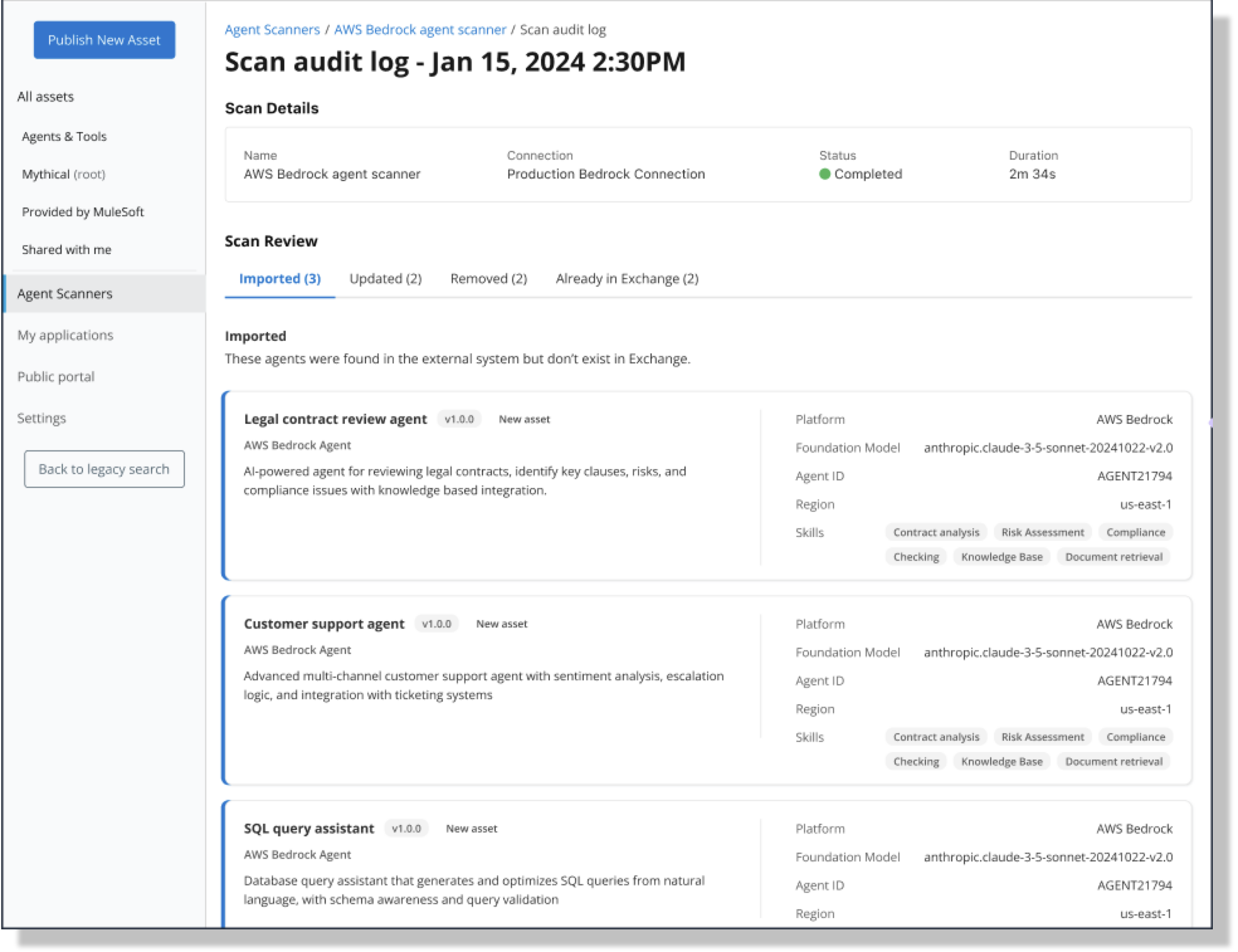
View audit logs for scanners. In the audit log, view scan details, such as services that were imported, updated, removed, and already in Exchange, and unsuccessful scans. The available tabs depend on the scan results.
Here’s an example audit log:
-
From the sidebar in Exchange, click Scanners.
-
Select the scanner from the list.
-
Select an event from Scan History.
-
To view imported services, click the Imported tab.
-
To view updated services with newer versions available, click the Updated tab.
-
To view services removed from Exchange because they’re missing from the provider, click the Removed tab.
-
To view services that are found in the provider’s system and already in Exchange, click the Already in Exchange tab.
-
To view unsuccessful scans, click the Unsuccessful tab.