
Getting Logs with Integration Intelligence

Troubleshoot, analyze, and retain logs from Anypoint Monitoring for your Mule apps and APIs in Integration Intelligence.
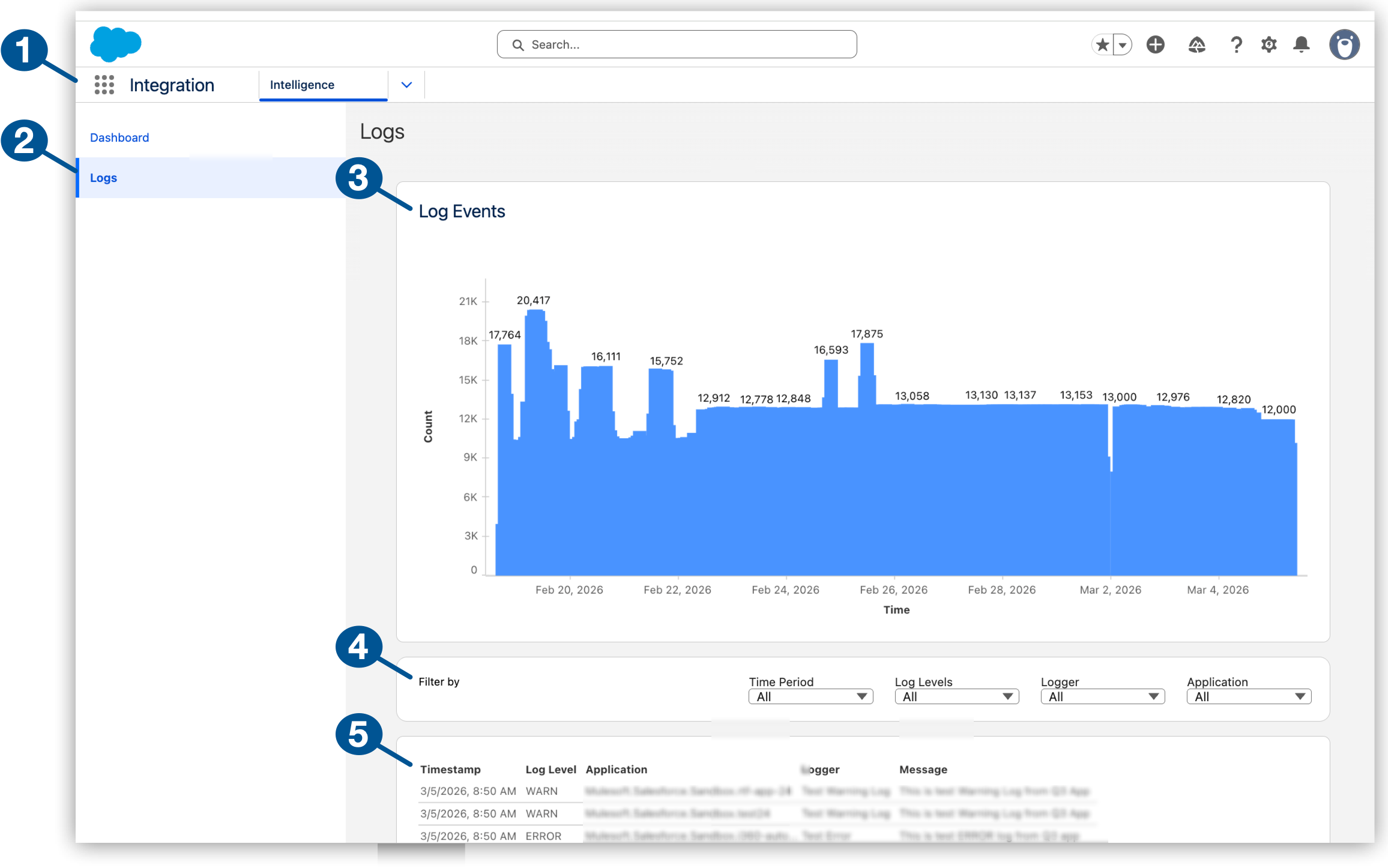
| 1 | Integration Intelligence in the Salesforce Integration app |
| 2 | Logs in Integration Intelligence |
| 3 | Log count over time |
| 4 | Filters for selecting a time period, specific log levels, loggers, and Mule apps |
| 5 | Logs by timestamp, log level, app, logger, and log message |
Before You Begin
Meet these prerequisites:
Complete the procedures in Setting Up Integration Intelligence.
Supported Deployment Types
For logs, Integration Intelligence supports Mule apps and Mule APIs deployed to these hosts:
-
CloudHub
-
CloudHub 2.0
-
Runtime Fabric
For dashboards in Integration Intelligence, see Supported Deployment Types (for metrics in dashboards).
For information about hosts, see Runtime Plane Hosting Options.
Lookback Period
Data collection for logs begins after you set up Integration Intelligence.
From the Time Period filter, you can select from predefined ranges for the year (including the fiscal year), month, week, day (defaults to 30 days), or quarter (including the fiscal quarter), or you can select a custom date range. The custom date range selector also indicates the available date range for your data.
Find Integration Intelligence Logs
Integration Intelligence logs are accessible from your Anypoint Platform and through the Salesforce App Launcher:
Navigate to Logs from Anypoint Platform
Navigate to Integration Intelligence logs from Anypoint Platform.

-
Meet the prerequisites in Before You Begin.
-
Log in to Anypoint Platform with a user account that has permission to access Anypoint Monitoring content.
-
Navigate to Anypoint Monitoring:
Click Monitoring from the Anypoint Platform home page or from the Runtimes menu in the header.
-
From the banner in the Anypoint Insights header, click Go to Integration Intelligence.
Integration Intelligence automatically opens to Dashboards, and Logs is accessible from the Integration Intelligence sidebar.
-
From the Integration Intelligence sidebar, click Logs.
Navigate to Logs from the Salesforce App Launcher
Integration Intelligence resides in the Integration app. If you’re connected to the Salesforce org that supports your MuleSoft telemetry data, you can navigate directly to your Integration Intelligence logs from the App Launcher:
-
Meet the prerequisites in Before You Begin.
-
From your Salesforce environment, click
 (App Launcher).
 -
From the App Launcher, find and select the Integration app.
The launcher opens to the app’s Intelligence tab.
-
From the Integration Intelligence sidebar, click Logs.
Check Logs
Use Logs in Integration Intelligence to troubleshoot issues.
|
After initial ingestion, data can take up to 10 minutes to appear in Integration Intelligence. The first time you open Logs, it can take a few additional minutes for events and log entries to load. |
-
Navigate to Logs.
For guidance see Find Integration Intelligence Logs.
-
Optionally, narrow the scope of logs:
-
Log Levels includes WARN, ERROR, or FATAL.
-
Logger: Log4j logger class, such as
HttpListenerRegistry -
Application: Name of the Mule app that produces the logs.
-
-
Review the log message.
For long messages, you can click the message to display the entire message.