
Implement the American Flights API
After designing and publishing your API specification, you’re ready to implement it in Anypoint Code Builder. At this stage of the tutorial, you already have an API specification for the American Flights API published to Anypoint Exchange, and you’re working in the same workspace where you build the integration.
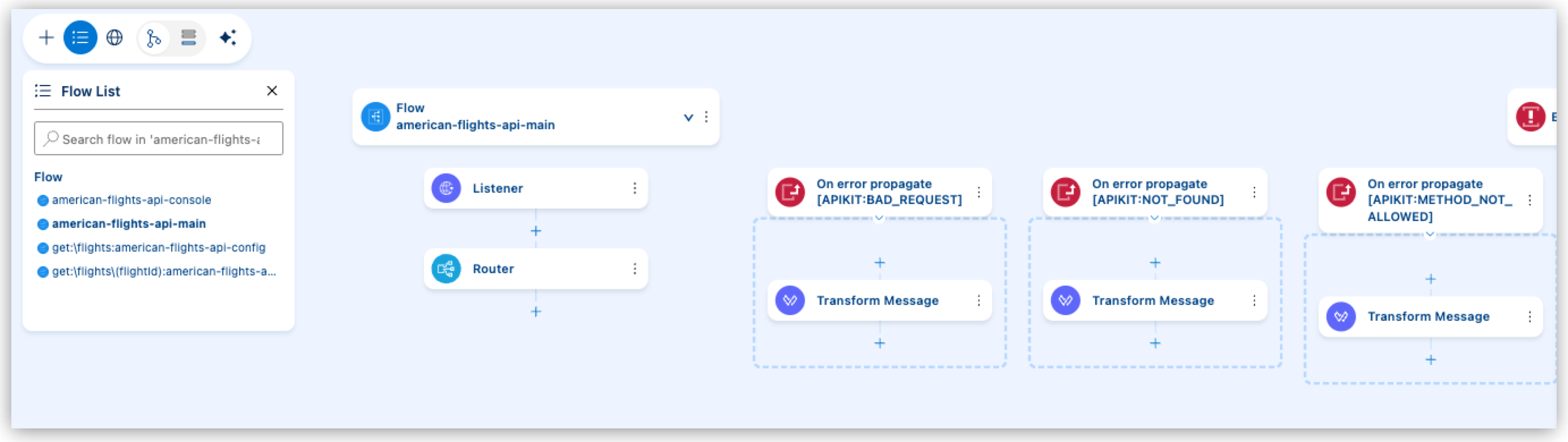
To implement the API, you scaffold the API specification into an integration project. Scaffolding generates the API interface based on the specification, creating the flows and configuration that you then extend with application logic.
Scaffold the American Flights API into an Integration Project
Now that the American Flights API specification is available in Anypoint Exchange, scaffold it into a new integration project to generate the API interface.
Use MuleSoft Vibes to scaffold the locally generated API Spec by sending the following message:
Scaffold the american-flights-api.yaml API spec.Manually Scaffold the API Spec from Exchange
If you prefer not to use MuleSoft Vibes, manually implement your published API spec from Exchange:
-
In the activity bar, click the
 (Anypoint Code Builder) icon.
 -
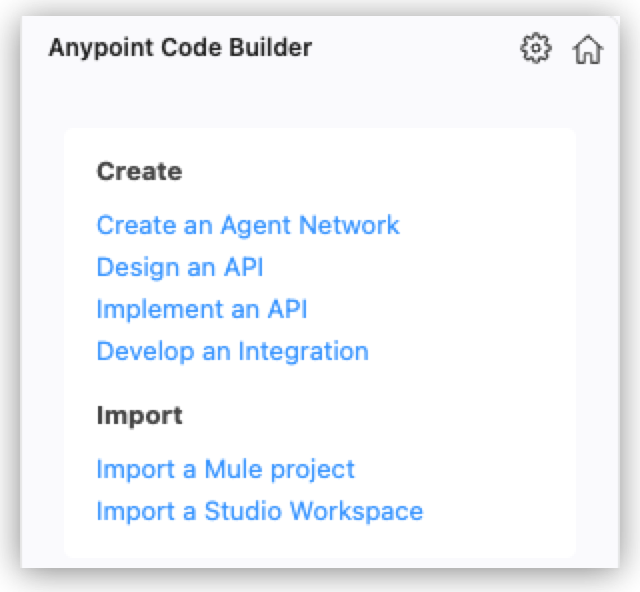
From Create, click Implement an API.
-
In the Implement an API Specification tab that opens:
-
Provide a new name for the implementation project.
-
Select or create a new project location.
-
In the search box, type
American Flights API, or the name you used when creating the specification, and press Enter. -
Find your API specification on Anypoint Exchange, and click Add Asset to insert the API name into the field.
-
Select an existing workspace, or create a new one by providing a name and a location.
-
Click Create Project to start scaffolding the specification into a new implementation project.
-
If you see this notification, trust your workspace by clicking Manage then Trust.

-
Connect to a Database Using the Database Connector
Add and configure a Database Select operation to retrieve flight data from a database.
-
Open the
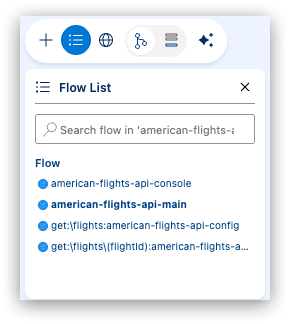
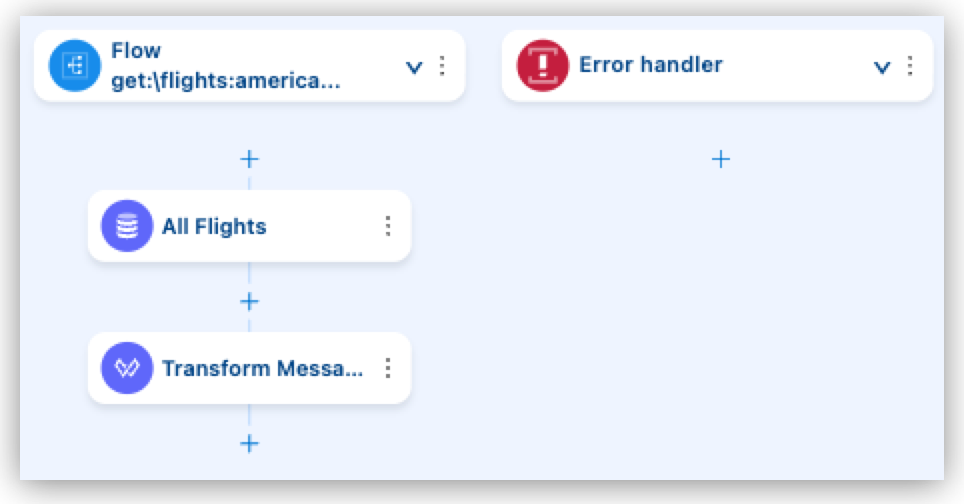
get:\flights:american-flights-api-configflow.If you don’t see the flow list, click Show flow list to display it.
-
Click Add Component (+) before the existing Transform Message and select Connectors > Database > Select.
If there’s no Transform Message, add the Database - Select component at the beginning of the flow. You add or configure the Transform Message component later in this section.
-
Click the Select component to open its properties panel.
-
Click Edit name (
 ), change it to
 All Flights, then click Apply ( ).
). -
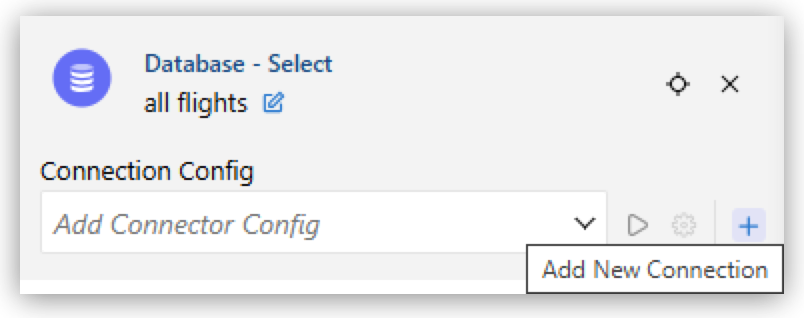
In the Select component properties, click Add New Connection next to Connection Config.
-
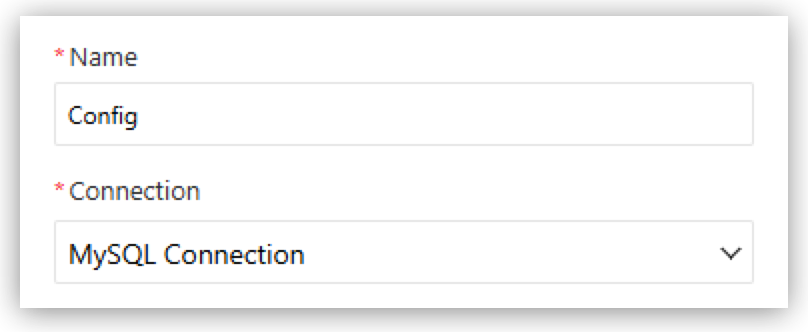
Set the connection to MySQL Connection.
-
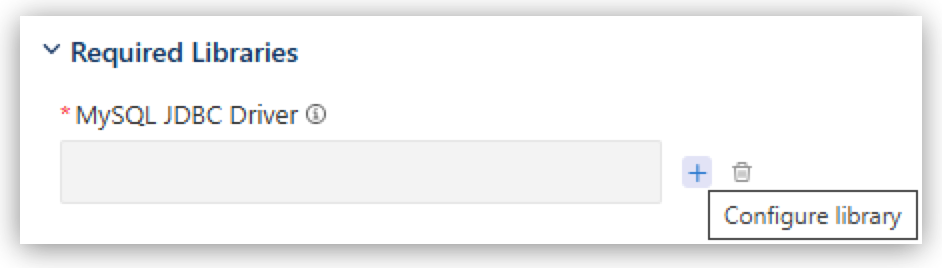
Click Configure library next to MySQL JDBC Driver.
-
In the Select Library Source drop-down menu, select Maven Dependency.

-
Enter
mysql:in the Search Maven Central Repository text field, and select mysql:mysql-connector-java in the results.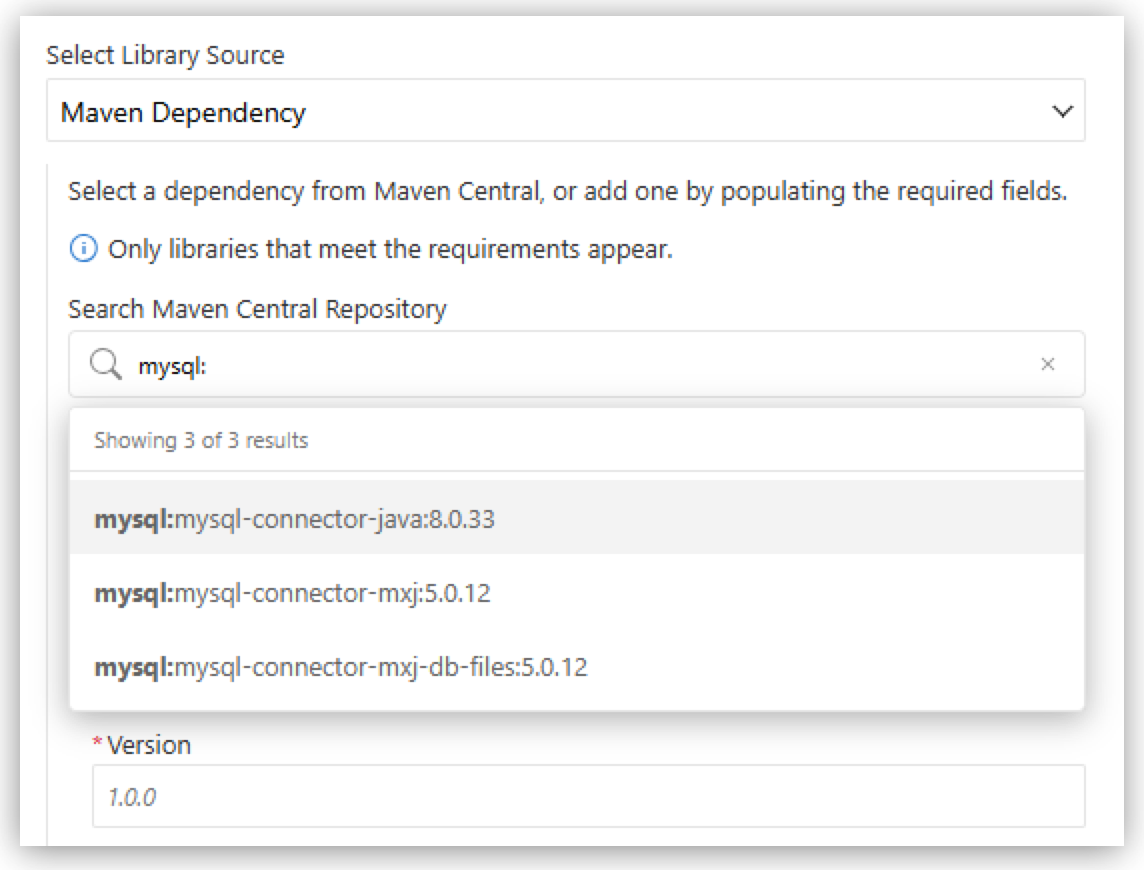
-
Enter
8.0.30in the Version text field, and click Apply. -
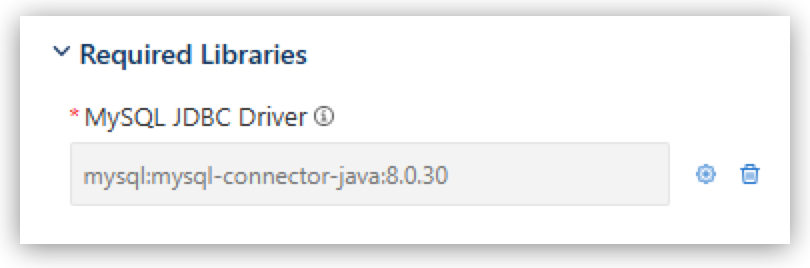
Confirm that the MySQL JDBC Driver is set.
-
Set the following configuration values:
Field Name Field Value Host
iltdb.mule-training.comPort
3306User
mulePassword
muleDatabase
training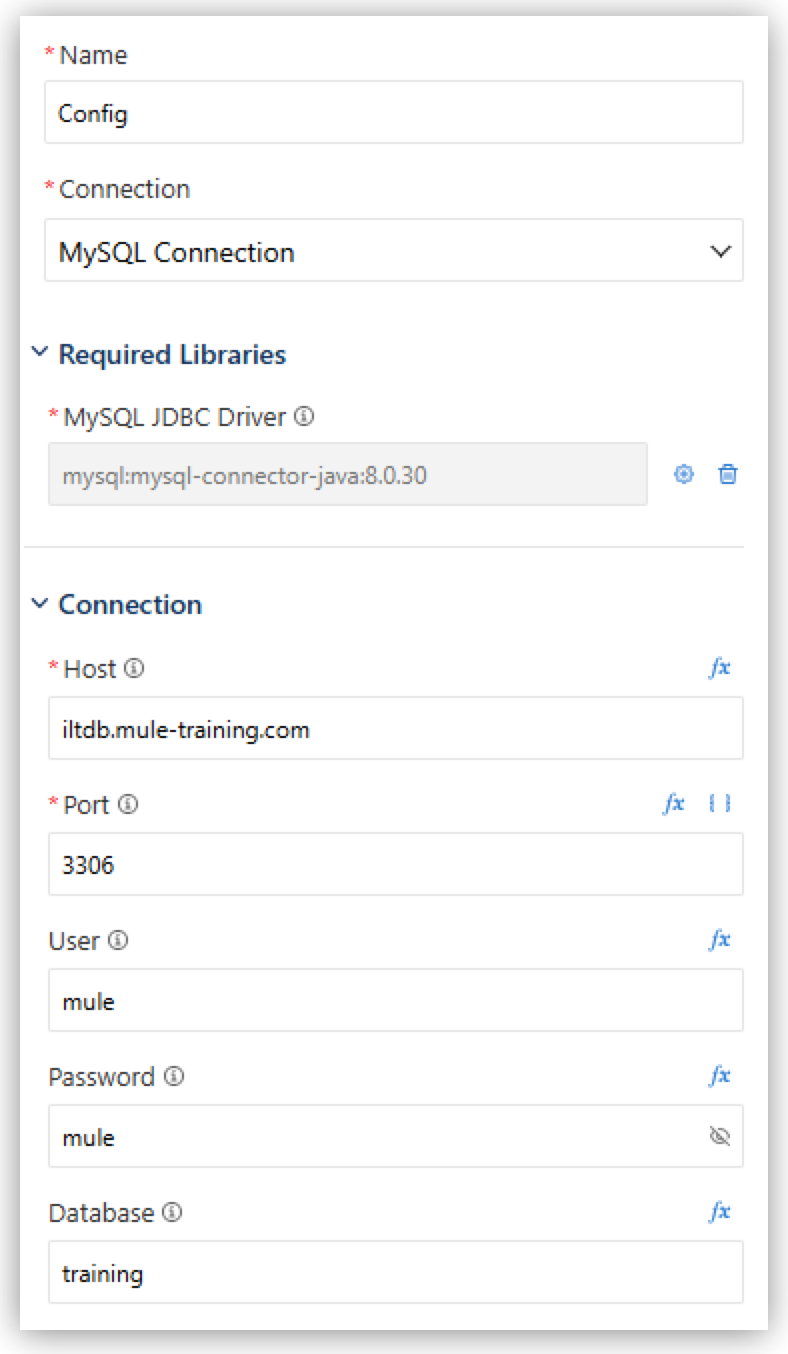
-
Click Test Connection and confirm that you see a Connection is valid message.

If the test fails, verify the connection details and retry. If you are using a VPN, confirm that it is not preventing the connection to the MySQL database. -
Click Apply and close the Database - Select config tab.
-
In the Database - Select properties panel, add this query in the SQL Query Text field:
SELECT * FROM american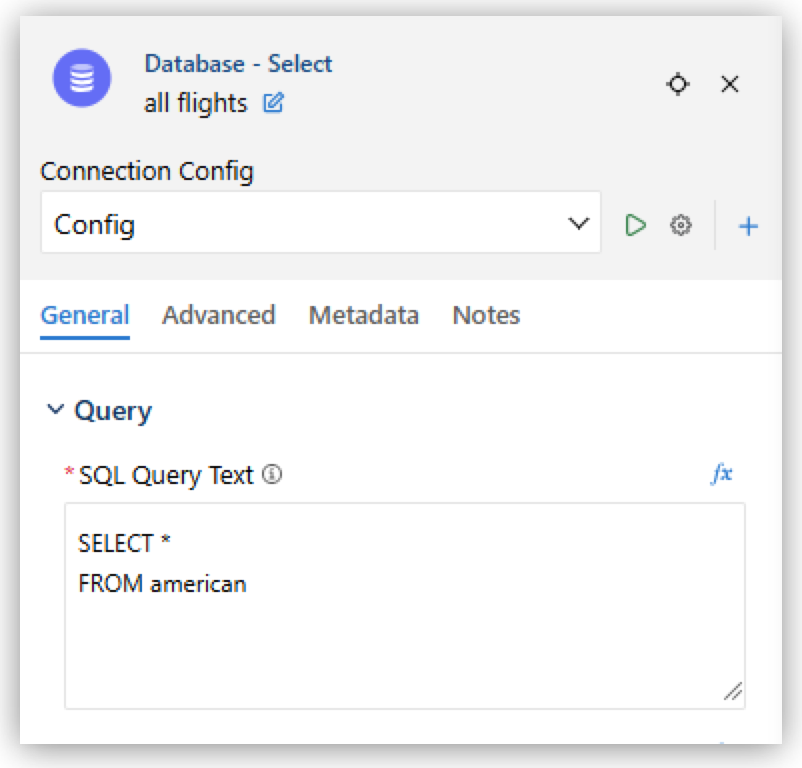
This query selects all records from the
americantable. -
Locate the Transform Message component after the All Flights Database Select.
If there’s no Transform Message component there, click Add Component (+) after All Flights and select Core Processors > Components > Transform Message.
-
Click the Transform Message component to open its properties panel.
-
In the Inline Script field, set the script to:
%dw 2.0
output application/json
---
payload