
Test the American Flights API with MUnit
After debugging your API flows locally, add automated MUnit tests to verify behavior and guard against regressions before deployment.
In this tutorial section, you:
-
Build a test manually in the canvas view, so you learn the parts of an MUnit test and how to work in the editor.
-
Use MuleSoft Vibes to create a second test that mocks the database, so you can see how mocking works without building your test manually.
Before you begin, complete the debugging steps in Debug the American Flights API.
MUnit is MuleSoft’s unit testing framework for Mule applications. Use it to create automated tests that verify your API behaves correctly. Anypoint Code Builder provides integrated support for creating, running, and debugging MUnit tests through a Testing panel, canvas UI, and code editor.
An MUnit test consists of:
-
Test Suite: A file containing one or more tests (saved as
*-test.xmlinsrc/test/munit). -
Test Case: An individual test that validates a specific behavior.
-
Behavior: Setup and teardown conditions, including mocks of external systems (like databases) to isolate the logic under test.
-
Execution: Invokes a flow or subflow.
-
Validation: Asserts that the result matches expectations.
| MUnit 3.4.0 or later is required for canvas-based test suite creation in Anypoint Code Builder. |
Create a Test Suite for the American Flights API
Create a test suite to contain the tests for your project.
-
Navigate to
src/test/munitin the Explorer panel. -
Right-click the
munitfolder and select New MUnit Test Suite File.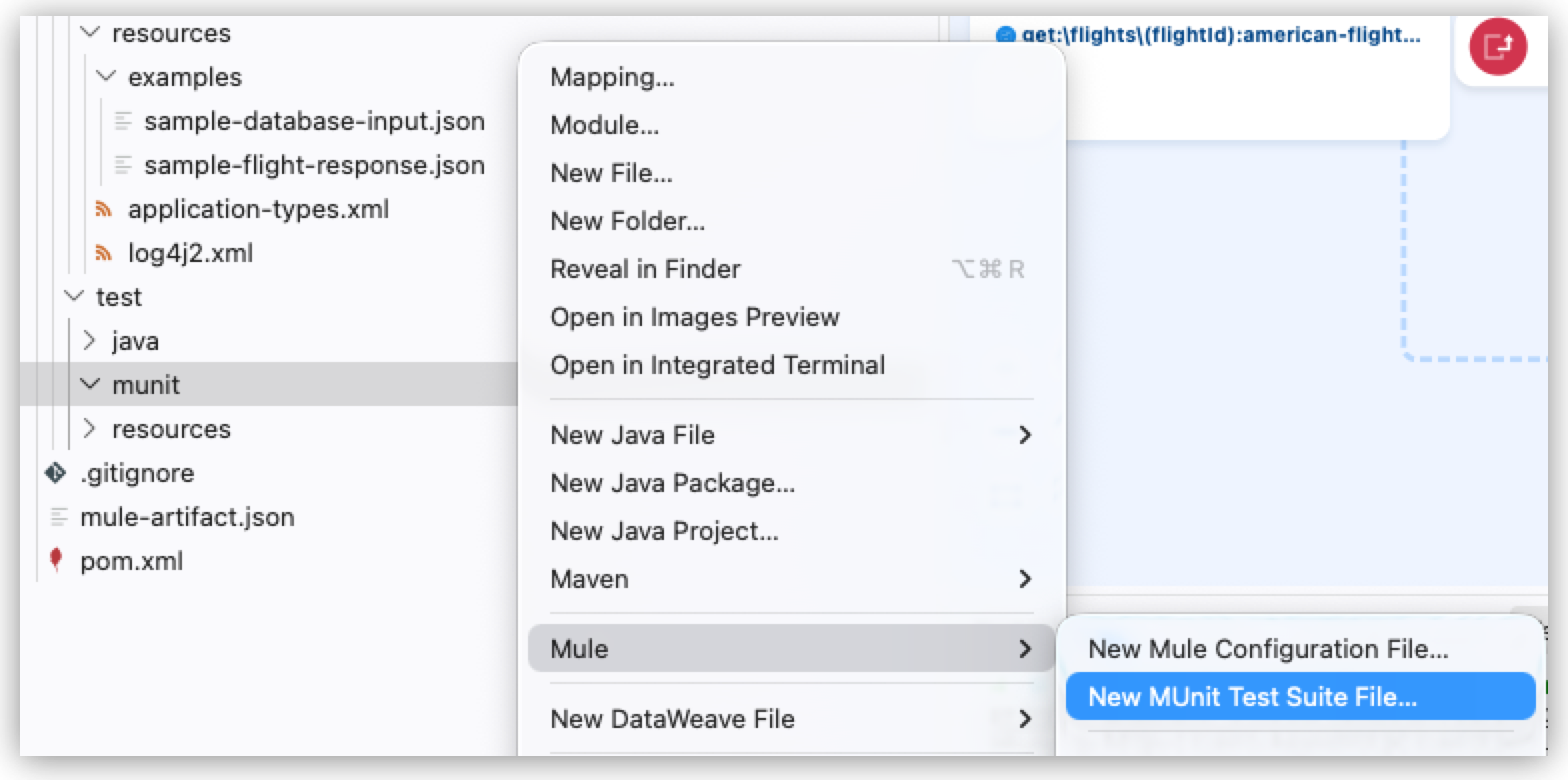
-
Provide a name for the test suite:
american-flights-api-test.xml. -
Press Enter.
Anypoint Code Builder generates a new file with a basic structure.
Create a Test for Database Operations
Now create your first test case to verify a database query returns flight data successfully. This test uses the actual database configuration from your implementation project.
-
Open the test file (
american-flights-api-test.xml) in canvas view. -
Click Build a Test to start.
-
Click the Test component and change its name to
test-database-query. -
In the Execution section, click + and select Connectors > Database > Select.
-
Click the Database - Select operation and specify these values:
-
Connection Config:
Config(select the existing database configuration) -
SQL Query Text:
SELECT * FROM american
-
-
In the Validation section, click + and select MUnit Test Modules > Assert that.
-
Click the Assert that component and specify these values:
-
Expression:
sizeOf(payload) -
Is:
MunitTools::greaterThan(0) -
Message:
Should return at least one flightEnsure Expression mode (
 ) is enabled so expressions are recognized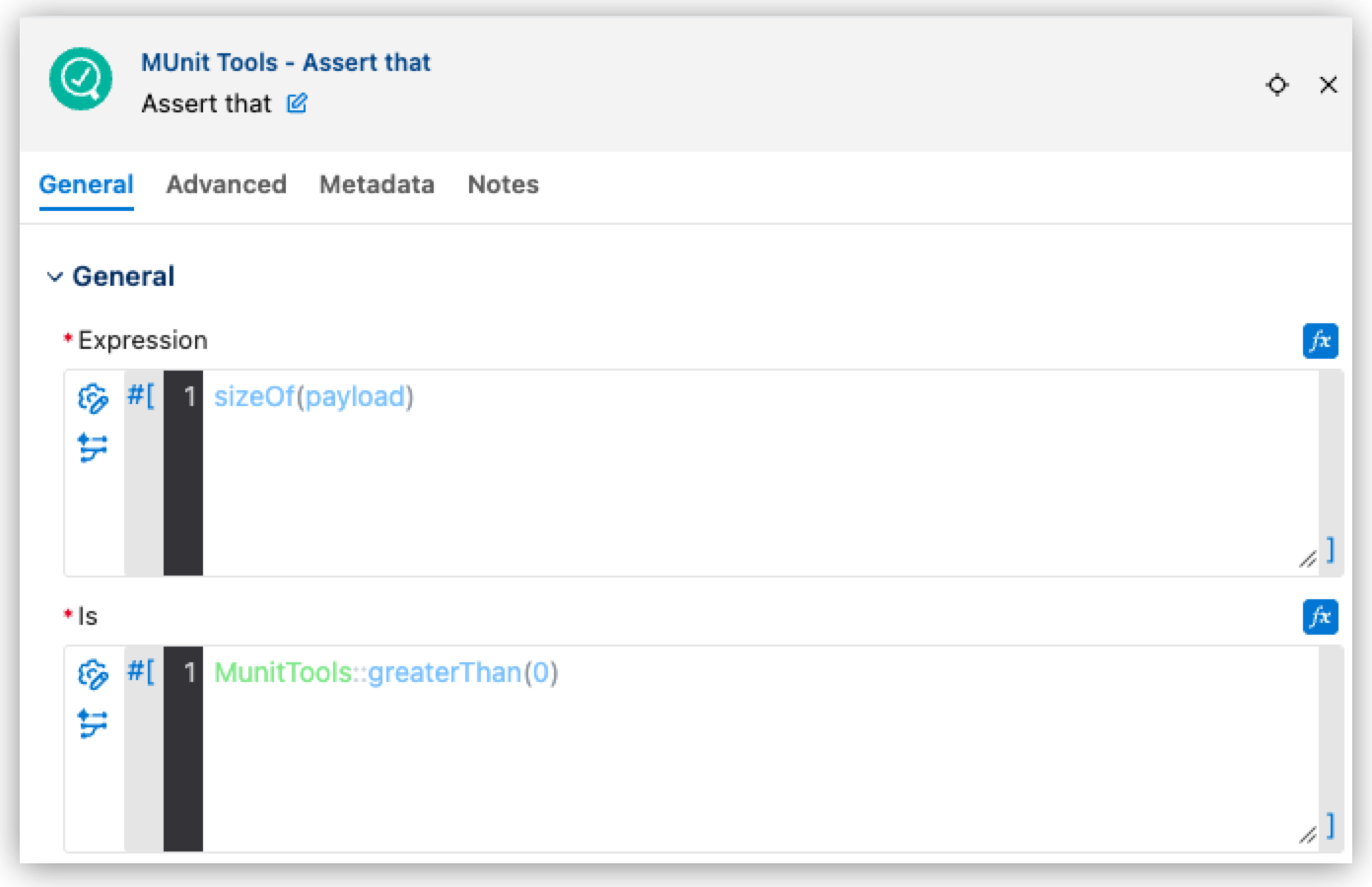
This validation checks that the database query returned at least one record.
-
Create a Test with Mocks Using MuleSoft Vibes
While the previous example tested a database operation directly, you can also test your API flows by mocking their dependencies. With this approach, your tests run without requiring external systems like databases.
Use MuleSoft Vibes to create the test by sending this message:
Add an MUnit test for the GET /flights flow in american-flights-api-test.xml.
Mock the database call to return two sample flights, and verify the flow returns both.
The generated test might vary because the prompt is general, but you should get a test similar to this:
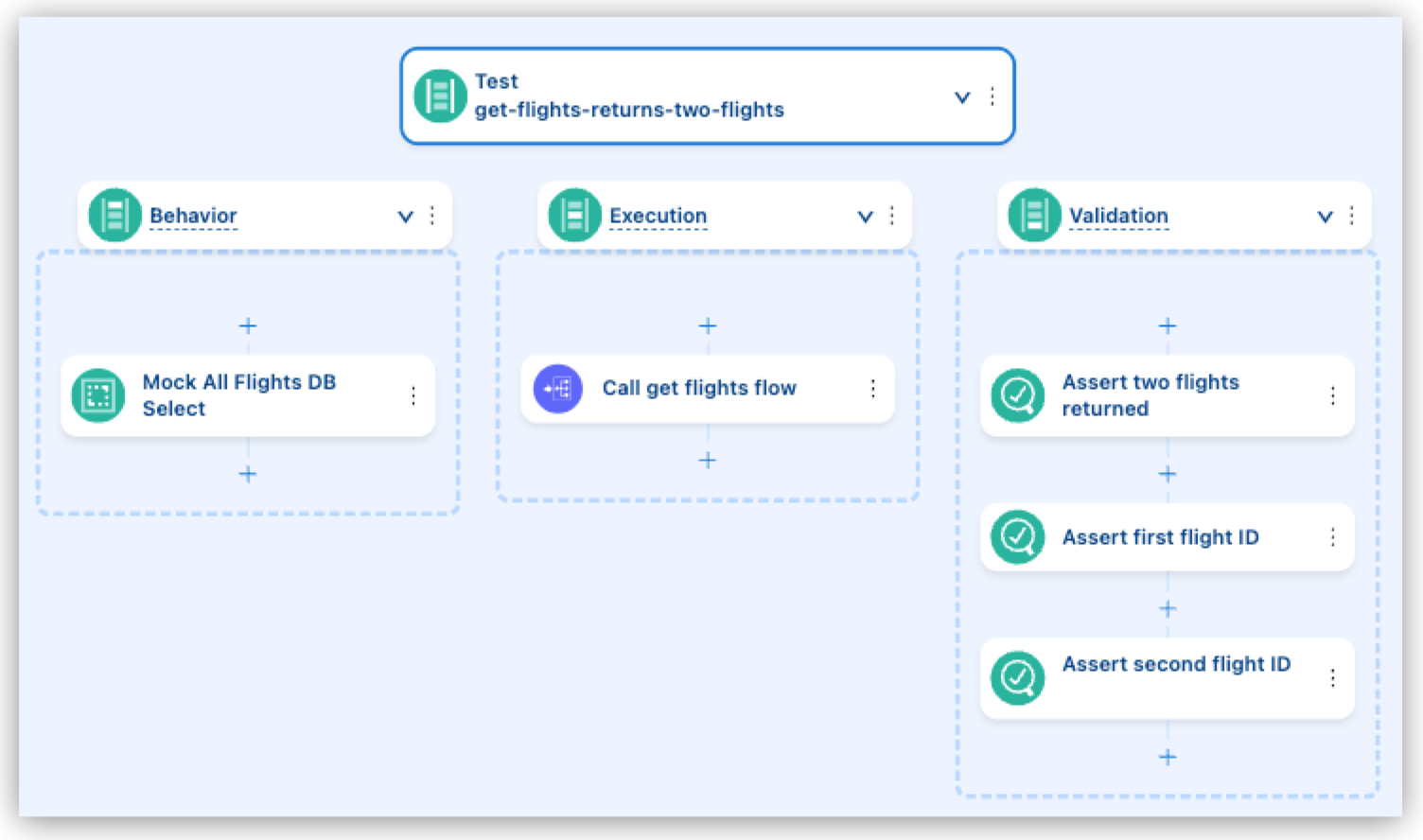
The test mocks the All Flights Database Select that you created in Implement the American Flights API, so the flow returns the sample flights instead of querying the real database.
Run the Tests
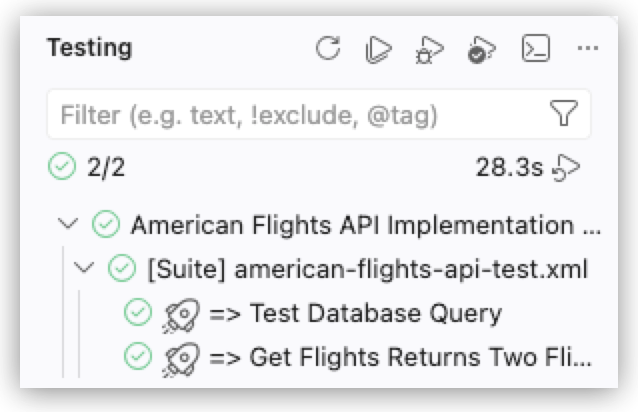
Run both tests together to confirm that the first one passes against the real database and the second one passes using only mocked data.
-
In the Testing panel, click Run all the tests in this file (
 ) and select Run Test.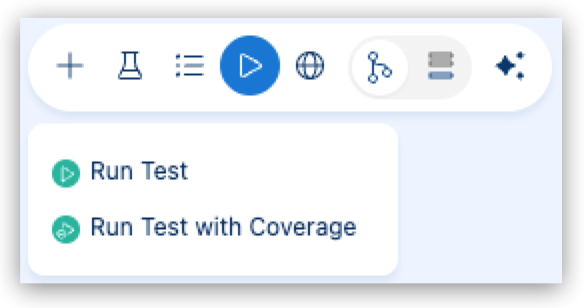
-
View the test results in the Testing panel.
Measure Test Coverage
MUnit provides built-in coverage reporting that measures the percentage of event processors executed by your tests. Aim for at least 80% coverage for production APIs.
After you run tests with coverage, you can view the results in the Test Coverage panel or in the console output. The Explorer panel also displays coverage metrics alongside your files, making it easy to identify which parts of your application need additional test coverage.
To run tests with coverage:
-
In the Testing panel, click Run all the tests in this file (
).
-
Click Run Test With Coverage.
Alternatively, right-click the test suite file in the project explorer and select Run MUnit Test with Coverage.
Best Practices for MUnit Testing
Follow these best practices to create maintainable and effective MUnit tests:
-
Mock external dependencies: Always mock database connections, HTTP requests to external APIs, and file system operations to keep tests fast and reliable.
-
Test one behavior per test case: Each test should validate a single scenario (success path, specific error condition, and so on).
-
Use descriptive test names: Names like
get-flight-by-valid-code-returns-200clearly indicate what the test validates. -
Maintain test data separately: Consider storing sample payloads in separate files in
src/test/resourcesfor complex data structures. -
Run tests frequently: Execute tests after each significant change to catch issues early.
-
Aim for high coverage: Target at least 80% code coverage, ensuring all critical paths are tested.
-
Test error scenarios: Don’t just test the happy path — validate that your error handlers work correctly too.
Troubleshoot Common MUnit Issues
When creating and running MUnit tests, you may encounter issues related to test execution, mocking, or runtime configuration. These are some common problems and their solutions to help you resolve test failures.
Test Timeout Errors
If tests fail with timeout errors:
-
Increase the timeout value in your MUnit configuration.
-
Check for infinite loops or blocking operations in your flows.
-
Ensure mocked components return responses quickly.
Mock Not Applied
If mocks aren’t being applied:
-
Verify that the name of the component the mock targets exactly matches the name of the component in your flow. For example, the mock must target the Database Select named All Flights. Even a small difference, such as a missing space or different capitalization, prevents the mock from being applied.
-
Check that the mock targets the right type of component. For example, use a Database Select mock for a Database Select operation.
-
Ensure the mock is in the Behavior section of the test, so it is set up before the Execution section runs.