
Creating Integrations with MuleSoft Vibes
MuleSoft Vibes is a purpose-built assistant for the development lifecycle, available right in Anypoint Code Builder. MuleSoft Vibes supports many capabilities through the MuleSoft MCP Servers, such as deploying applications, managing instances, and more. One such capability is transforming your business logic into a Mule application.
The generated application includes the integration, connector configurations, a sample properties file, and the dependencies required for connectors. These artifacts ensure that the generated integration is runnable and can be deployed directly from Anypoint Code Builder.
Before You Begin
To create integrations with Mulesoft Vibes, ensure you:
-
Configure the following permissions to use Mulesoft Vibes:
-
Mule Developer Generative AI User
-
-
Enable Einstein in Access Management. See Enabling or Disabling Generative AI for Anypoint Platform.
-
Connecting a Trusted Salesforce Organization to Anypoint Platform.
Access Mulesoft Vibes
There are two ways to open Mulesoft Vibes:
-
When you create a new integration project, click a card in the canvas. For example, the Build an Ecosystem with AI card.
-
Click the Mulesoft Vibes icon in the toolbar.

Create a New Integration Project
To create a new integration development project:
-
In the activity bar, click the
 (Anypoint Code Builder) icon.
 -
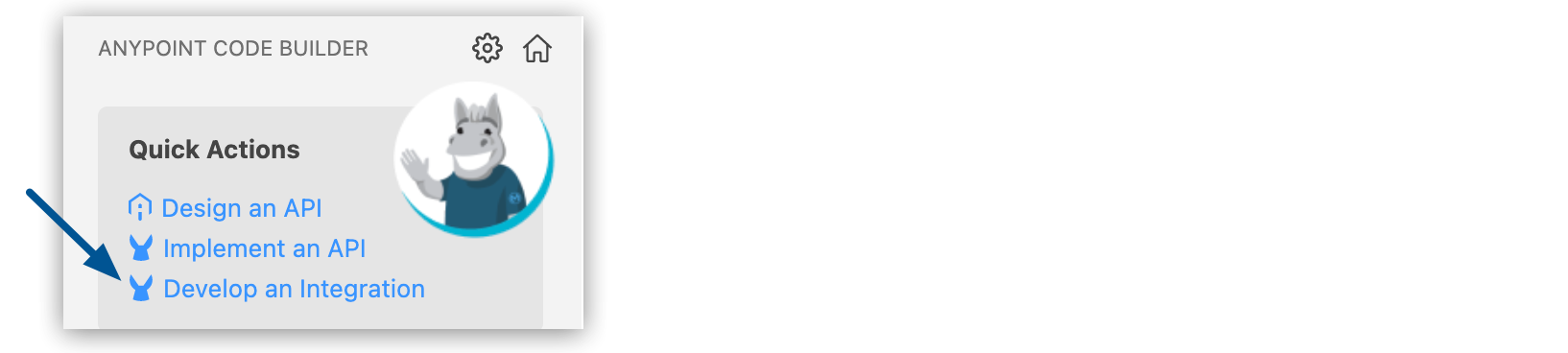
From Create, click Develop an Integration:
-
Complete the Develop an Integration form:
Field Name Field Value Project Name
Unique name for your project.
This name is used as the title and name of the integration specification file. For example, if the project name is "My Integration", the name of the folder for the integration project is
my-integration, and the configuration XML file name ismy-integration.xml.Project Location
Your home directory or another directory you create. Click Browse to select a directory for the integration if you don’t want to use the prepopulated location.
-
Click Create Project.
The integration builder canvas appears with starting cards.
To generate an integration with AI, click Use Mulesoft Vibes in the Build an Ecosystem with AI card.
Write Your Message
Before you create an integration, define what you want to achieve with the integration, for example, optimizing a business process. In the Mulesoft Vibes panel, describe what you need using natural language. The clearer and more specific your message, the more accurate the generated integration.
Best practices for messages:
-
Be clear and precise.
-
Include triggering events (for example, sending an email when a new case is created).
-
Emphasize key MuleSoft components and connector operations (for example, HTTP Connector Listener and Email Connector Send).
-
Specify the data objects (for example, Salesforce Account object).
-
Review your message before you submit it.
After Mulesoft Vibes generates the initial integration, the code is written directly into your project. You can further customize it to fit your requirements.
Generate Applications from Exchange Templates
You can generate applications in MuleSoft Vibes by using local templates from Anypoint Exchange as a starting point. This helps you align generated integrations with established implementation patterns and internal standards.
Template-based generation supports consistent project structure and reduces the effort required to apply organizational conventions after generation.
Include Custom Connectors in Generated Applications
You can include custom connectors published to your private Anypoint Exchange when generating applications with MuleSoft Vibes. Use integrations to target internal or specialized systems your organization supports.
By reusing private Exchange assets during generation, you can apply approved connector implementations from the beginning of the project lifecycle.
Invoke Exchange APIs Using REST Connectors
Use MuleSoft Vibes to generate applications that invoke APIs published to Anypoint Exchange by using REST connectors. This capability helps you reuse existing API assets directly in generated integration implementations.
Using Exchange APIs as generation targets improves consistency across your API and integration landscape while accelerating delivery.
Complete Your Integration
After Mulesoft Vibes builds the integration, complete the configuration as needed.
Components that require further configuration display the error icon. Select the component in the canvas to determine where the error is. Anypoint Code Builder highlights the location of the error in the code editor.