
Microsoft Service Bus Connector 2.1
Microsoft Service Bus 用 Anypoint Connector (Microsoft Service Bus Connector) を使用すると、オンプレミスの Windows Service Bus とのメッセージインテグレーションが可能になります。このコネクタは、Advanced Message Queuing Protocol (AMQP) 1.0 を使用して、キューおよびトピックとの通信をサポートします。さらに、組み込みの管理 API を使用した Service Bus オブジェクトの動的な検出とプロビジョニングが可能です。
| このコネクタでは、Microsoft Windows Service Bus オンプレミスソリューションへの接続のみがサポートされます。Microsoft Azure Service Bus に接続するには、 Azure Service Bus 用 Anypoint Connector を使用してください。 |
リリースノート: Microsoft Service Bus Connector リリースノート
Exchange: Microsoft Service Bus Connector
始める前に
この情報を使用するには、Microsoft Service Bus、Mule Runtime Engine (Mule)、Anypoint Connector、Anypoint Studio、Mule の概念、Mule フローの要素、グローバル要素に精通している必要があります。
対象リソースへの接続をテストするには、次のいずれかのログイン情報の種類が必要です。
-
Windows ログイン情報の種類
-
SAS (共有アクセス署名) - 廃止
-
ユーザー名とパスワード - 廃止
ソフトウェアの要件および互換性情報については、「コネクタリリースノート」を参照してください。
Apache Maven でこのコネクタを使用するには、 Anypoint Exchange の [Dependency Snippets (連動関係スニペット)] リンクをクリックしてください。
このコネクタでは、オンプレミスの Microsoft Windows Service Bus がサポートされています。
POM ファイル情報
<dependency>
  <groupId>com.mulesoft.connectors</groupId>
  <artifactId>mule-microsoft-service-bus-connector</artifactId>
  <version>x.x.x</version>
  <classifier>mule-plugin</classifier>
</dependency>
x.x.x を使用しているコネクタに対応するバージョンに置き換えます。
最新の pom.xml ファイル情報を取得するには、 Anypoint Exchange でコネクタにアクセスし、[Dependency Snippets (連動関係スニペット)] をクリックします。
Studio プロジェクトへのコネクタの追加
Anypoint Studio には、Studio プロジェクトにコネクタを追加する 2 つの方法があります。Studio タスクバーの Exchange ボタンから追加するか、[Mule Palette (Mule パレット)] ビューから追加します。
Exchange を使用してコネクタを追加する
-
Studio で Mule プロジェクトを作成します。
-
Studio タスクバーの左上にある Exchange アイコン (X) をクリックします。
-
Exchange で、[Login (ログイン)] をクリックし、Anypoint Platform のユーザー名とパスワードを指定します。
-
Exchange で、「service bus」を検索します。
-
コネクタを選択して [Add to project (プロジェクトに追加)] をクリックします。
-
画面の指示に従ってコネクタをインストールします。
Studio でコネクタに追加する
-
Studio で Mule プロジェクトを作成します。
-
[Mule Palette (Mule パレット)] ビューで、[(X) Search in Exchange ((X) Exchange 内を検索)] をクリックします。
-
[Add Modules to Project (モジュールをプロジェクトに追加)] で、検索項目に「service bus」と入力します。
-
[Available modules (使用可能なモジュール)] で、このコネクタの名前をクリックします。
-
[Add (追加)] をクリックします。
-
[Finish (完了)] をクリックします。
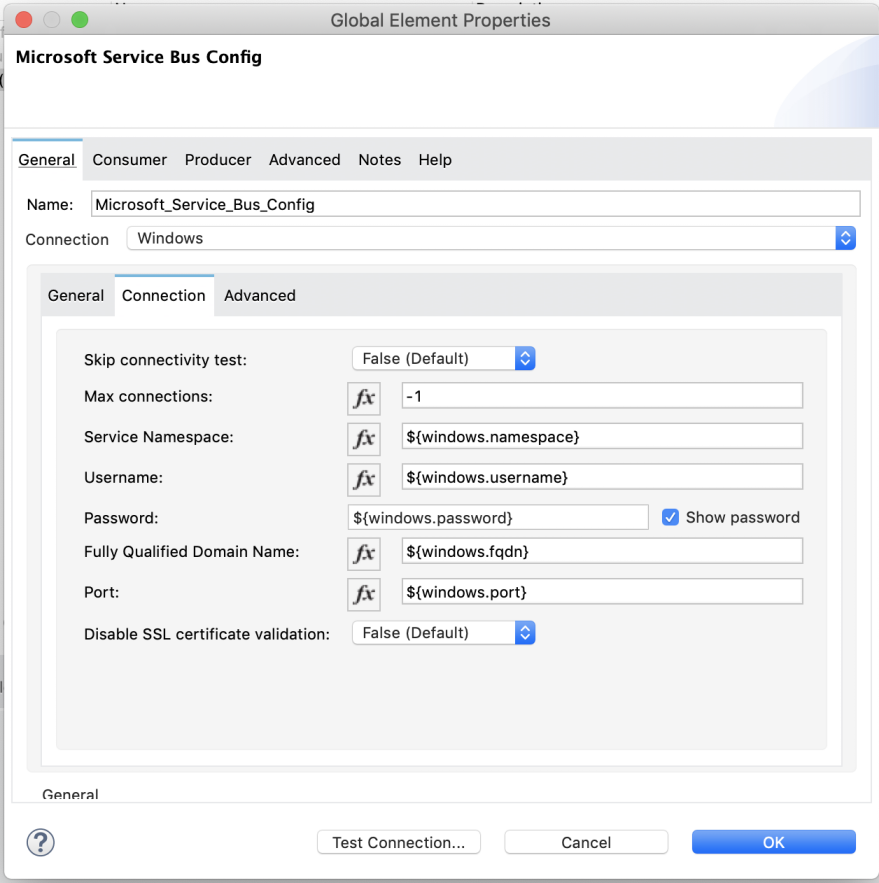
キューリストの取得のユースケース
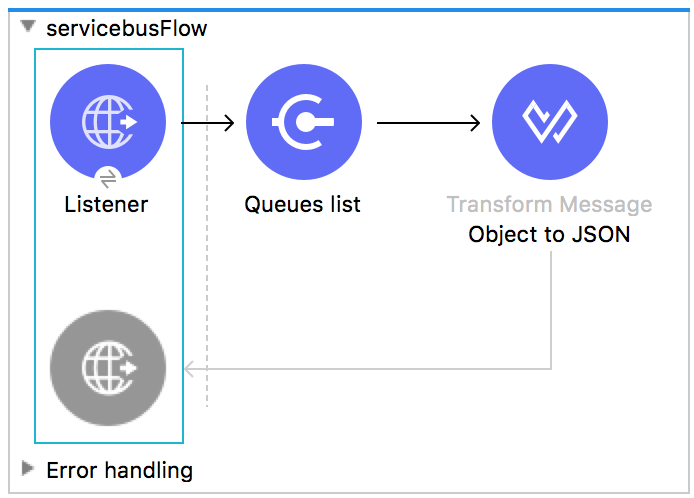
このユースケースでは、特定の名前空間内の既存のキューのリストを取得します。リストは JSON 形式で返されます。
-
Studio で新しい Mule アプリケーションを作成し、新しいフローの提供元として [HTTP Listener (HTTP リスナー)] を選択します。
-
新しい HTTP リスナー設定のグローバル要素を追加します。
-
[Host (ホスト)] パラメーターと [Port (ポート)] パラメーターに次の値を指定します。
パラメーター 値 Host (ホスト)
0.0.0.0
Port (ポート)
8081
-
[保存] をクリックします。
-
新しいグローバル設定を HTTP リスナーに割り当てます。
-
HTTP リスナーのパスに
/servicebus という値を設定します。 -
新しい Service Bus コンポーネントの操作をフローにドラッグします。
-
Service Bus Connector のグローバル要素に環境値を設定します。
-
コネクタの前に [Transform Message (メッセージの変換)] を追加し、次のような出力を追加します。
%dw 2.0 output application/json --- payload -
プロジェクトを保存し、Mule アプリケーションとして実行します。
アプリケーションをテストするには、
http://127.0.0.1:8081/servicebus に移動します。
XML フロー:
<?xml version="1.0" encoding="UTF-8"?>

<mule xmlns:ee="http://www.mulesoft.org/schema/mule/ee/core"
xmlns:servicebus="http://www.mulesoft.org/schema/mule/servicebus"
	xmlns:http="http://www.mulesoft.org/schema/mule/http"
	xmlns="http://www.mulesoft.org/schema/mule/core"
	xmlns:doc="http://www.mulesoft.org/schema/mule/documentation"
	xmlns:xsi="http://www.w3.org/2001/XMLSchema-instance"
	xsi:schemaLocation="http://www.mulesoft.org/schema/mule/core
	http://www.mulesoft.org/schema/mule/core/current/mule.xsd
http://www.mulesoft.org/schema/mule/http
http://www.mulesoft.org/schema/mule/http/current/mule-http.xsd
http://www.mulesoft.org/schema/mule/servicebus
http://www.mulesoft.org/schema/mule/servicebus/current/mule-servicebus.xsd
http://www.mulesoft.org/schema/mule/ee/core
http://www.mulesoft.org/schema/mule/ee/core/current/mule-ee.xsd">
	<configuration-properties file="mule-app.properties" />
	<http:listener-config name="HTTP_Listener_config" doc:name="HTTP Listener config" >
		<http:listener-connection host="0.0.0.0" port="8081" />
	</http:listener-config>
	<servicebus:config name="Servicebus_Config" doc:name="Servicebus Config" >
		<servicebus:windows-connection
		namespace="${config.namespace}"
		username="${config.username}"
		password="${config.password}"
		fqdn="${config.fqdn}" />
	</servicebus:config>
	<flow name="servicebusFlow">
		<http:listener doc:name="Listener" config-ref="HTTP_Listener_config"
		path="/servicebus"/>
		<servicebus:queues-list doc:name="Queues list" config-ref="Servicebus_Config"/>
		<ee:transform doc:name="Object to JSON">
			<ee:message >
				<ee:set-payload ><![CDATA[%dw 2.0
output application/json
---
payload]]></ee:set-payload>
			</ee:message>
		</ee:transform>
	</flow>
</mule>
Service Bus の認証
Service Bus Connector を使用してメッセージを送受信する場合、認証は AMQP を使用して実行されます。
REST 管理 API の場合、認証スキームは Microsoft Service Bus バージョンによって異なります。Windows Service Bus では、OAuth が使用されます。
| Windows Service Bus では、自己署名 SSL 証明書を使用して、AMQP および HTTPS 経由の通信のセキュリティが確保されます。この証明書が、Mule を実行するボックスのローカルにインポートされていない場合は、[Ignore SSL warning check (SSL 警告チェックを無視)] が有効になっていない限り、コネクタは実行されません。 |
SSL チェックを有効にするには、次の手順に従って証明書をインポートする必要があります。
-
PowerShell cmdlet Get-SBAutoGeneratedCA を使用して、Windows Service Bus を実行するボックスのローカルに証明書をダウンロードします。 このチュートリアルでは、証明書ファイルが %temp%\AutoGeneratedCA.cer にエクスポートされると想定します。
-
%programfiles%\Java\jre7 に移動します。bin\keytool.exe ツールと lib\security\cacerts があることを確認します。Keytool.exe で証明書のインポートを行うには、システム管理者として実行している必要があります。それ以外の場合は、「Access Denied (アクセス拒否)」エラーが発生します。
-
次のコマンドを入力します。bin\keytool.exe –list –keystore lib\security\cacerts
-
次のコマンドを実行して、自動生成される Service Bus 証明書をインポートします。bin\keytool.exe –importcert –alias AppServerGeneratedSBCA –file %temp%\AutoGeneratedCA.cer –keystore lib\security\cacerts –v
-
要求されたらパスワードを入力します (デフォルトは「changeit」です)。 パスワードがわからない場合はインポートを実行できません。 証明書を信用するかどうかを尋ねられたら、「Y」 (はい) と入力します。
制限付きアクセスポリシーの使用
リソースへのアクセスが制限されていて、リソースレベルのみの権限があるセキュリティポリシーを使用すると、shared access key に適用されているカスタムポリシーによって禁止されている可能性がある名前空間のルートレベルが接続性テストの対象になっているため、コネクタはスタートアップ時に接続性テストを実行できません。このようなシナリオでは、この目的のために使用できる設定オプションで接続性テストをスキップする必要があります。スキップしない場合は、コネクタのスタートアップが失敗します。
要求と応答の記録
コネクタを使用するときに要求と応答を記録するには、Mule アプリケーションの log4j2.xml 設定ファイルの Loggers 要素に次の行を追加して、ロガーを設定します。
<AsyncLogger name="org.springframework.web.client"
level="DEBUG"/>次の例は、AsyncLogger 行が追加された Loggers 要素を示しています。
<?xml version="1.0" encoding="UTF-8"?>
<Configuration status="WARN">
	<Appenders>
	    <Console name="Console" target="SYSTEM_OUT">
	    	<PatternLayout pattern="%d{HH:mm:ss.SSS} [%t] %-5level %logger{36} - %msg%n"/>
		</Console>
	</Appenders>
	<Loggers>
		<AsyncLogger name="org.springframework.web.client" level="DEBUG" additivity="false">
			<appender-ref ref="Console" level="debug"/>
		</AsyncLogger>
	</Loggers>
</Configuration>
アプリケーションログは次の方法で表示できます。
-
アプリケーションを Anypoint Platform から実行している場合、出力は Anypoint Studio のコンソールウィンドウに表示される。
-
コマンドラインから Mule を使用してアプリケーションを実行している場合、アプリケーションログは OS コンソールに表示される。
アプリケーションのログファイル (log4j2.xml) でログファイルパスがカスタマイズされていない場合、次のデフォルトの場所でアプリケーションログを表示することもできます。
MULE_HOME/logs/<app-name>.log
アプリケーションログについての詳細は、「ログの設定」を参照してください。
Windows Service Bus AMQP のユースケース
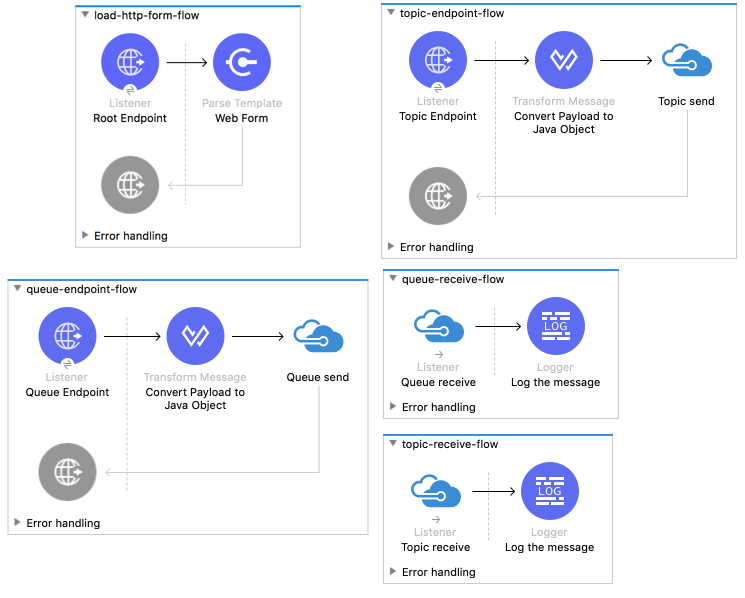
このユースケースには、トピックおよびキューのメッセージを送受信する次のフローが含まれます。
-
load-http-form-flowメッセージのパラメーターを入力するための Web フォームを提供します。
-
topic-endpoint-flowload-http-form-flow を使用してメッセージを受信し、各メッセージをペイロードとして保存して、Java オブジェクトに変換し、宛先トピックに送信します。 -
queue-endpoint-flowload-http-form-flow を使用してメッセージを受信し、各メッセージをペイロードとして保存して、Java オブジェクトに変換し、宛先キューに送信します。 -
queue-receive-flow特定のキューからのメッセージをリスンし、受信して、記録します。
-
topic-receive-flow特定のトピックからのメッセージをリスンし、受信して、記録します。
このフローの XML:
<?xml version="1.0" encoding="UTF-8"?>

<mule xmlns:ee="http://www.mulesoft.org/schema/mule/ee/core"
xmlns:servicebus="http://www.mulesoft.org/schema/mule/servicebus"
xmlns:http="http://www.mulesoft.org/schema/mule/http"
xmlns="http://www.mulesoft.org/schema/mule/core"
xmlns:doc="http://www.mulesoft.org/schema/mule/documentation"
xmlns:xsi="http://www.w3.org/2001/XMLSchema-instance"
xsi:schemaLocation="http://www.mulesoft.org/schema/mule/core
http://www.mulesoft.org/schema/mule/core/current/mule.xsd
http://www.mulesoft.org/schema/mule/http
http://www.mulesoft.org/schema/mule/http/current/mule-http.xsd
http://www.mulesoft.org/schema/mule/servicebus
http://www.mulesoft.org/schema/mule/servicebus/current/mule-servicebus.xsd
http://www.mulesoft.org/schema/mule/ee/core
http://www.mulesoft.org/schema/mule/ee/core/current/mule-ee.xsd">
	<configuration-properties file="mule-app.properties" doc:name="Configuration properties"/>
	<http:listener-config name="HTTP_Listener_config" doc:name="HTTP Listener config">
		<http:listener-connection host="0.0.0.0" port="8081" />
	</http:listener-config>
	<servicebus:config name="Microsoft_Service_Bus_Config" doc:name="Microsoft Service Bus Config">
		<servicebus:windows-connection
			namespace="${windows.namespace}"
			username="${windows.username}"
			password="${windows.password}"
			fqdn="${windows.fqdn}"
			port="${windows.port}"/>
	</servicebus:config>
	<flow name="load-http-form-flow">
		<http:listener doc:name="Root Endpoint" config-ref="HTTP_Listener_config"
			path="/" />
		<parse-template doc:name="Web Form" location="form.html" />
	</flow>
	<flow name="queue-endpoint-flow">
		<http:listener doc:name="Queue Endpoint" config-ref="HTTP_Listener_config"
			path="/pushMessageQueue" />
		<ee:transform doc:name="Convert Payload to Java Object">
			<ee:message>
				<ee:set-payload><![CDATA[%dw 2.0
output application/java
---
payload]]></ee:set-payload>
			</ee:message>
		</ee:transform>
		<servicebus:queue-send doc:name="Queue send" config-ref="Microsoft_Service_Bus_Config"
			destinationQueue="#[payload.queue]">
			<servicebus:message >
				<servicebus:body ><![CDATA[#[payload.message]]]></servicebus:body>
			</servicebus:message>
		</servicebus:queue-send>
	</flow>
	<flow name="topic-endpoint-flow">
		<http:listener doc:name="Topic Endpoint" config-ref="HTTP_Listener_config"
			path="/pushMessageTopic"/>
		<ee:transform doc:name="Convert Payload to Java Object">
			<ee:message >
				<ee:set-payload ><![CDATA[%dw 2.0
output application/java
---
payload]]></ee:set-payload>
			</ee:message>
		</ee:transform>
		<servicebus:topic-send doc:name="Topic send" config-ref="Microsoft_Service_Bus_Config"
			destinationTopic="#[payload.topic]"
			transactionalAction="NOT_SUPPORTED"
			sendCorrelationId="AUTO">
			<servicebus:message >
				<servicebus:body ><![CDATA[#[payload.message]]]></servicebus:body>
			</servicebus:message>
		</servicebus:topic-send>
	</flow>
	<flow name="queue-receive-flow">
		<servicebus:listener
			sourceType="Queue"
			destination="${queue.name}"
			doc:name="Queue receive"
			config-ref="Microsoft_Service_Bus_Config"
			ackMode="AUTO" subscription="NONE"
			numberOfConsumers="1"/>
		<logger level="INFO" doc:name="Log the message" message="#[payload]"/>
	</flow>
	<flow name="topic-receive-flow">
		<servicebus:listener sourceType="Topic" doc:name="Topic receive"
			config-ref="Microsoft_Service_Bus_Config"
			ackMode="AUTO" destination="${topic.name}"
			subscription="${subscription.name}"/>
		<logger level="INFO" doc:name="Log the message" message="#[payload]"/>
	</flow>
</mule>
Windows Service Bus 管理のユースケース
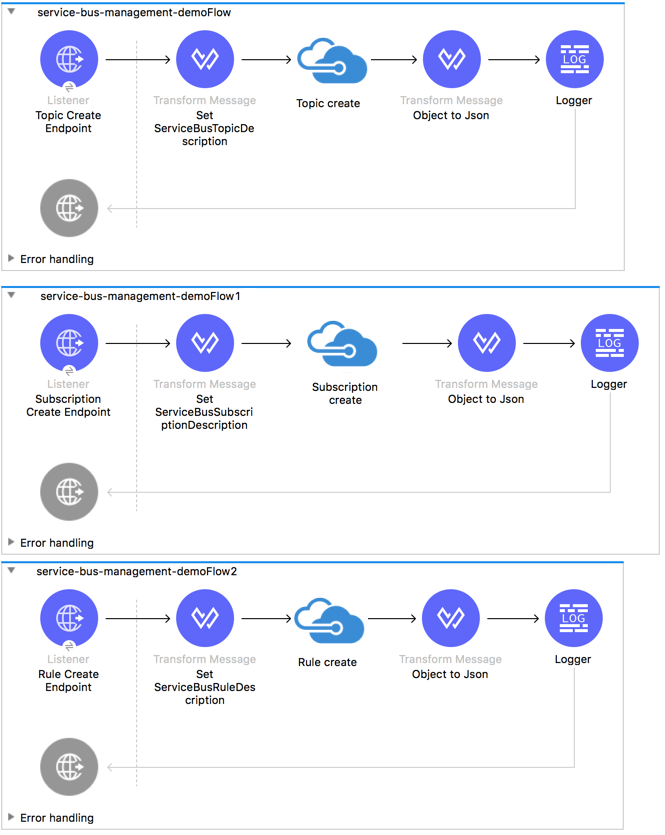
このユースケースには、トピック、サブスクリプション、およびルールを作成するフローが含まれます。
-
service-bus-management-demoFlow次の手順に従って、トピックを作成します。
-
指定されたとおりにトピックの説明を作成してペイロードとして保存します。
-
前のステップで保存した設定と、変数
topic.name から取得したトピックの名前空間を使用してトピックを作成します。 -
新しく作成したトピックを JSON オブジェクトに変換します。
-
JSON オブジェクトを記録します。
-
-
service-bus-management-demoFlow1次の手順に従って、サブスクリプションを作成します。
-
指定されたとおりにサブスクリプションの説明を作成してペイロードとして保存します。
-
前のステップで保存した設定、変数
subscription.name から取得したサブスクリプション名、および変数 topic.name から取得したトピック名を使用してサブスクリプションを作成します。 -
新しく作成したサブスクリプションを JSON オブジェクトに変換します。
-
JSON オブジェクトを記録します。
-
-
service-bus-management-demoFlow2次の手順に従って、ルールを作成します。
-
指定された設定でルールを作成してペイロードとして保存します。
-
前のステップで保存した設定、変数
rule.name から取得したルール名、変数 subscription.name から取得したサブスクリプション名、および変数 topic.name から取得したトピック名を使用してルールを作成します。 -
新しく作成したルールを JSON オブジェクトに変換します。
-
JSON オブジェクトを記録します。
-
XML フロー:
<?xml version="1.0" encoding="UTF-8"?>

<mule xmlns:ee="http://www.mulesoft.org/schema/mule/ee/core"
xmlns:servicebus="http://www.mulesoft.org/schema/mule/servicebus"
	xmlns:http="http://www.mulesoft.org/schema/mule/http"
	xmlns="http://www.mulesoft.org/schema/mule/core"
	xmlns:doc="http://www.mulesoft.org/schema/mule/documentation"
	xmlns:xsi="http://www.w3.org/2001/XMLSchema-instance"
	xsi:schemaLocation="http://www.mulesoft.org/schema/mule/core
	http://www.mulesoft.org/schema/mule/core/current/mule.xsd
http://www.mulesoft.org/schema/mule/http
http://www.mulesoft.org/schema/mule/http/current/mule-http.xsd
http://www.mulesoft.org/schema/mule/servicebus
http://www.mulesoft.org/schema/mule/servicebus/current/mule-servicebus.xsd
http://www.mulesoft.org/schema/mule/ee/core
http://www.mulesoft.org/schema/mule/ee/core/current/mule-ee.xsd">
	<configuration-properties file="mule-app.properties"
	doc:name="Configuration properties"/>
	<http:listener-config name="HTTP_Listener_config"
	doc:name="HTTP Listener config">
		<http:listener-connection host="0.0.0.0" port="8081" />
	</http:listener-config>
	<servicebus:config name="Microsoft_Service_Bus_Config" doc:name="Microsoft Service Bus Config">
		<servicebus:windows-connection
			namespace="${windows.namespace}"
			username="${windows.username}"
			password="${windows.password}"
			fqdn="${windows.fqdn}"
			port="${windows.port}"/>
	</servicebus:config>
	<flow name="service-bus-management-demoFlow">
		<http:listener doc:name="Topic Create Endpoint"
		config-ref="HTTP_Listener_config"
		path="/topic"/>
		<ee:transform doc:name="Set ServiceBusTopicDescription">
			<ee:message >
				<ee:set-payload ><![CDATA[%dw 2.0
output application/java
---
{
	defaultMessageTimeToLive: "P10675199DT2H48M5.4775807S",
	duplicateDetectionHistoryTimeWindow: "PT10M",
	enableBatchedOperations: false,
	maxSizeInMegabytes: 1024,
	requiresDuplicateDetection: false,
	sizeInBytes: null
} as Object {
	class : "com.mulesoft.connectors.microsoft.servicebus.extension.api.entity.ServiceBusTopicDescription"
}]]></ee:set-payload>
			</ee:message>
		</ee:transform>
		<servicebus:topic-create doc:name="Topic create"
		config-ref="Microsoft_Service_Bus_Config"
		topicPath="${topic.name}">
		</servicebus:topic-create>
		<ee:transform doc:name="Object to Json">
			<ee:message >
				<ee:set-payload ><![CDATA[%dw 2.0
output application/json
---
{
	author: payload.author,
	id: payload.id,
	title: payload.title
}]]></ee:set-payload>
			</ee:message>
		</ee:transform>
		<logger level="INFO" doc:name="Logger" message="#[payload]"/>
	</flow>
	<flow name="service-bus-management-demoFlow1">
		<http:listener doc:name="Subscription Create Endpoint"
		config-ref="HTTP_Listener_config"
		path="/subscription"/>
		<ee:transform doc:name="Set ServiceBusSubscriptionDescription">
			<ee:message >
				<ee:set-payload ><![CDATA[%dw 2.0
output application/java
---
{
	lockDuration: "PT4M",
	requiresSession: false,
	deadLetteringOnMessageExpiration: false,
	deadLetteringOnFilterEvaluationExceptions: null,
	enableBatchedOperations: false,
	defaultMessageTimeToLive: "P10675199DT2H48M5.4775807S",
	maxDeliveryCount: null
} as Object {
	class : "com.mulesoft.connectors.microsoft.servicebus.extension.api.entity.ServiceBusSubscriptionDescription"
}]]></ee:set-payload>
			</ee:message>
		</ee:transform>
		<servicebus:subscription-create
		topicPath="${topic.name}"
		doc:name="Subscription create"
		config-ref="Microsoft_Service_Bus_Config"
		subscriptionPath="${subscription.name}"/>
		<ee:transform doc:name="Object to Json">
			<ee:message >
				<ee:set-payload ><![CDATA[%dw 2.0
output application/json
---
{
	linik: payload.link,
	id: payload.id,
	title: payload.title
}]]></ee:set-payload>
			</ee:message>
		</ee:transform>
		<logger level="INFO" doc:name="Logger" message="#[payload]"/>
	</flow>
	<flow name="service-bus-management-demoFlow2">
		<http:listener doc:name="Rule Create Endpoint"
		config-ref="HTTP_Listener_config"
		path="/rule"/>
		<ee:transform doc:name="Set ServiceBusRuleDescription">
			<ee:message >
				<ee:set-payload ><![CDATA[%dw 2.0
output application/java
---
{
	action: {
		sqlExpression: "set MyProperty2 = 'ABC'",
		"type": "SqlRuleAction"
	},
	filter: {
		correlationId: null,
		sqlExpression: "property1 = 'ok'",
		"type": "SqlFilter"
	}
} as Object {
	class : "com.mulesoft.connectors.microsoft.servicebus.extension.api.entity.ServiceBusRuleDescription"
}]]></ee:set-payload>
			</ee:message>
		</ee:transform>
		<servicebus:rule-create topicPath="${topic.name}" doc:name="Rule create"
		config-ref="Microsoft_Service_Bus_Config" rulePath="${rule.name}"
		subscriptionPath="${subscription.name}"/>
		<ee:transform doc:name="Object to Json">
			<ee:message >
				<ee:set-payload ><![CDATA[%dw 2.0
output application/json
---
{
	link: payload.link,
	id: payload.id,
	title: payload.title
}]]></ee:set-payload>
			</ee:message>
		</ee:transform>
		<logger level="INFO" doc:name="Logger" message="#[payload]"/>
	</flow>
</mule>
トラブルシューティング
Mule アプリケーションにリスナーソースが含まれる場合、次のようなエラーが発生することがあります。
javax.jms.JMSException: 操作は、オブジェクト接続に割り当てられた時間 00:00:14.9951934 内に完了しませんでした
アプリケーションの開始時または操作のコール時にこのエラーが発生した場合、Service Bus サーバーで Redirect 機能が有効になっているかどうかを確認します。有効になっている場合、このページの「Known Issues (既知の問題)」セクションの 「AMQP Java clients (and all non .NET clients) cannot send or receive to/from Service Bus (AMQP Java クライアント (および .NET 以外のすべてのクライアント) が Service Bus との間で送受信できない)」の手順に従ってこの機能を無効にします。