
Workday Connector 14.1 の例
Workday 用 Anypoint Connector (Workday Connector) には 2 つの財務管理サービスの例が提供されており、Anypoint Studio を使用して Workday Connector を設定する方法を見ることができます。
HTTP リスナーを設定する
ローカルホストポート 8081 で / アカウントパスへのコールが行われたときに Mule フローを開始するように HTTP リスナーを設定します。
この例では一部の項目値に変数を使用しています。次のいずれかを実行できます。
-
コード内で変数を値に置き換える。
-
プロパティファイルで各変数の値を指定しておき、コネクタ設定からそのファイルを参照する。
プロパティファイルの使い方が分からない場合は、「プロパティプレースホルダーの設定」を参照してください。
HTTP リスナーを設定するには、次の手順に従います。
-
Studio で新しい Mule プロジェクトを作成します。
-
[Mule Palette (Mule パレット)] ビューで「
http」を検索し、[Listener] 操作を選択します。[Mule Palette (Mule パレット)] ビューで Listener 操作を選択します。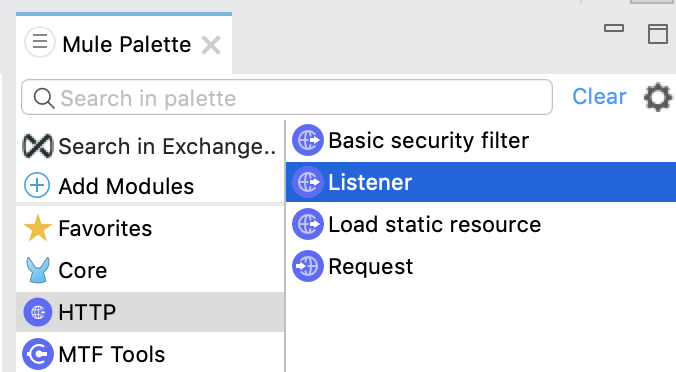
-
[Listener] 操作をキャンバスにドラッグします。
-
Listener 設定で、[Connector configuration (コネクタ設定)] 項目の横にある [+] をクリックしてグローバル要素を追加します。
-
[OK] をクリックして、デフォルトを受け入れます。
-
[Path (パス)] 項目を
/ に設定します。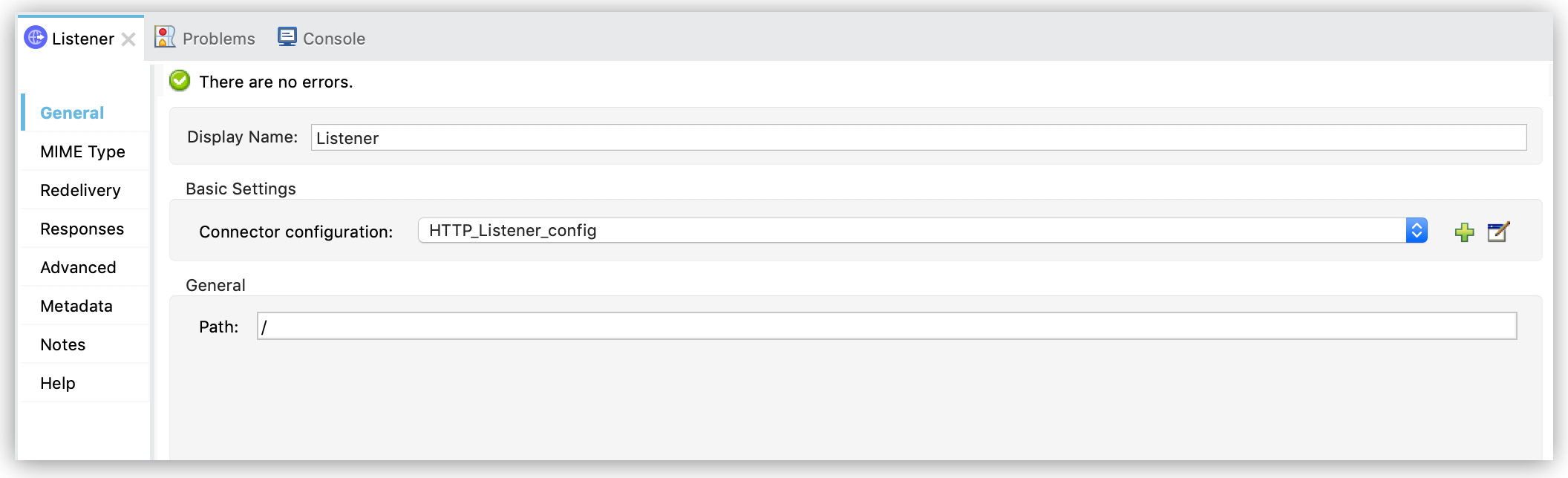 Figure 1. Listener 設定で [Path (パス)] 項目を設定します。
Transform Message コンポーネントを追加してメタデータを添付する
Transform Message コンポーネントを追加および設定する手順は、次のとおりです。
-
[Mule Palette (Mule パレット)] ビューで、
transform を検索して [Transform Message] を選択します。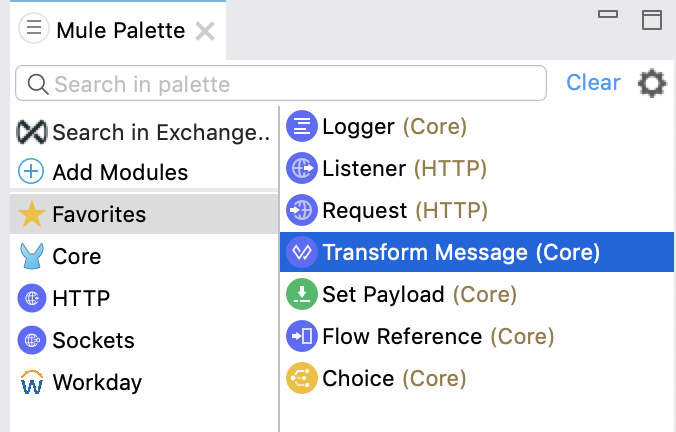 Figure 2. [Mule Palette (Mule パレット)] ビューで [Transform Message] を選択します。
 -
Transform Message コンポーネントをキャンバスの Listener コンポーネントの右にドラッグします。
-
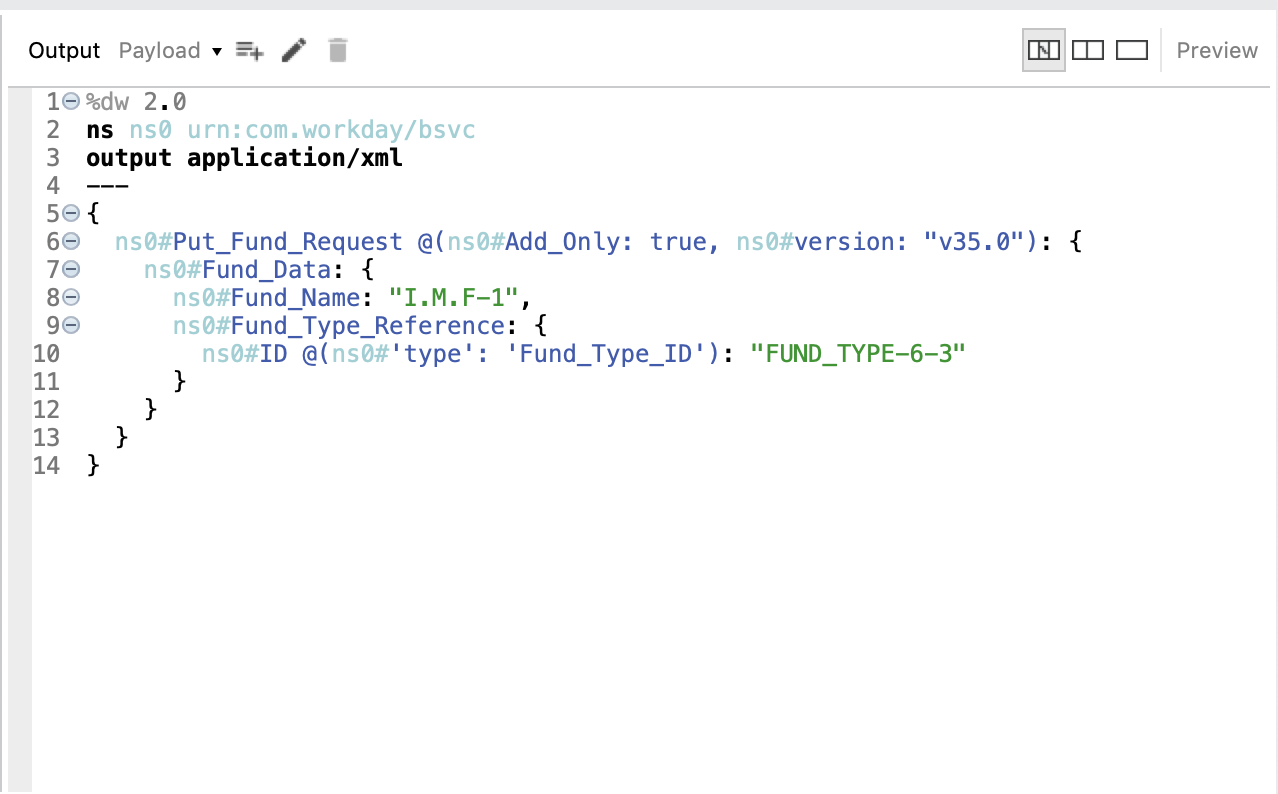
Transform Message 設定で、[Output (出力)] セクションの括弧を次の XML で上書きします。
%dw 2.0
output application/xml
ns ns0 urn:com.workday/bsvc
---
{
  ns0#Put_Fund_Request @(ns0#Add_Only: true, ns0#version: "v36.0"): {
    ns0#Fund_Data: {
      ns0#Fund_Name: "I.M.F",
      ns0#Fund_Type_Reference: {
        ns0#ID @(ns0#'type': 'Fund_Type_ID'): "FUND_TYPE-6-3"
      }
    }
  }
}
次の XML は、Transform Message コンポーネントの入力例を示しています。
<ns0:Put_Fund_Request xmlns:ns0="urn:com.workday/bsvc" Add_Only="true" version="v36.0">
  <ns0:Fund_Data>
    <ns0:Fund_Name>I.M.F</ns0:Fund_Name>
    <ns0:Fund_Type_Reference>
      <ns0:ID type="Fund_Type_ID">FUND_TYPE-6-3</ns0:ID>
    </ns0:Fund_Type_Reference>
  </ns0:Fund_Data>
</ns0:Put_Fund_Request>次のスクリーンショットは、Transform Message 設定の [Output (出力)] セクションに表示される出力を示しています。
財務管理操作を追加および設定する
-
[Mule Palette (Mule パレット)] ビューで
workday を検索し、[Financial management] 操作を選択します。 -
Financial management 操作をキャンバスの Transform Message コンポーネントの右にドラッグします。
-
Financial management 設定で、[Connector configuration (コネクタ設定)] 項目の横にある [+] をクリックしてグローバル要素を追加します。
-
次のようにグローバル要素を設定します。
-
Configuration Name (設定名):
My_Workday_Connection -
Connection (接続):
Basic authentication api -
Password (パスワード):
${workday.password} -
Host Name (ホスト名): デフォルトのまま
impl-cc.workday.com -
Tenant Name (テナント名):
${workday.tenantName} -
Username (ユーザー名):
${workday.userName}
-
-
[Test Connection (テスト接続)] をクリックして、でユーザー名、パスワード、テナント名が正しいことを確認します。
-
[OK] をクリックします。
-
プロパティウィンドウの [Operation (操作)] 項目で
Put_Fund を選択します。
Mule コンソールに応答を出力するロガーを追加する
-
[Mule Palette (Mule パレット)] ビューで、
logger を検索して [Logger (Core) (Logger (コア))] を選択します。 -
Logger コンポーネントを、キャンバスの [Financial management] コンポーネントの右にドラッグします。
-
次の項目を設定します。
項目 値 Display Name (表示名)
「
Log Response」と入力します。Message (メッセージ)
「
`#[payload]`」と入力します。Level (レベル)
デフォルト (
INFO) のままにします。 -
プロジェクトを保存します。
-
ポート 8081 で
/ に要求を送信してアプリケーションをテストします。 -
次のような XML 応答を受信します。
<wd:Put_Fund_Response xmlns:wd="urn:com.workday/bsvc" wd:version="v36.0">
    <wd:Fund_Reference wd:Descriptor="I.M.F">
        <wd:ID wd:type="WID">THE_WID_ID_NUMBER</wd:ID>
        <wd:ID wd:type="Fund_ID">FUND-6-399</wd:ID>
    </wd:Fund_Reference>
</wd:Put_Fund_Response>
財務管理例の XML
この例のフローをすばやく Mule アプリケーションに読み込むには、次のコードを Studio XML エディターに貼り付けます。
?xml version="1.0" encoding="UTF-8"?>

<mule xmlns:ee="http://www.mulesoft.org/schema/mule/ee/core" xmlns:http="http://www.mulesoft.org/schema/mule/http"
	xmlns:workday="http://www.mulesoft.org/schema/mule/workday"
	xmlns="http://www.mulesoft.org/schema/mule/core" xmlns:doc="http://www.mulesoft.org/schema/mule/documentation" xmlns:xsi="http://www.w3.org/2001/XMLSchema-instance" xsi:schemaLocation="http://www.mulesoft.org/schema/mule/core http://www.mulesoft.org/schema/mule/core/current/mule.xsd
http://www.mulesoft.org/schema/mule/workday http://www.mulesoft.org/schema/mule/workday/current/mule-workday.xsd
http://www.mulesoft.org/schema/mule/http http://www.mulesoft.org/schema/mule/http/current/mule-http.xsd
http://www.mulesoft.org/schema/mule/ee/core http://www.mulesoft.org/schema/mule/ee/core/current/mule-ee.xsd">
	<http:listener-config name="HTTP_Listener_config" doc:name="HTTP Listener config" >
		<http:listener-connection host="0.0.0.0" port="8081" />
	</http:listener-config>
	<workday:config name="My_Workday_Connection" doc:name="Workday Config" >
		<workday:basic-authentication-api-connection password="${workday.password}" tenantName="${workday.tenantName}" userName="${workday.userName}" />
	</workday:config>
	<http:listener-config name="HTTP_Listener_config1" doc:name="HTTP Listener config" >
		<http:listener-connection host="0.0.0.0" port="8081" />
	</http:listener-config>
	<workday:config name="My_Workday-Connection" doc:name="Workday Config" >
		<workday:basic-authentication-api-connection password="${workday.password}" tenantName="${workday.tenantName}" userName="${workday.userName}" />
	</workday:config>
	<flow name="workday-13-test-exampleFlow" >
		<http:listener doc:name="Listener" config-ref="HTTP_Listener_config1" path="/"/>
		<ee:transform doc:name="Transform Message" >
			<ee:message >
				<ee:set-payload ><![CDATA[%dw 2.0
output application/xml
ns ns0 urn:com.workday/bsvc
---
{
  ns0#Put_Fund_Request @(ns0#Add_Only: true, ns0#version: "v36.0"): {
    ns0#Fund_Data: {
      ns0#Fund_Name: "I.M.F",
      ns0#Fund_Type_Reference: {
        ns0#ID @(ns0#'type': 'Fund_Type_ID'): "FUND_TYPE-6-3"
      }
    }
  }
}]]></ee:set-payload>
			</ee:message>
		</ee:transform>
		<workday:financial-management doc:name="Financial management" config-ref="My_Workday-Connection"/>
		<logger level="INFO" doc:name="Log Response"  message="#[payload]"/>
	</flow>
</mule>